Mobile App (Flutter)
Configure, rebrand, build and publish the Buildora app for Android and iOS.
Before you start: Google services and your own accounts. Push notifications use Firebase Cloud Messaging and the optional “Continue with Google” button uses Google Sign-In. Both are Google services: you create your own Firebase project and Google Cloud OAuth clients, accept Google’s terms (Firebase / Google APIs Terms of Service) and are responsible for any charges and for the privacy disclosures in your store listings. No Firebase or Google configuration files ship with the item, and the app works without them (push and the Google button are simply off). Publishing also needs your own Apple Developer and Google Play Console accounts. Set-up: Firebase Push, Google Sign-In; costs: Third-Party Services & Costs.
What the App Does
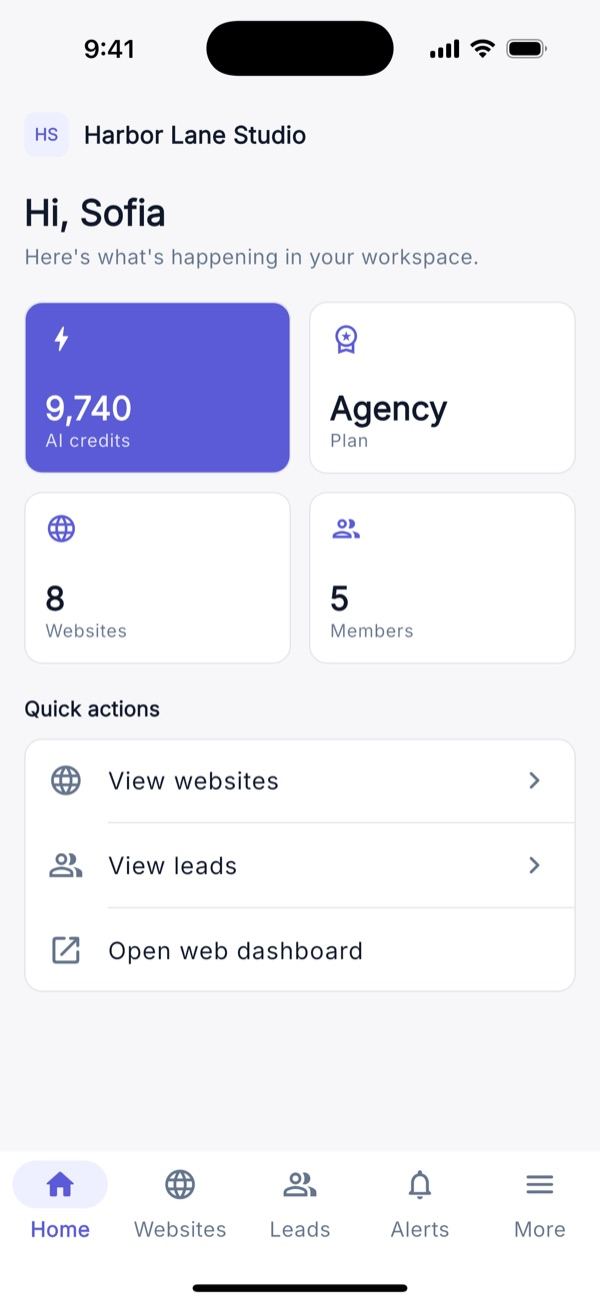
A native Flutter app for Android and iOS (not a WebView wrapper) for the workspace members of your Buildora install. It uses the same /api/v1 REST API as the web dashboard, with Sanctum bearer tokens issued by /api/v1/mobile/auth/*; no AI keys or payment credentials are stored in the app. State is Riverpod 3, routing is go_router, HTTP is Dio. Version 1.0.0+1, five bottom tabs (Home, Websites, Leads, Alerts for notifications, More).
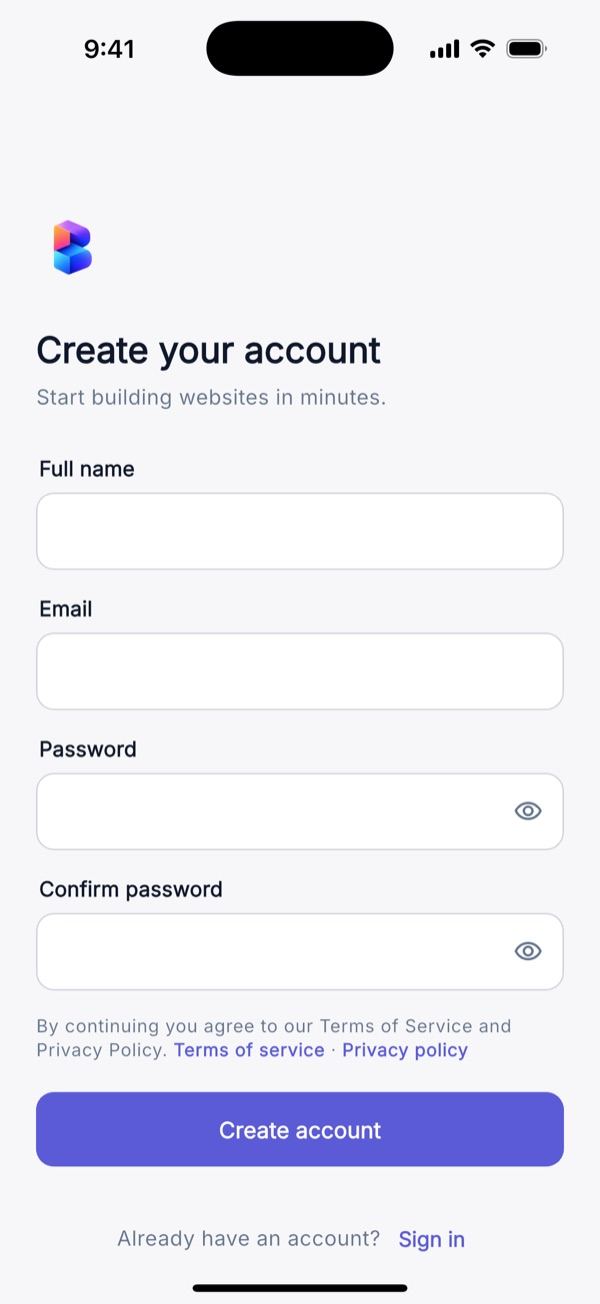
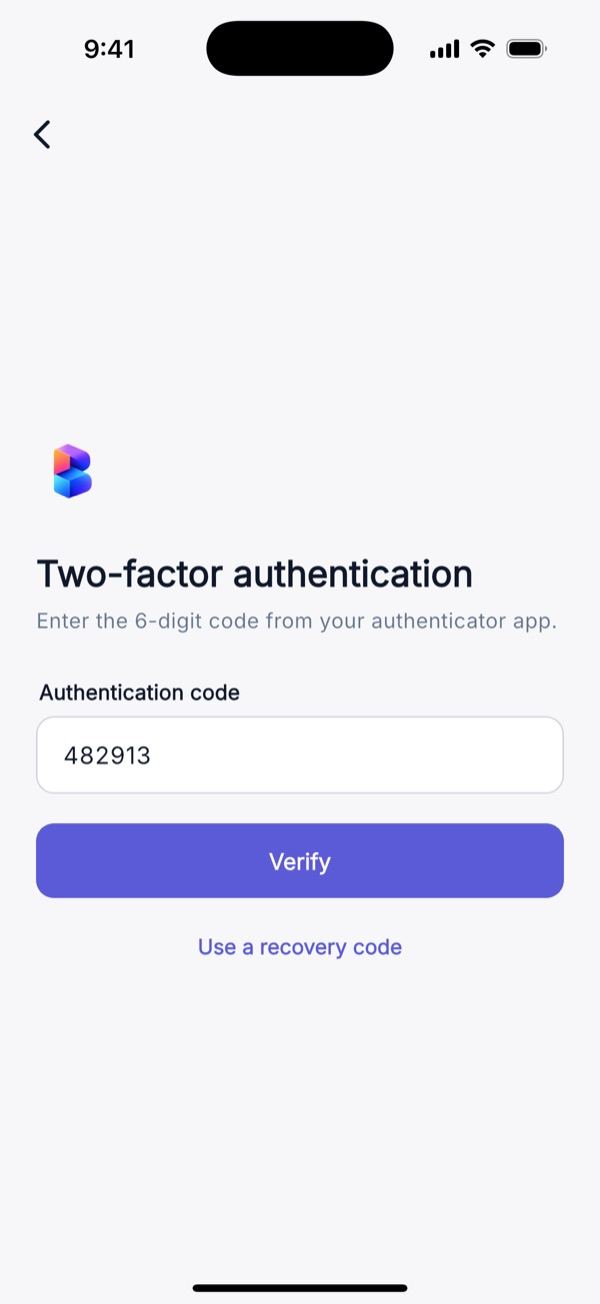
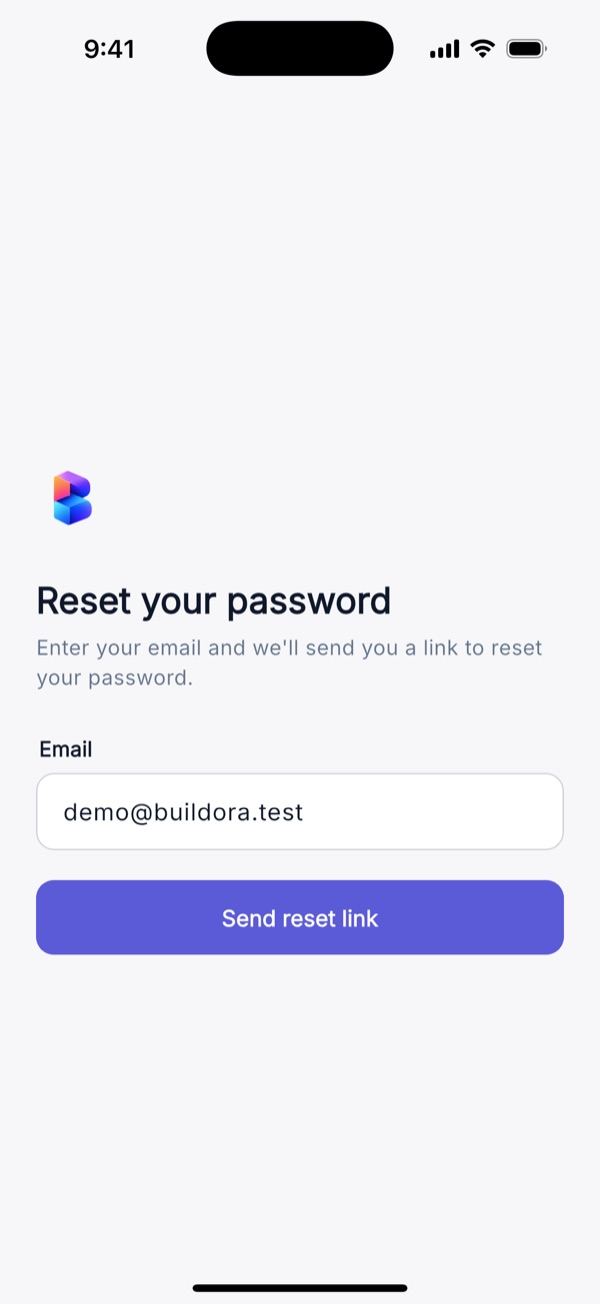
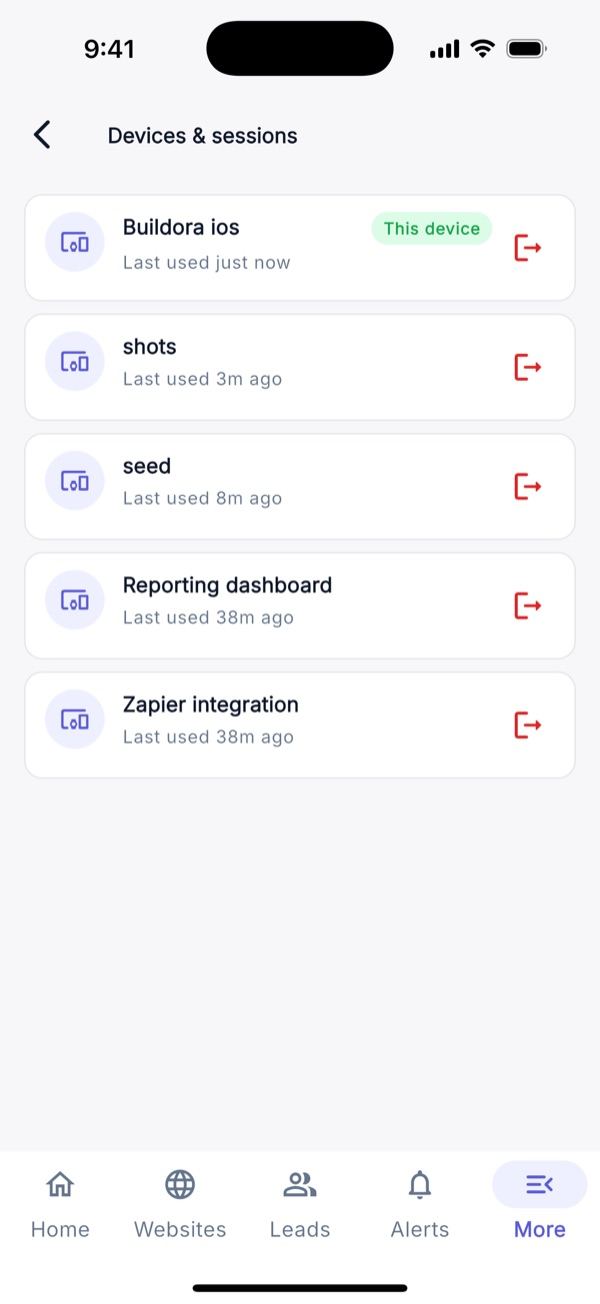
- Account: login, two-factor code or recovery code, registration, forgot/reset password, e-mail verification banner, optional Google Sign-In, workspace switcher, devices & sessions, invitations.
- Websites: create with AI, from a template or blank; publish/unpublish, pages, native page-structure editor, design (brand kit), domains, SEO and redirects, versions, comments, business modules, data store, ZIP export, live build progress.
- AI: AI Studio, copilot chat with streaming replies, restyle, translate, research, AI writer, template gallery with live preview.
- Business suite: forms and submissions, media library (camera/gallery/file), blog, knowledge base, message templates, analytics, leads, contacts, companies, deals board, tasks, inbox, helpdesk, calendar, agency clients, shop, finance, loyalty, e-mail campaigns, automation, social planner, ads tracking, surveys.
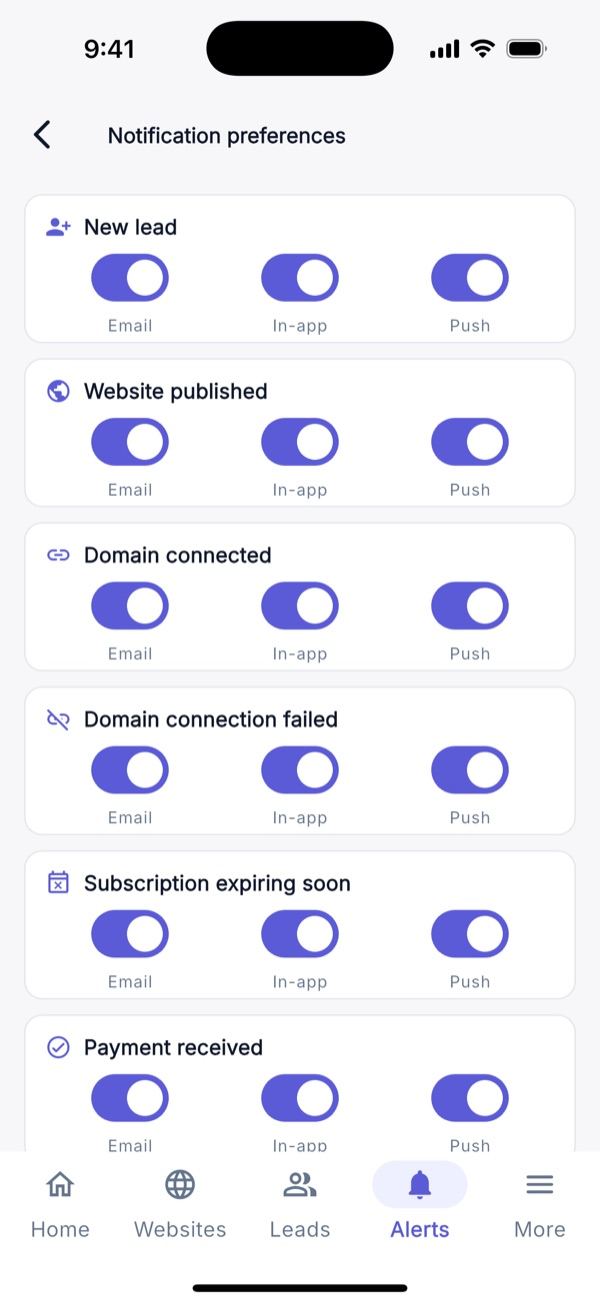
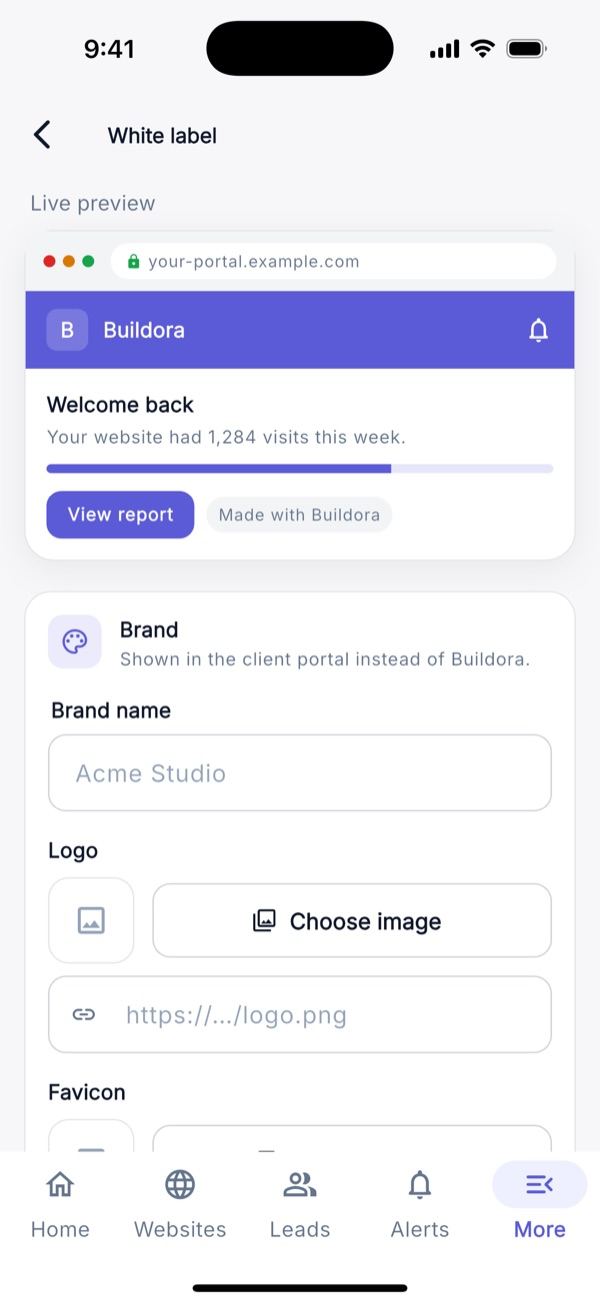
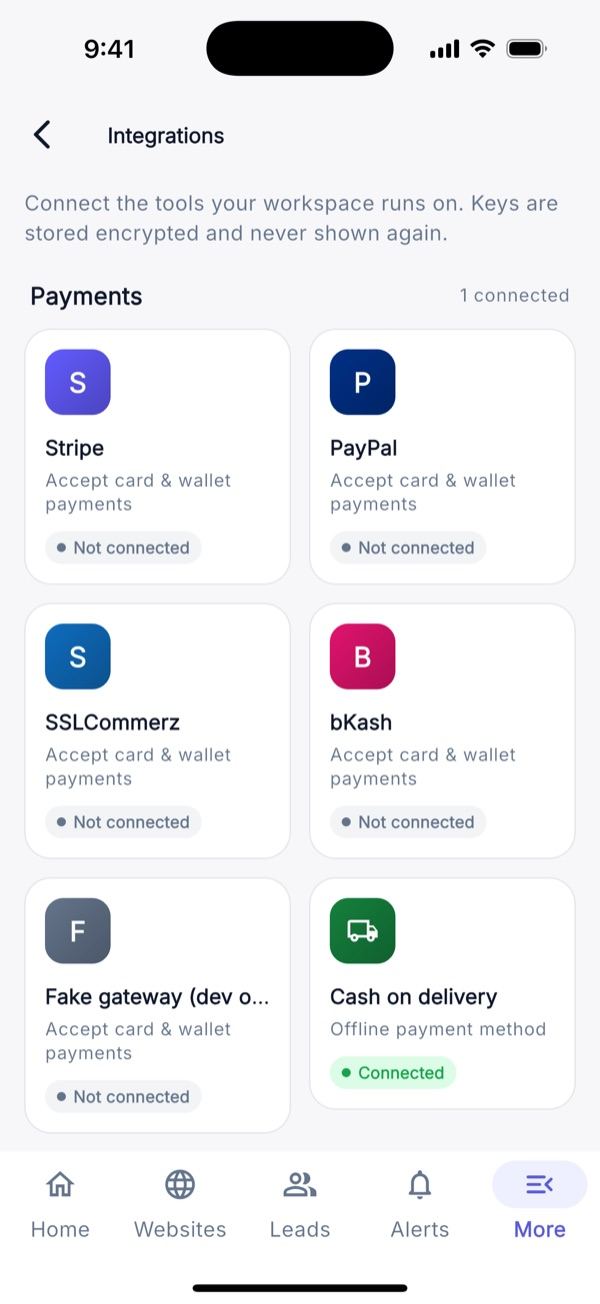
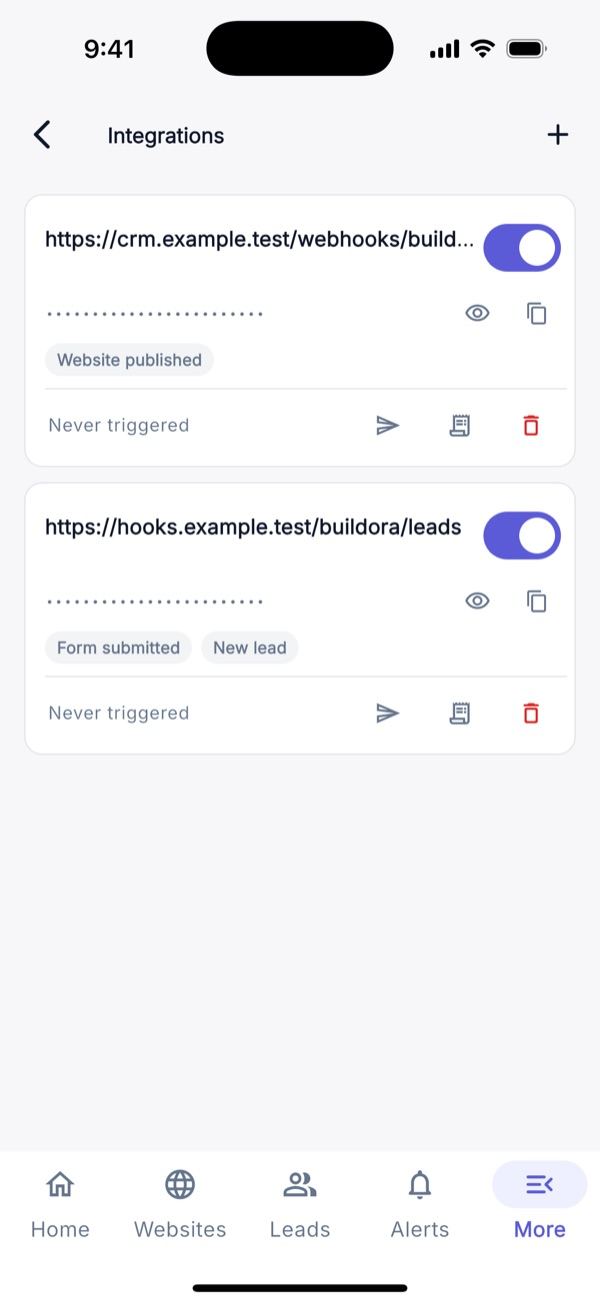
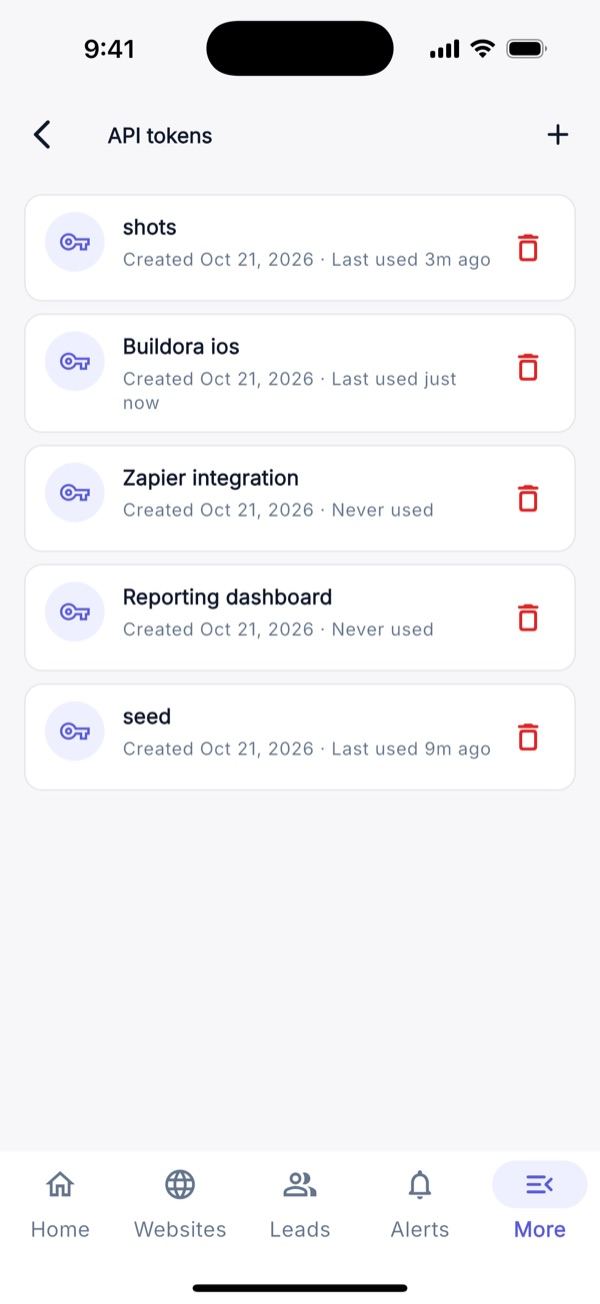
- Workspace: team and custom roles, billing (purchases on Android only; read-only on iOS, see store rules), account deletion, support tickets, notifications with per-event preferences, white label, integrations, webhooks, API tokens, settings.
- Mobile-native: optional FCM push that opens the right screen,
buildora://deep links, light/dark/system theme, English, Bangla, Arabic (RTL) and French.
The app is a companion to the web editor, not a full mobile page builder. In the app you reorder, hide, duplicate and remove sections and edit their content; adding sections, layout and styling open the full web editor (already signed in, through a one-time hand-off link). Super-admin settings stay on the web.
Screen Tour: Start & Sign In
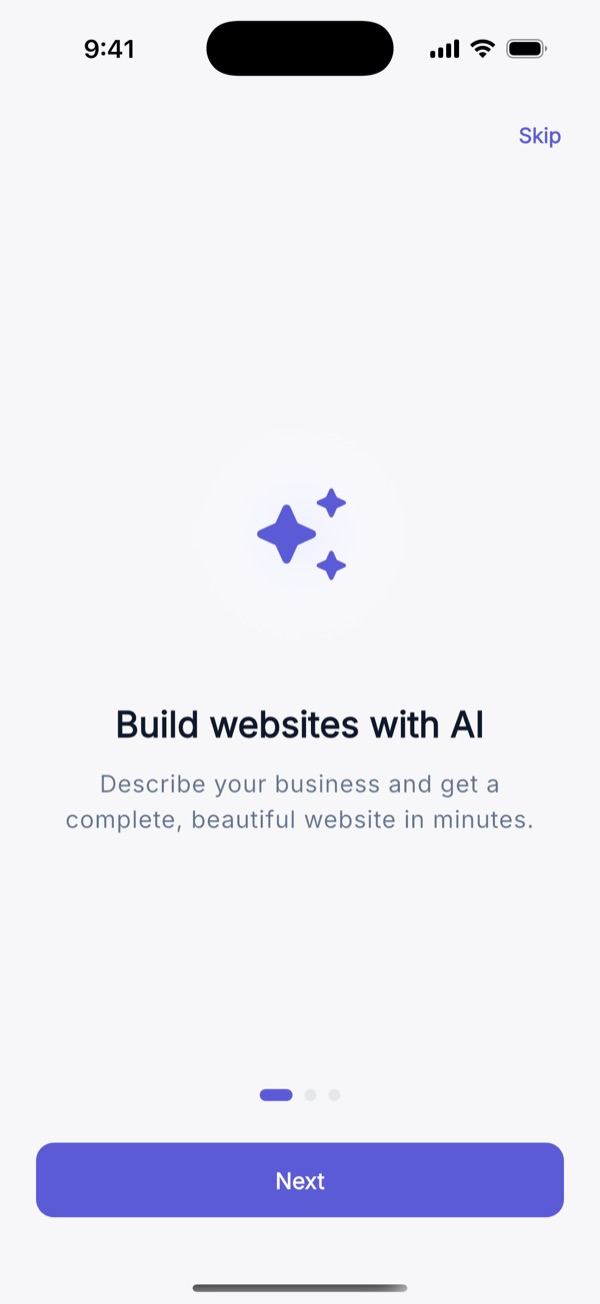
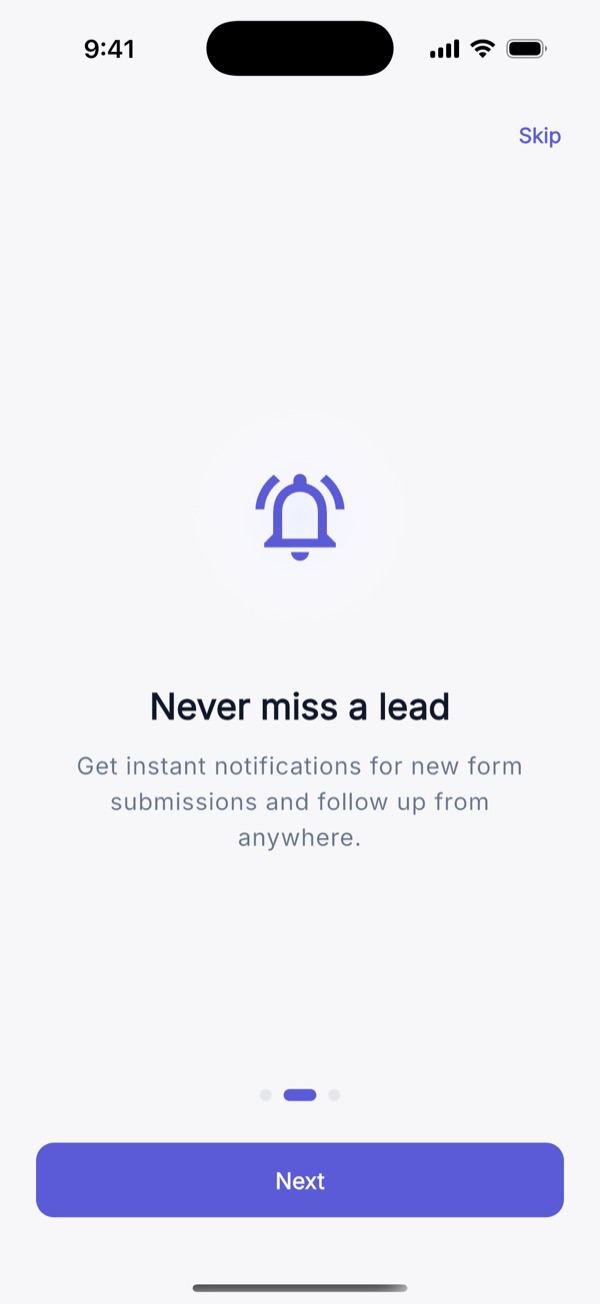
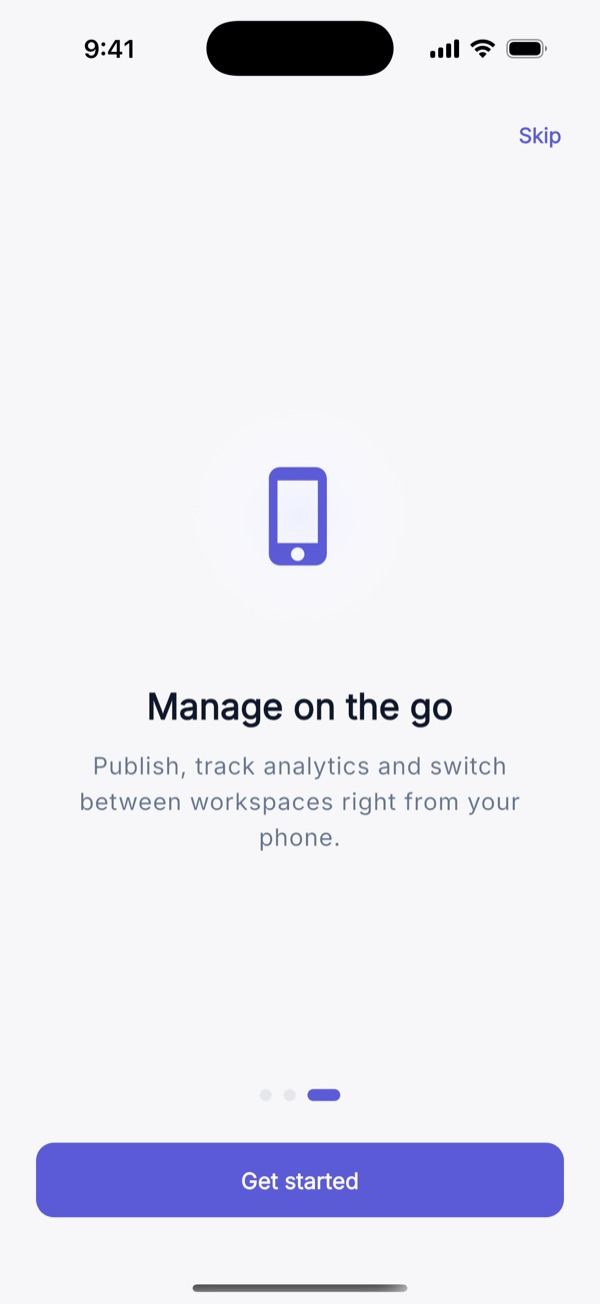
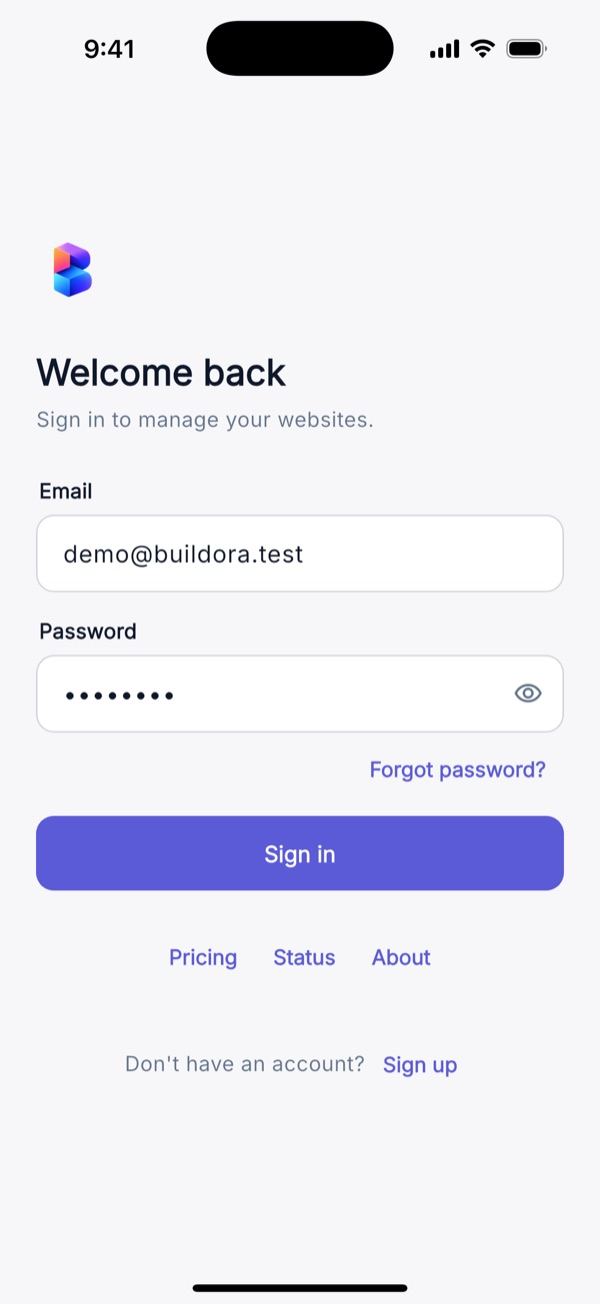
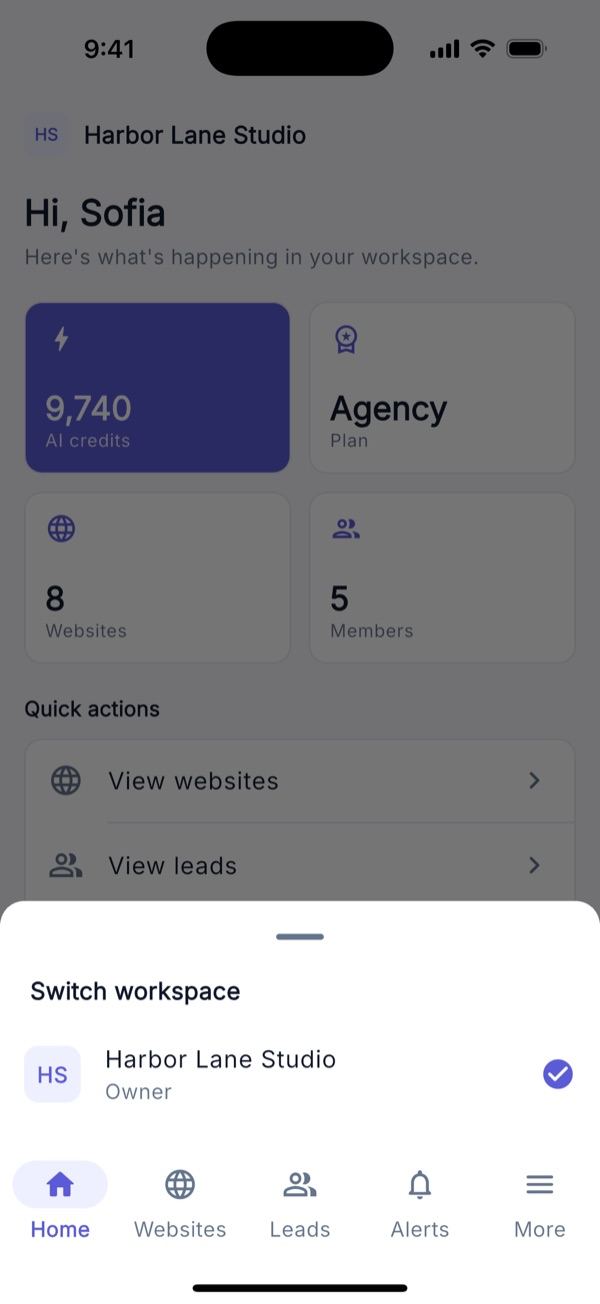
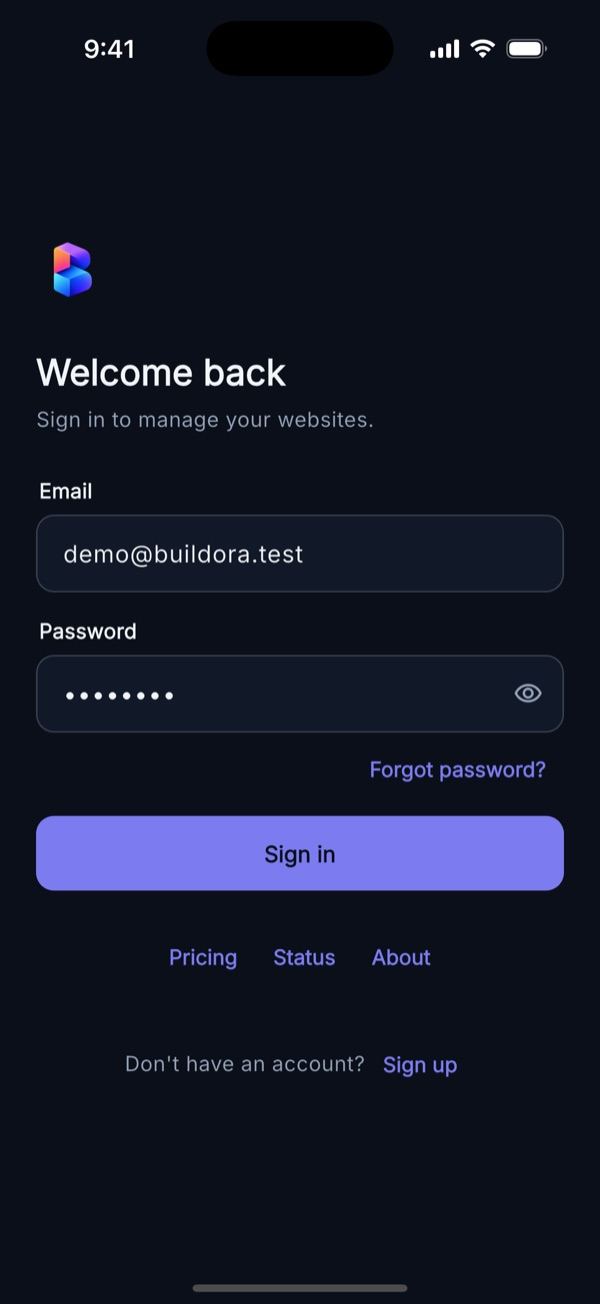
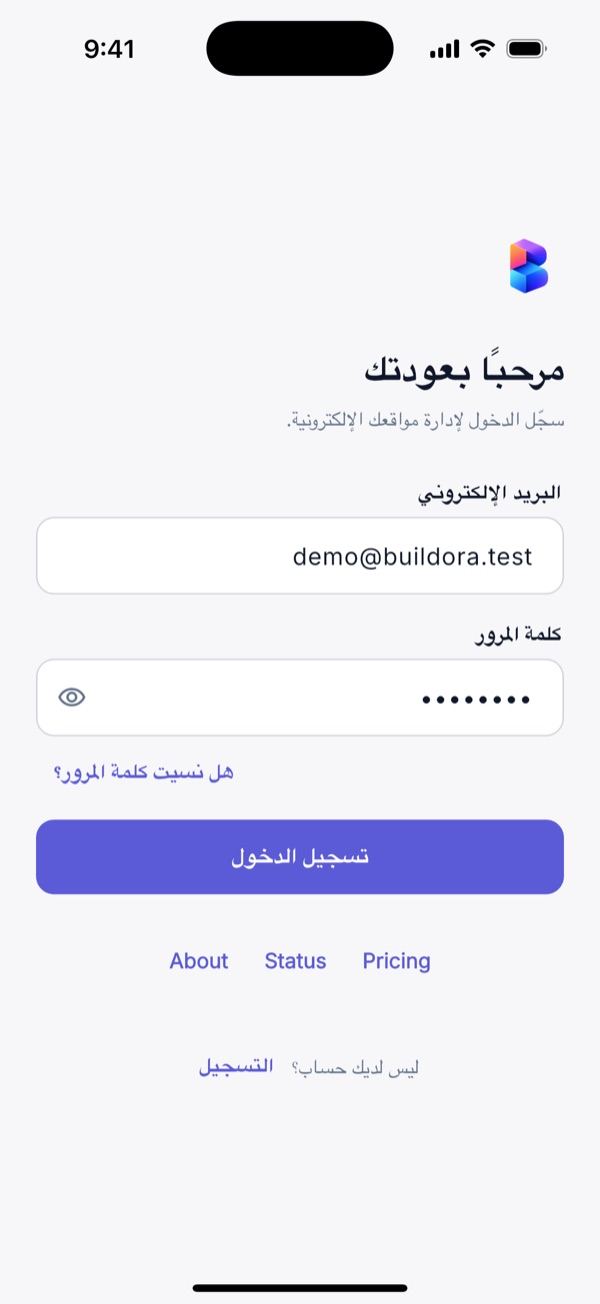
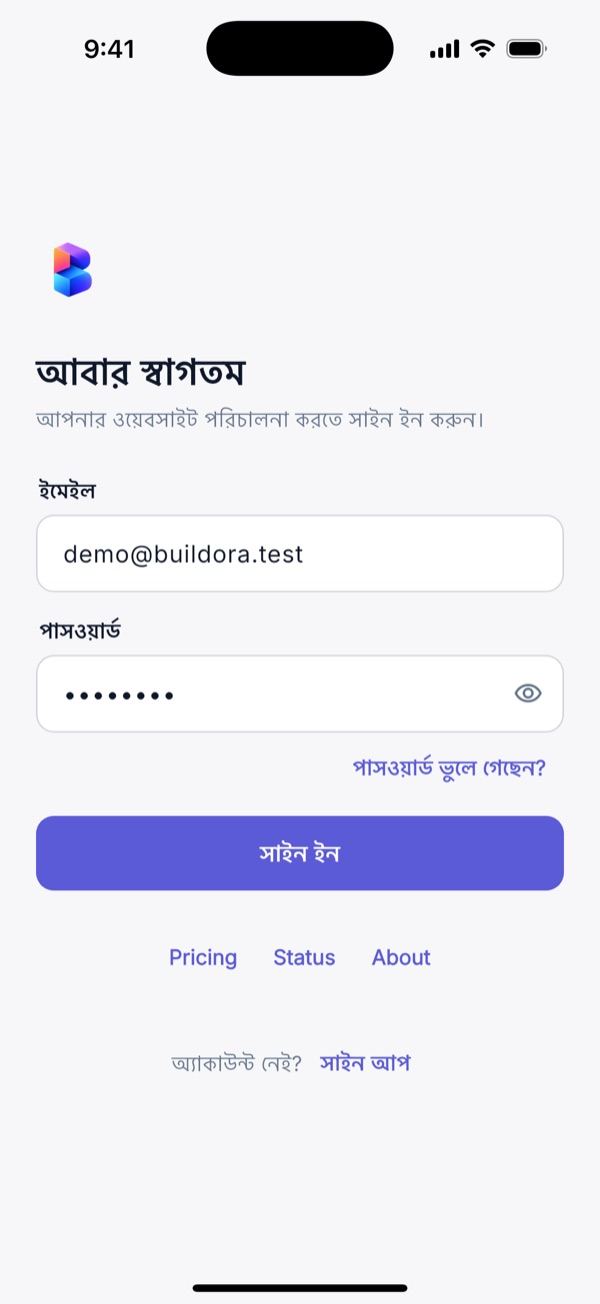
Screens captured from the 1.0.0 app against a demo workspace. The splash screen loads the server’s name and logo from GET /api/v1/config and restores the session. Onboarding (three slides) appears on first launch only. Login offers e-mail/password, “Forgot password”, “Sign up” (hidden when registration is off), the Google button (when configured), and links to Pricing, Status and About; banners show maintenance mode, an expired session or a pending invitation. When the account has 2FA, a code or recovery-code screen follows.
Home & Navigation
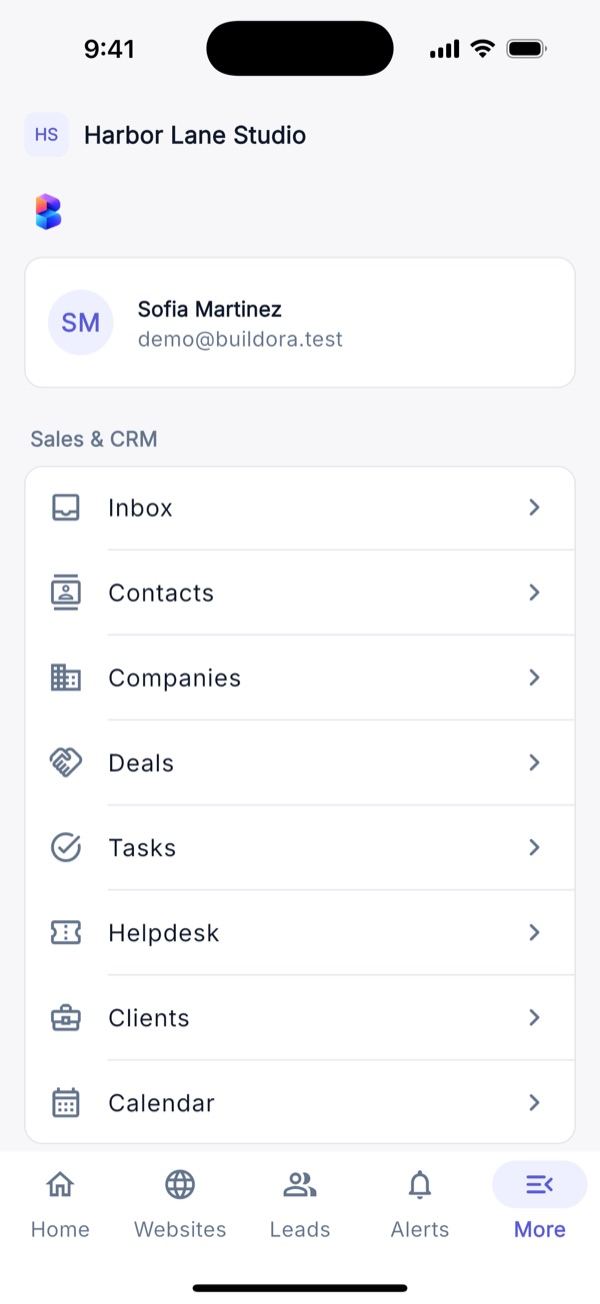
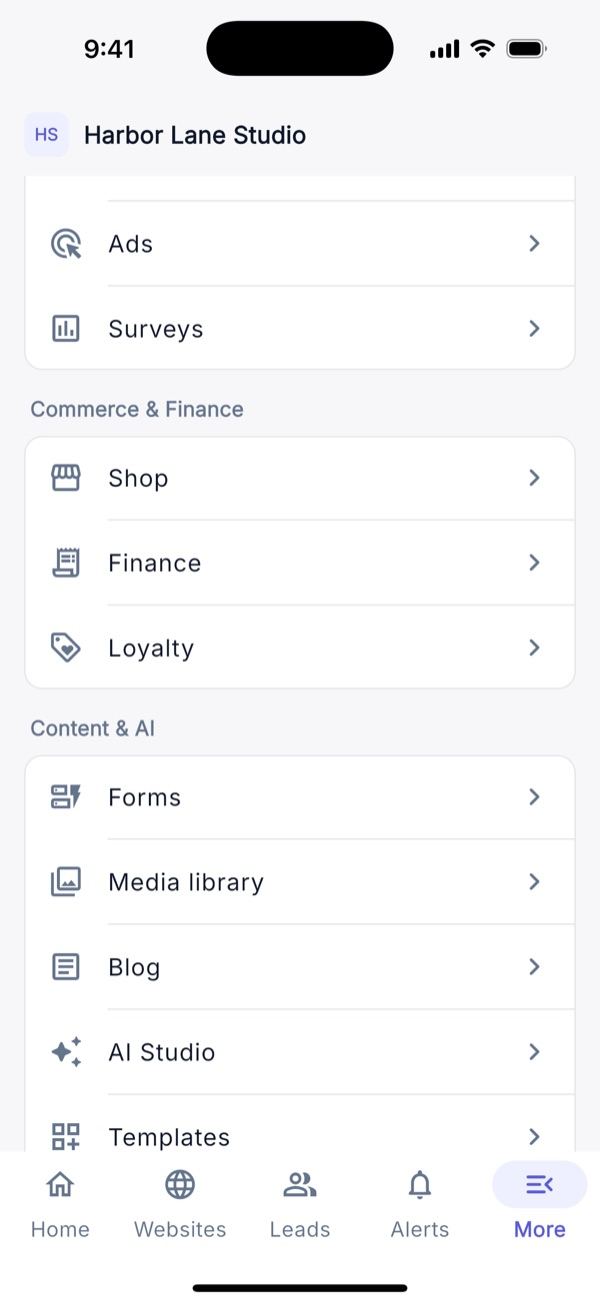
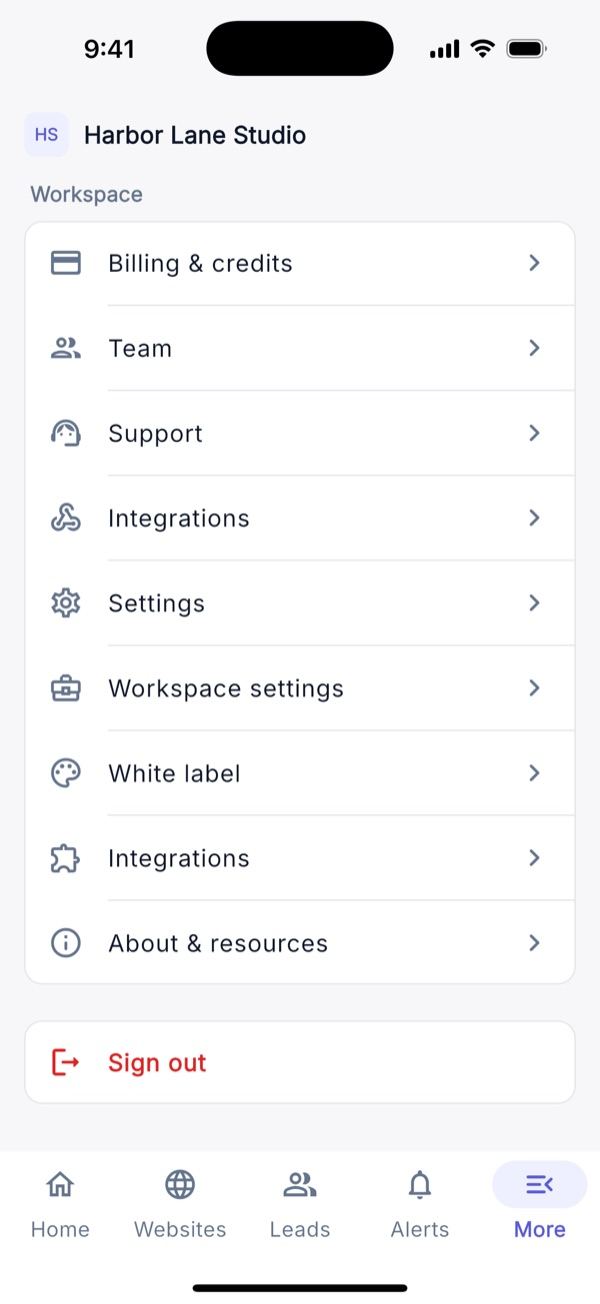
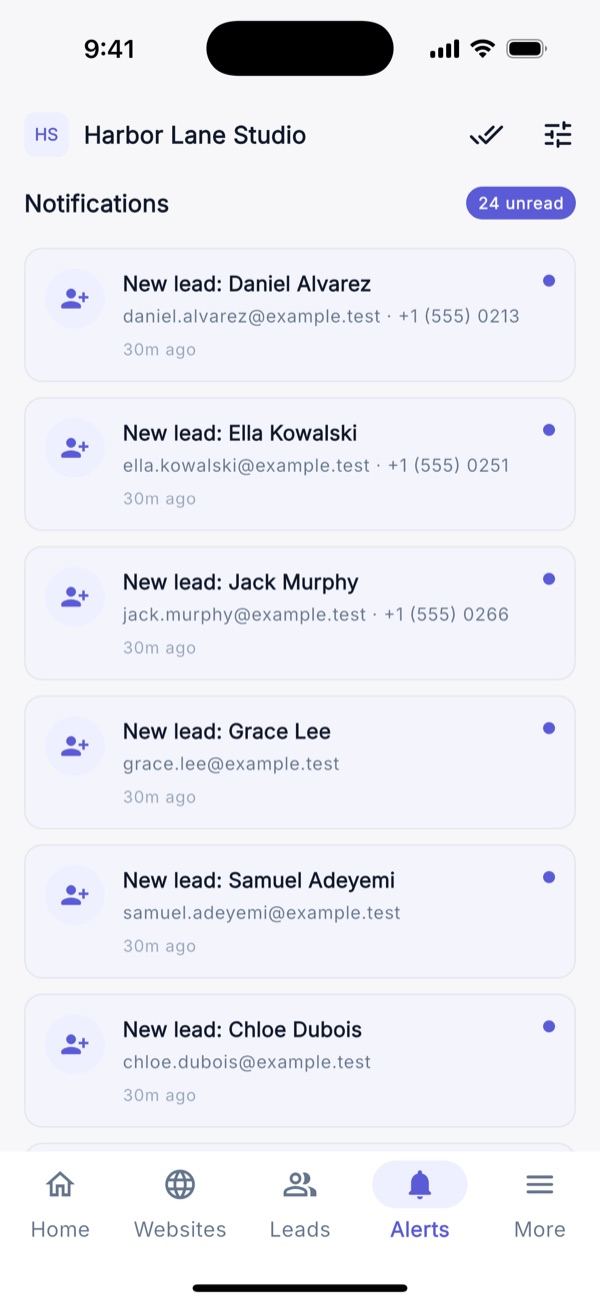
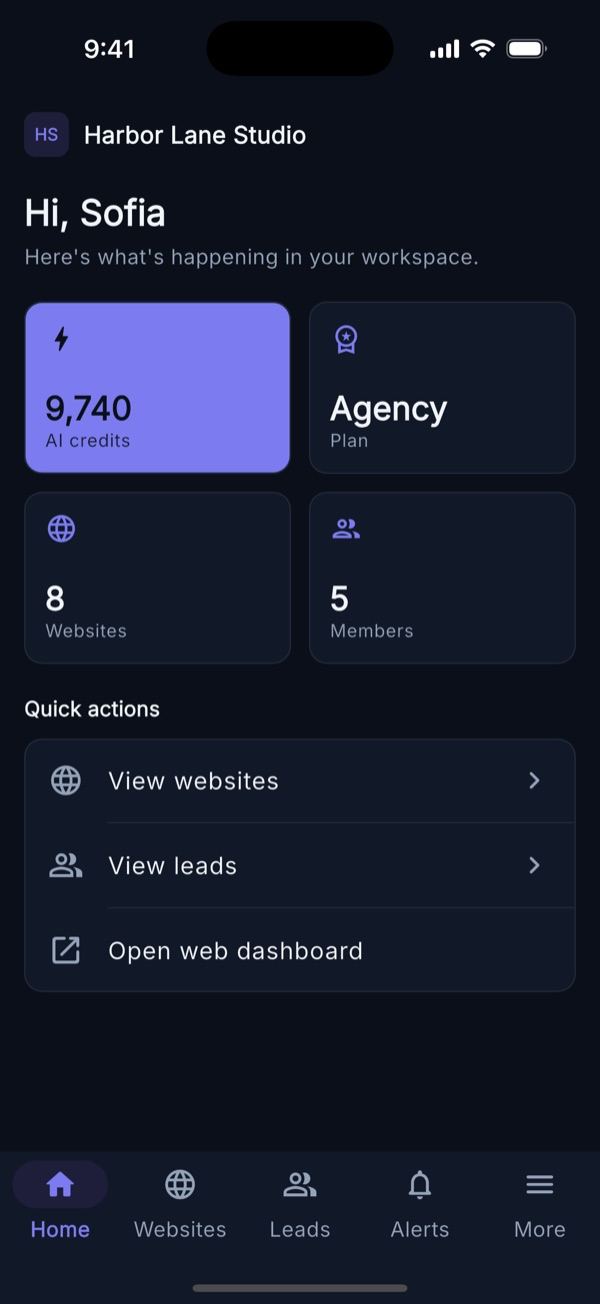
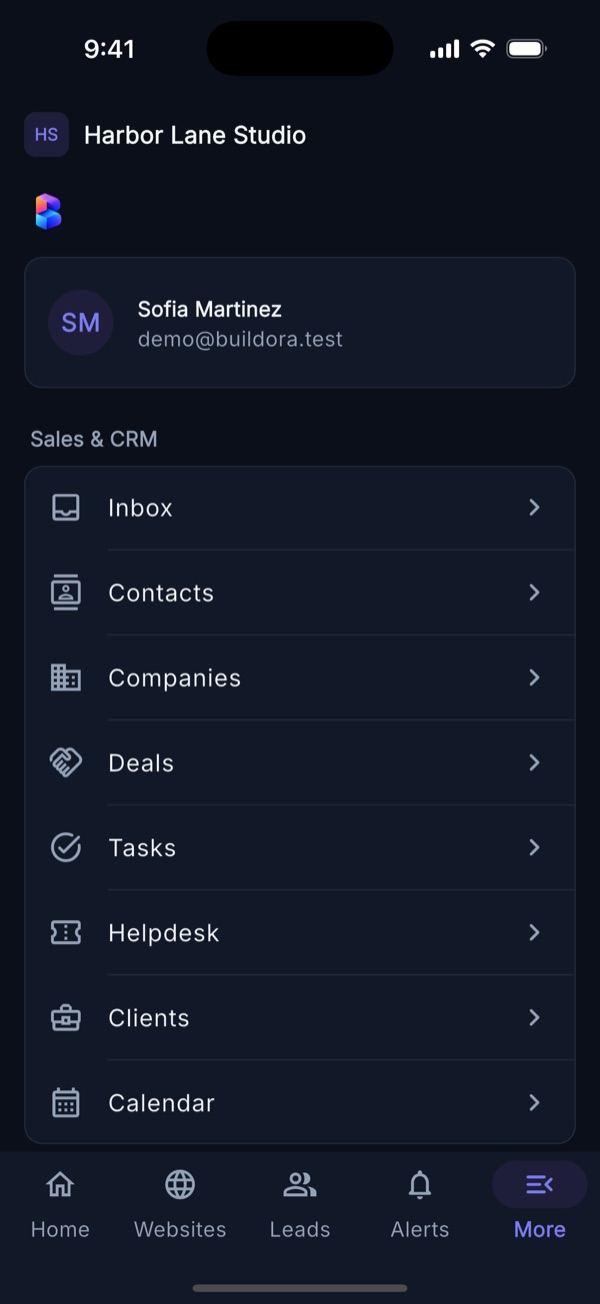
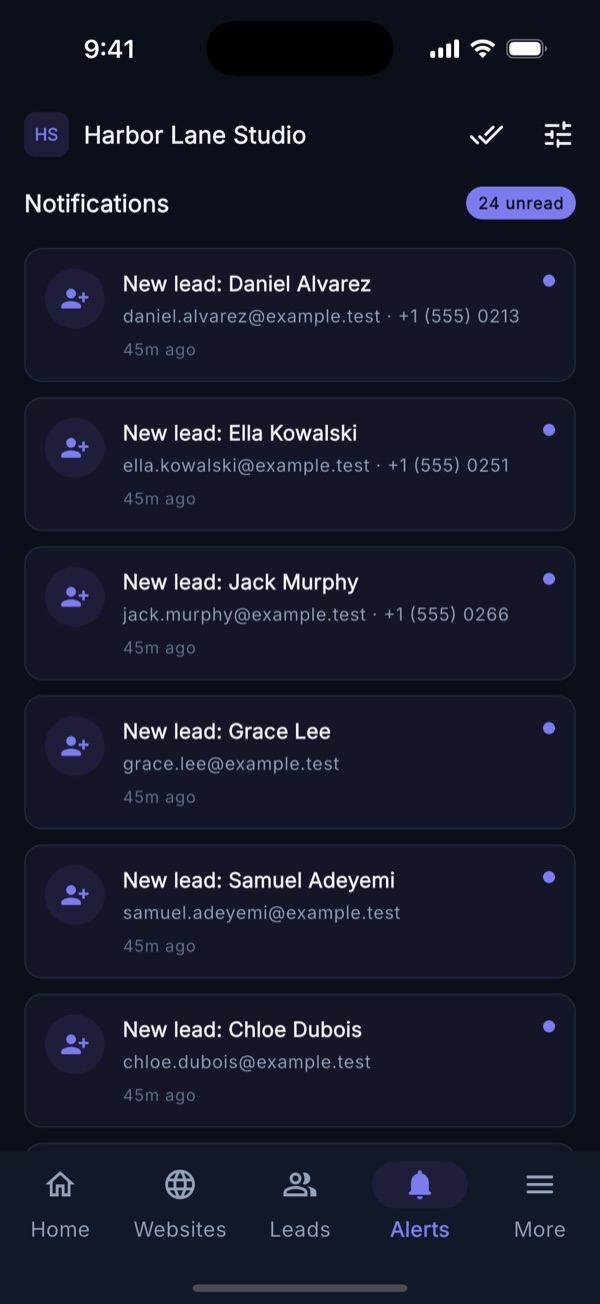
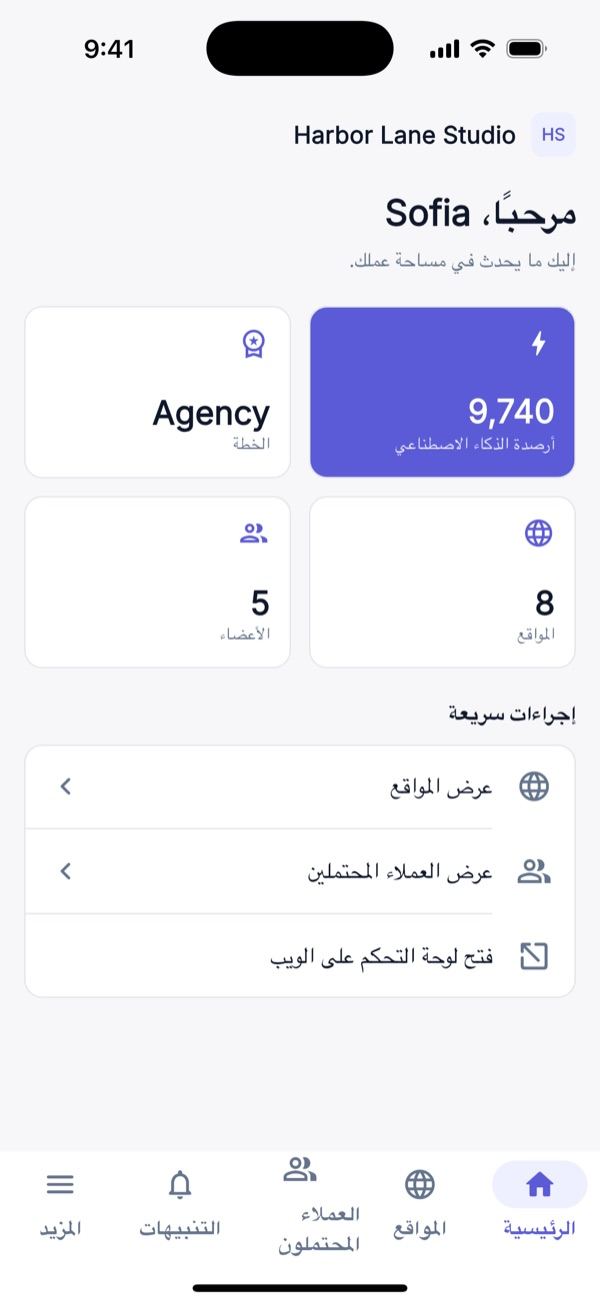
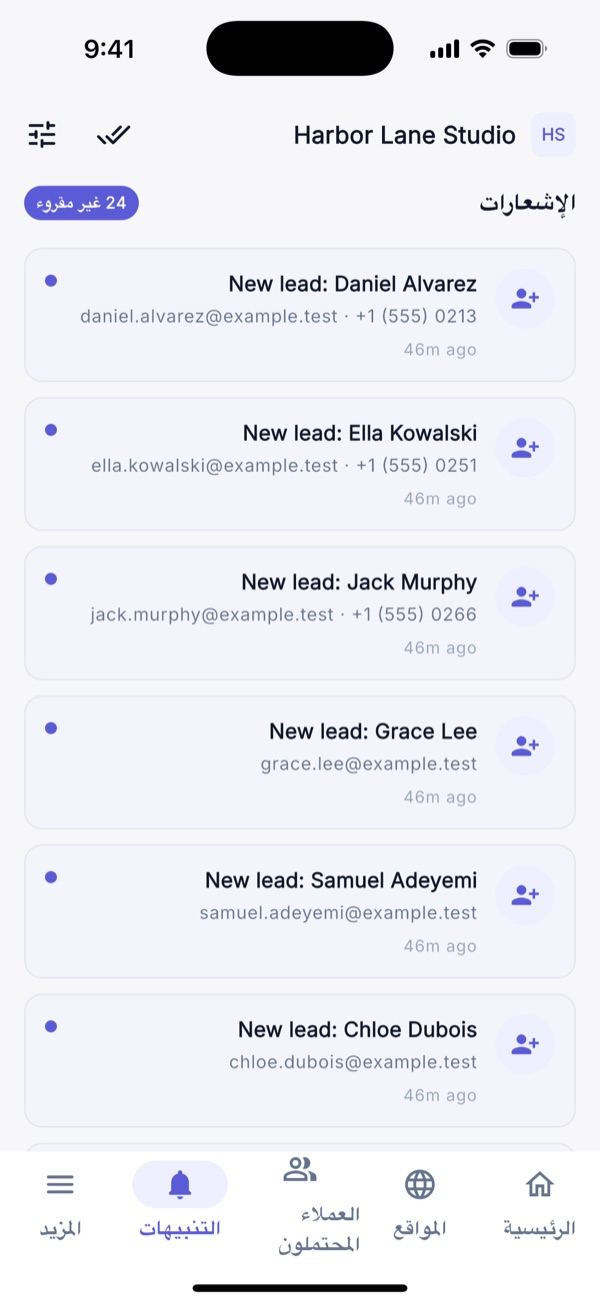
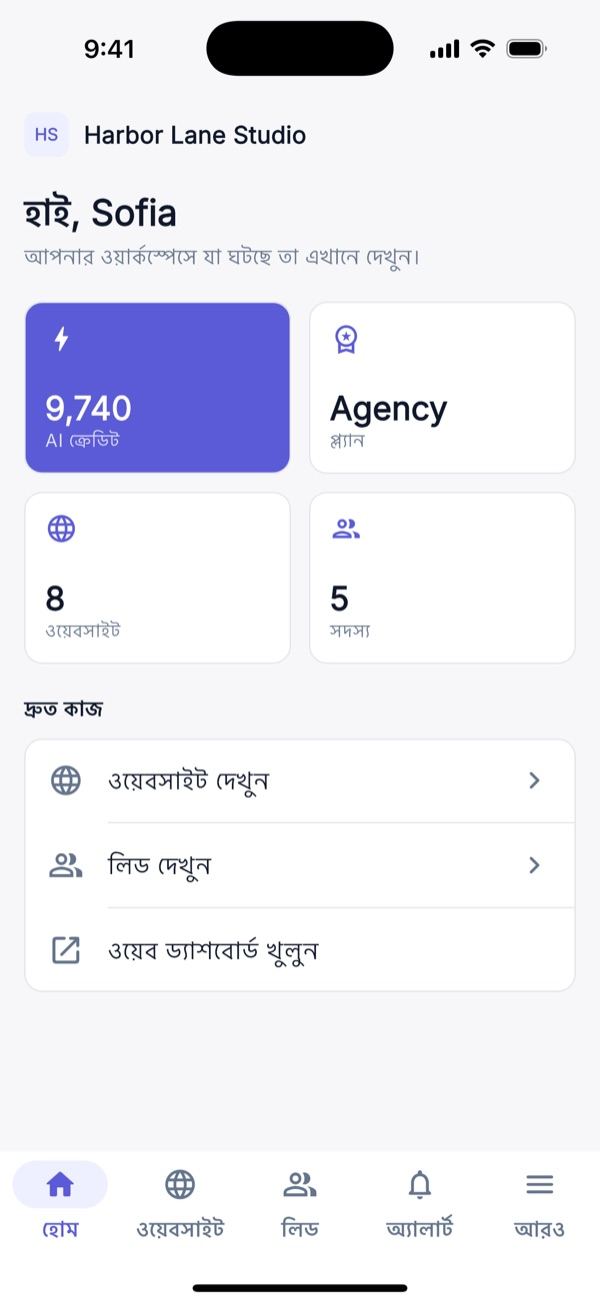
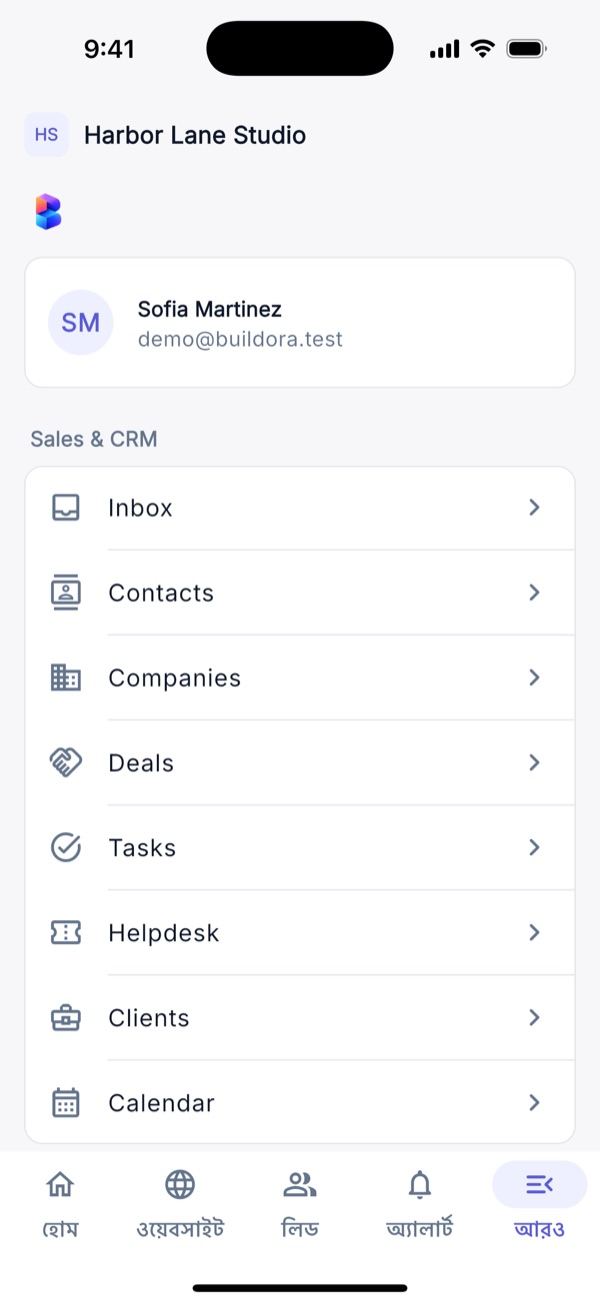
Home greets the user and shows four cards from GET /me (credit balance, plan, websites, members) with quick actions and pull-to-refresh. The app bar has the workspace switcher (shown when the user belongs to two or more workspaces; every request then sends X-Workspace-Id). More groups every other module by area; entries and write actions are hidden when the user’s role or plan does not allow them. Alerts (notifications) lists in-app notifications (tap = mark read and open), and an announcement banner from the admin appears above every tab.
Websites
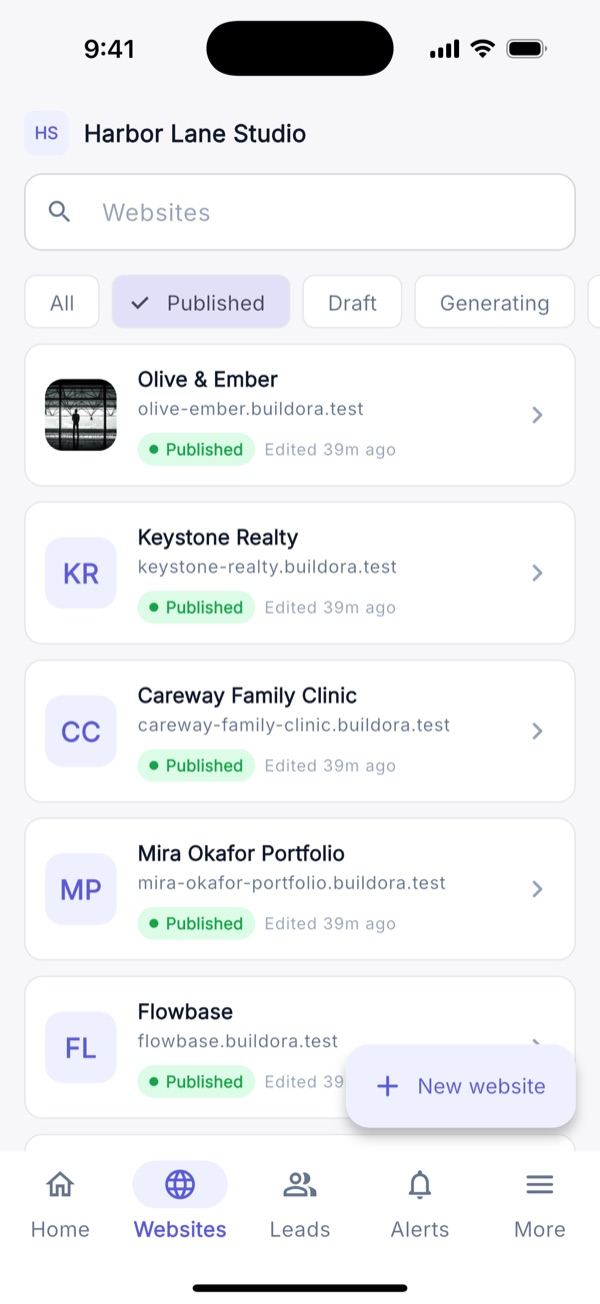
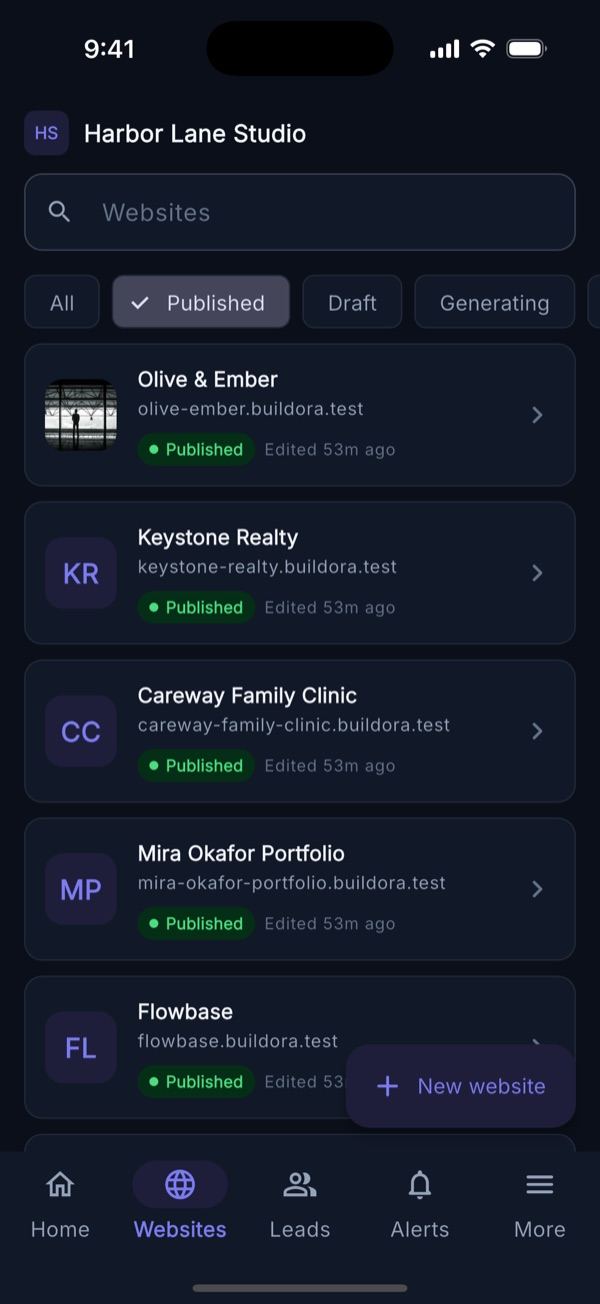
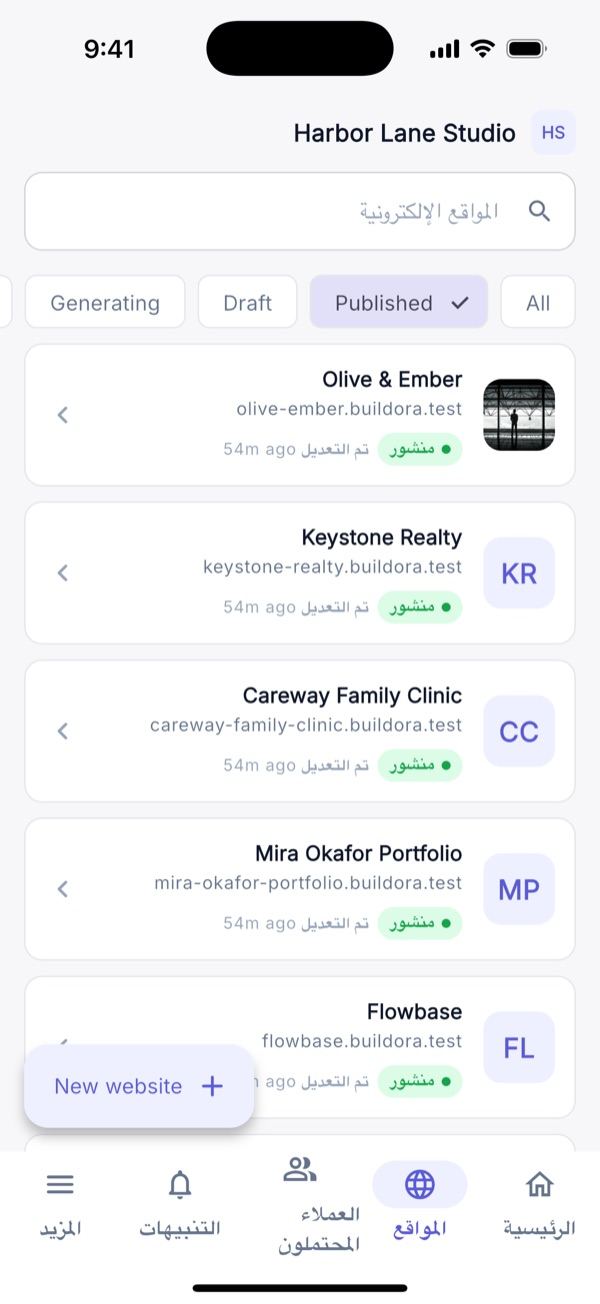
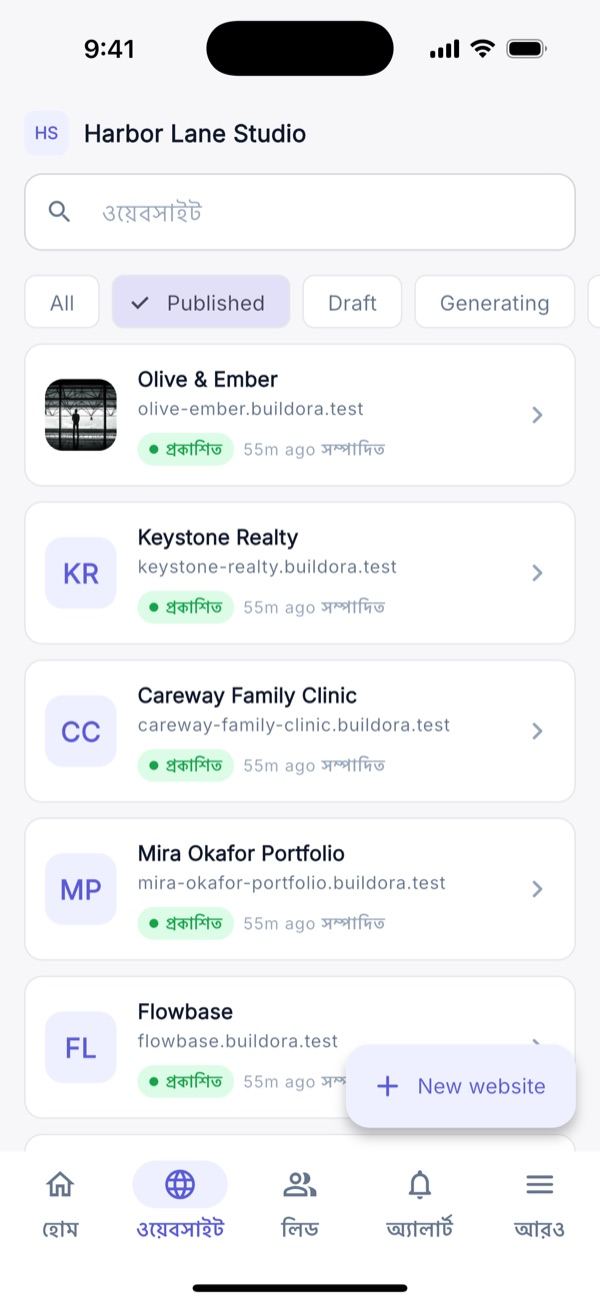
- List: search, status chips (All, Published, Draft, Generating, Maintenance, Unpublished), “New website”.
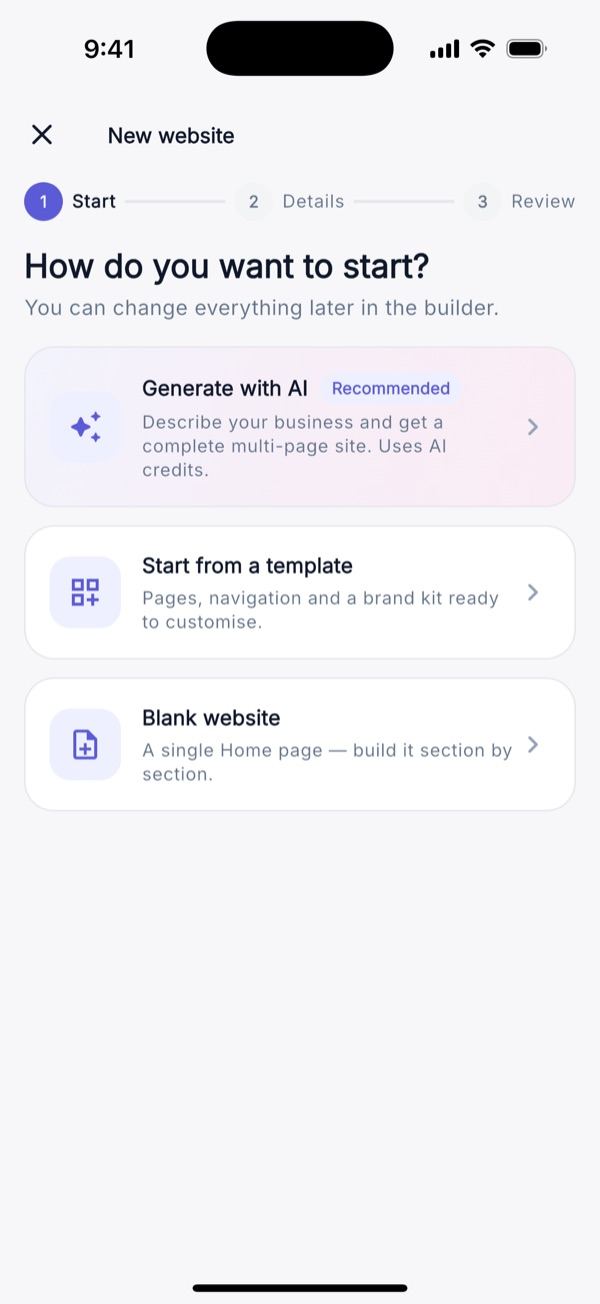
- Create: a 3-step wizard: Generate with AI (brief, example chips, type, language), From template or Blank. The AI path opens the live build screen with steps, per-page status, stop and resume.
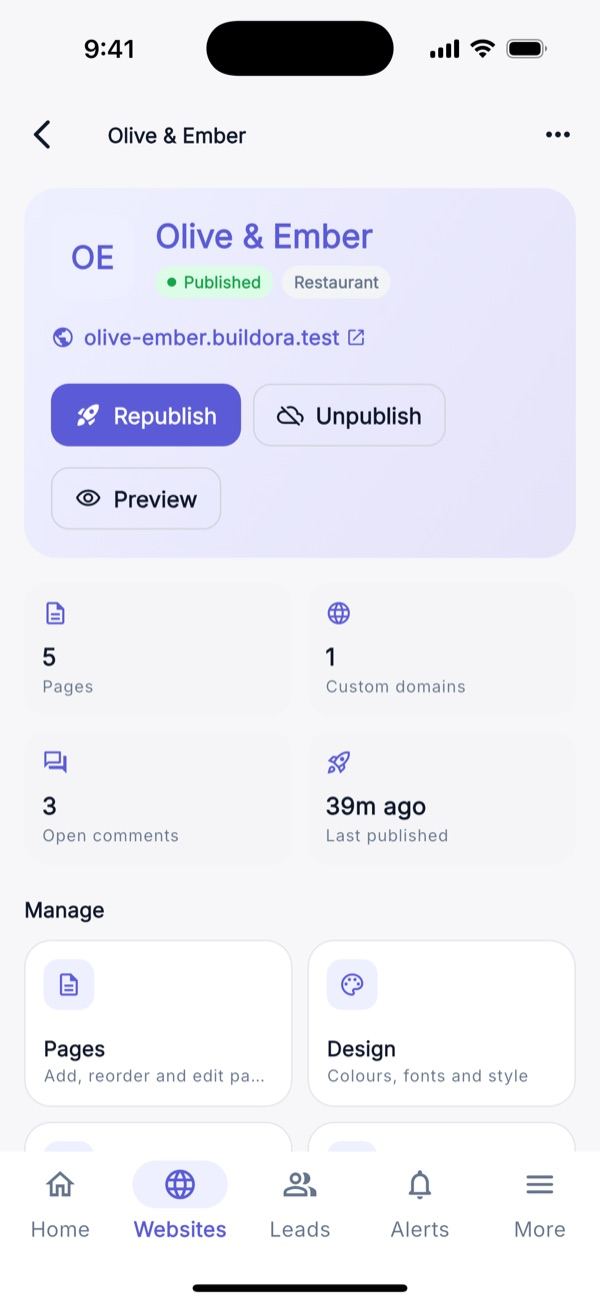
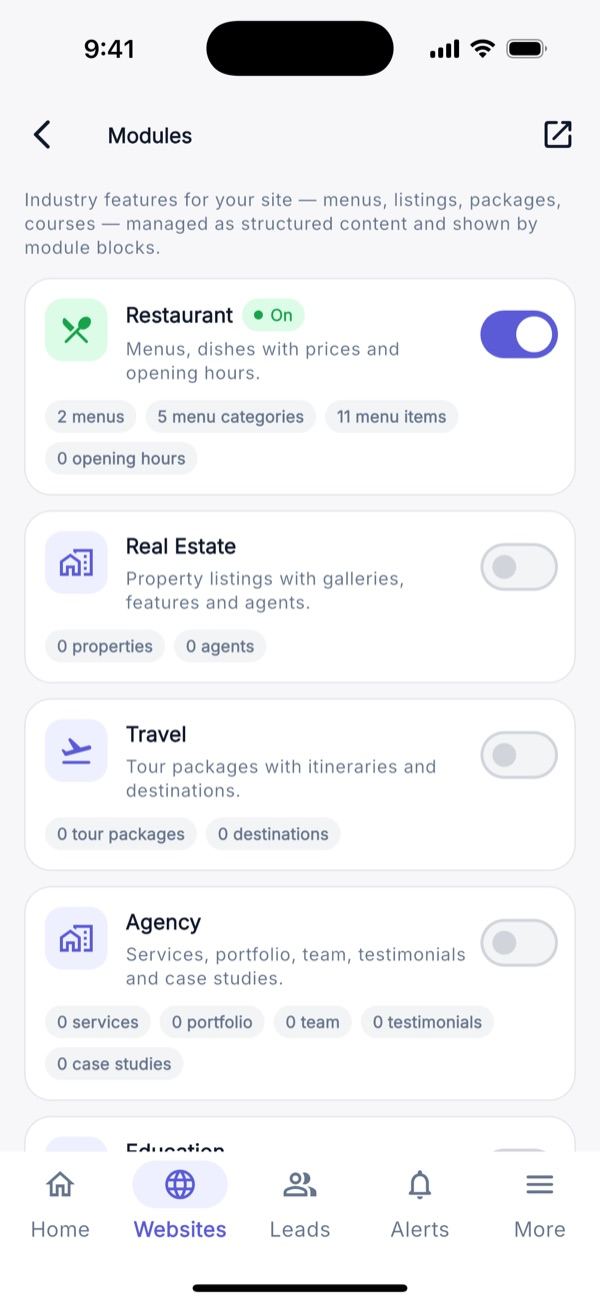
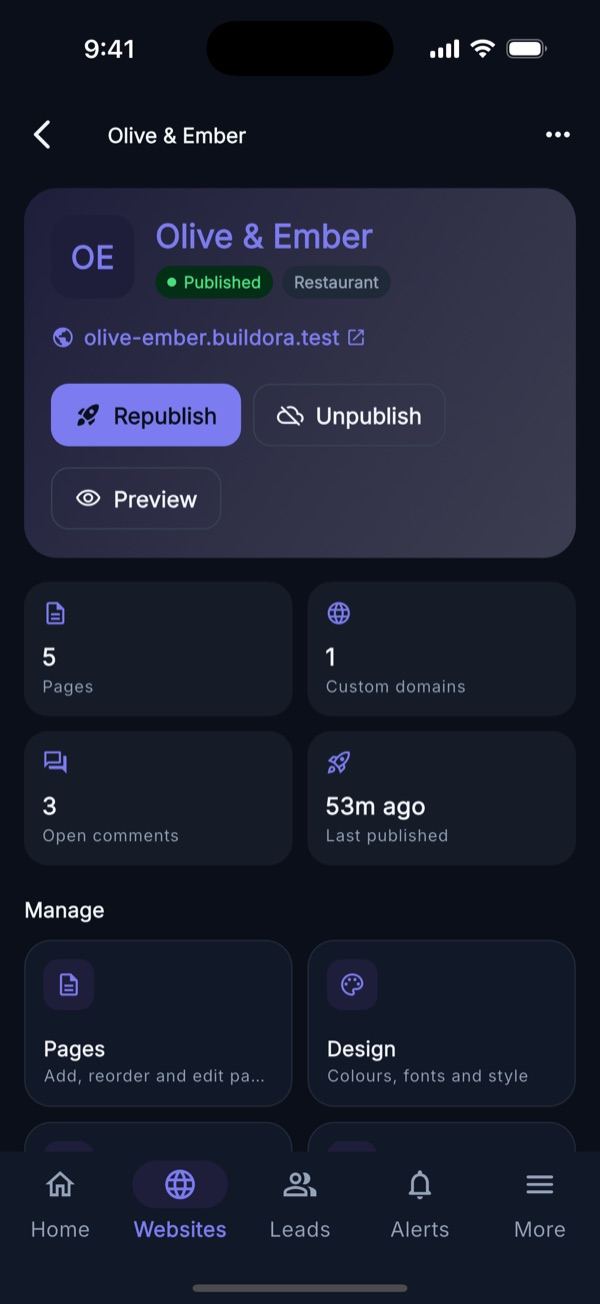
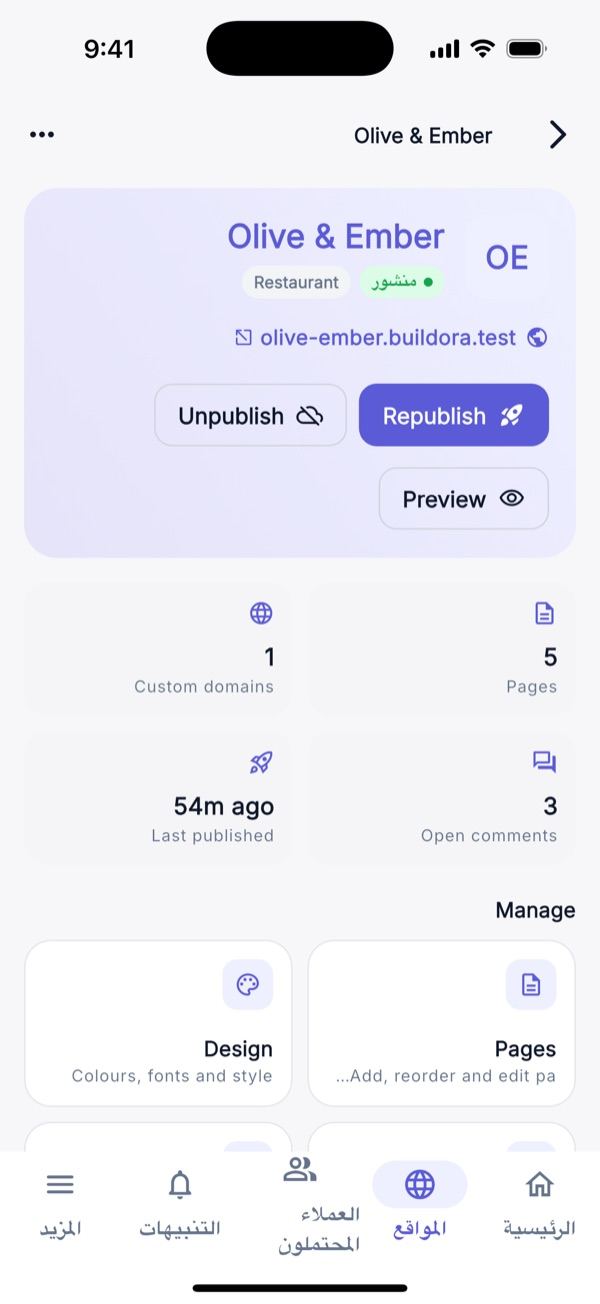
- Website hub: publish, publish changes, unpublish, preview, duplicate, live URL; stat tiles; a grid for Pages, Design, Domains, Comments, Versions, Modules, Data, SEO, Forms, Analytics, Shop and Settings (with plan locks); AI tools; maintenance switch; “Open full editor”.
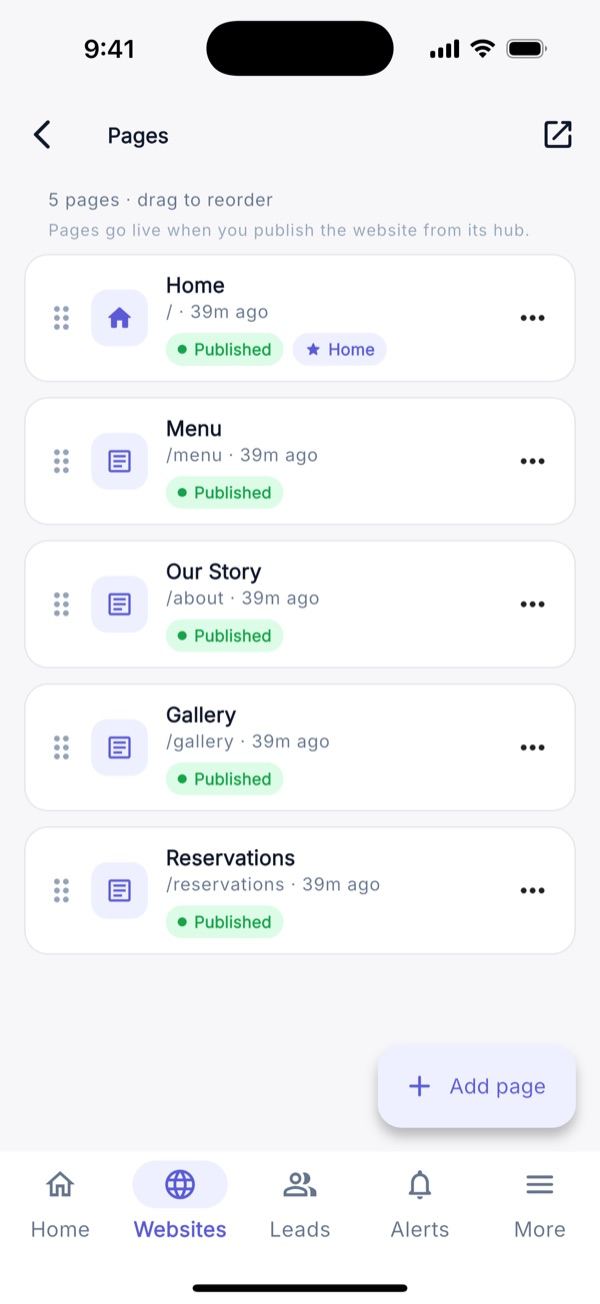
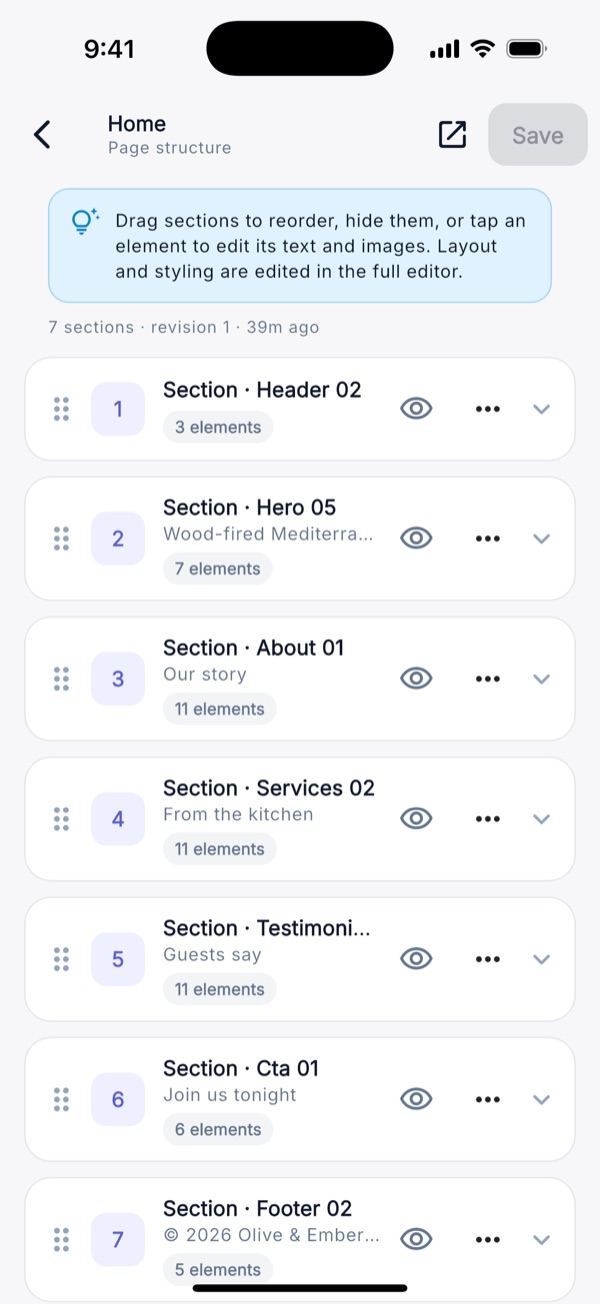
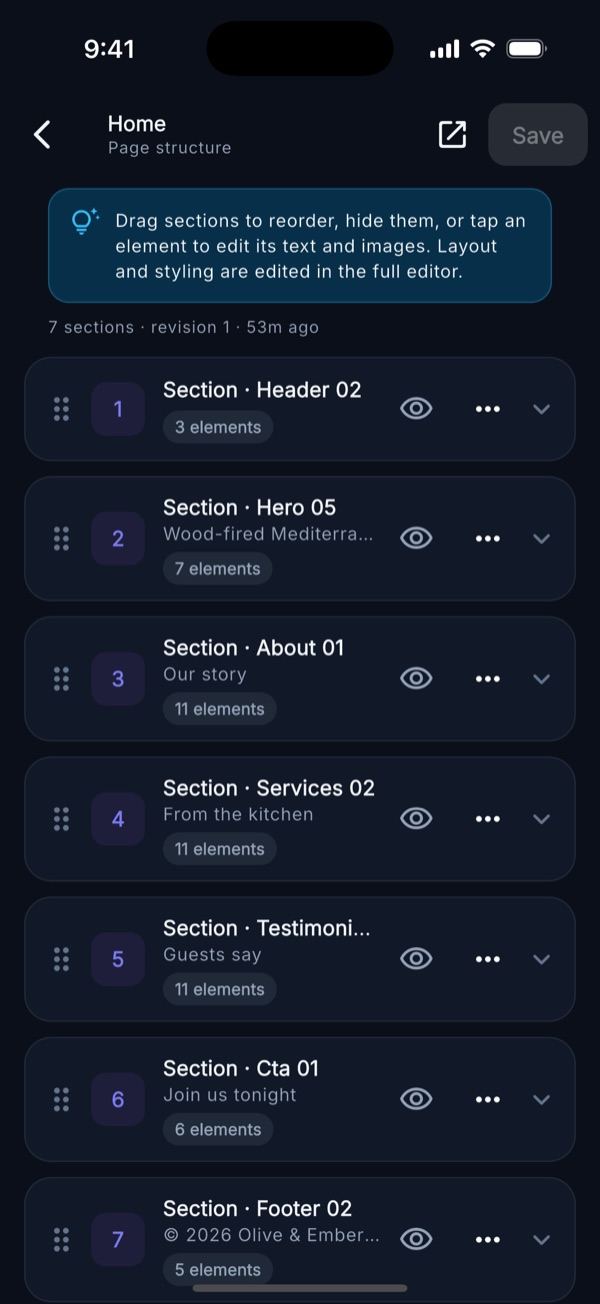
- Pages and page structure: drag to reorder pages, page settings, set as home; inside a page reorder, hide, duplicate or remove sections and edit text, links, images (media-library picker), cards, testimonials and video. Saves create a revision; a conflict with another editor offers Reload.
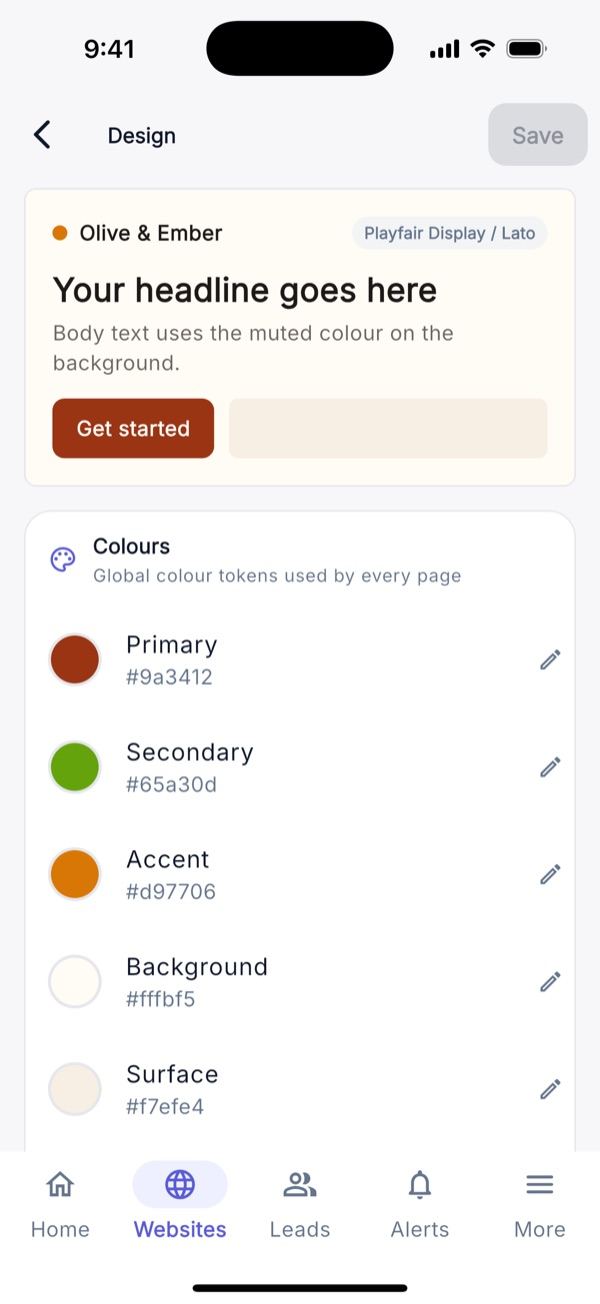
- Design: brand kit with 7 colours, heading/body fonts, light/dark mode, radius, spacing, button style, logo and favicon, with a live preview.
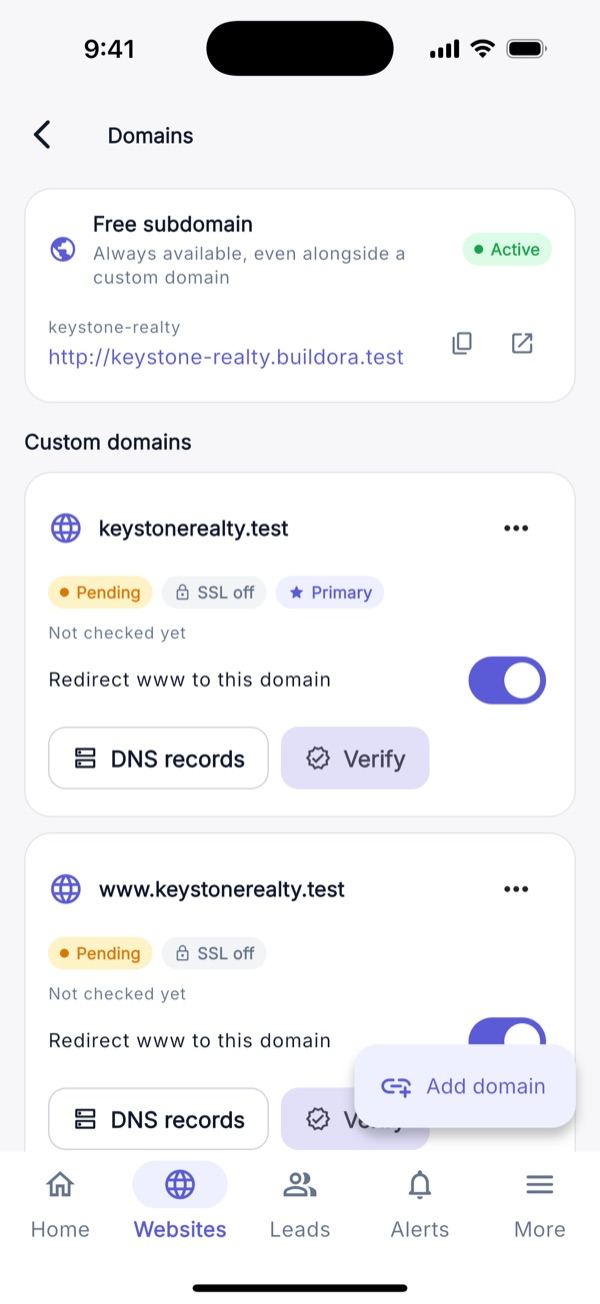
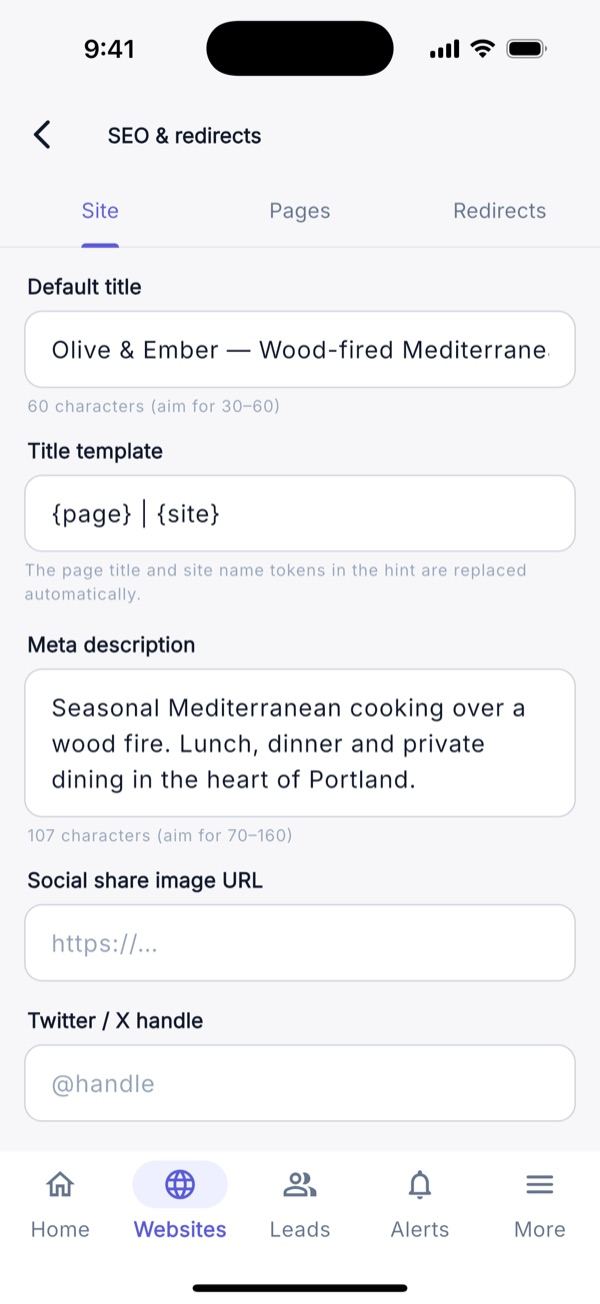
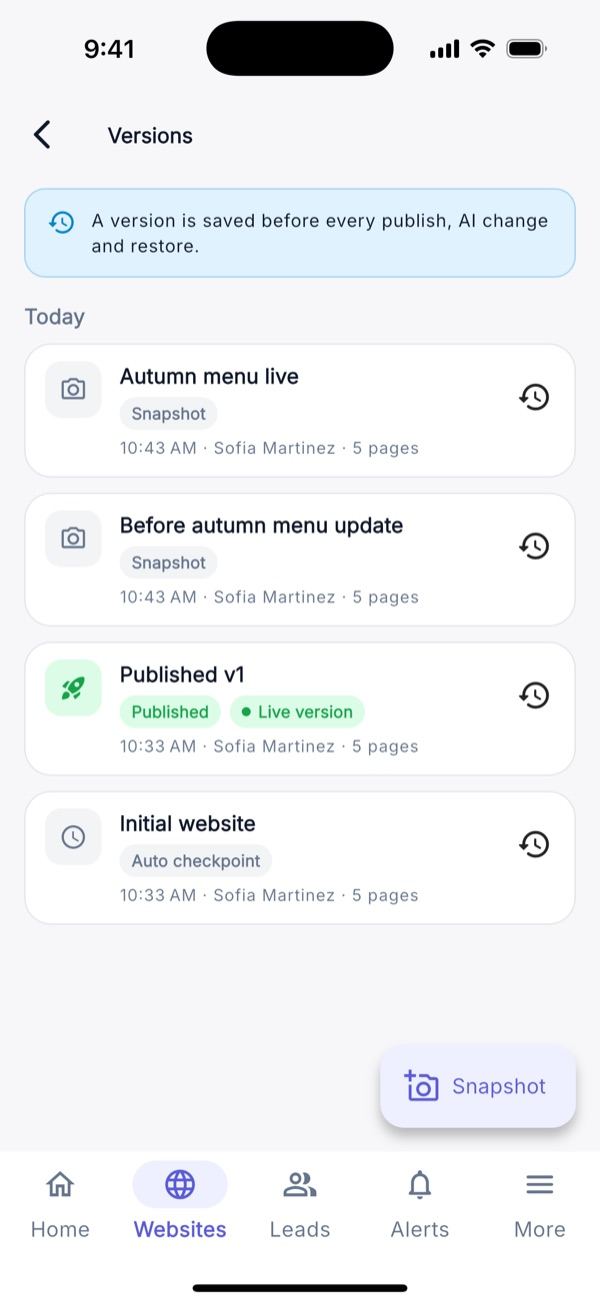
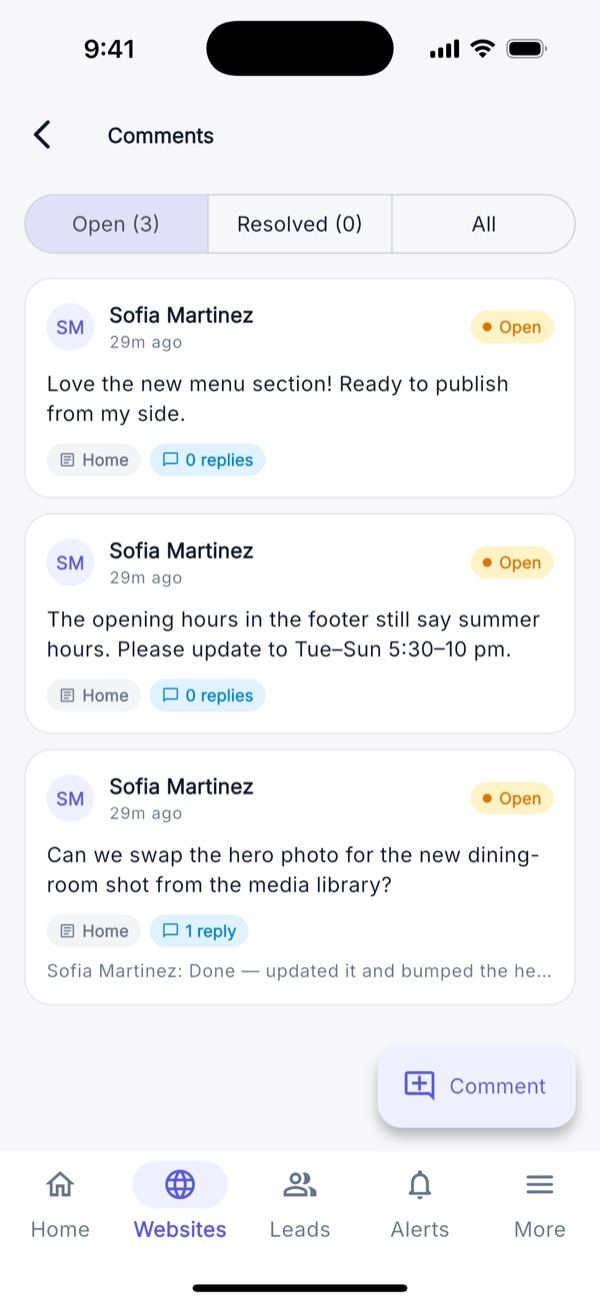
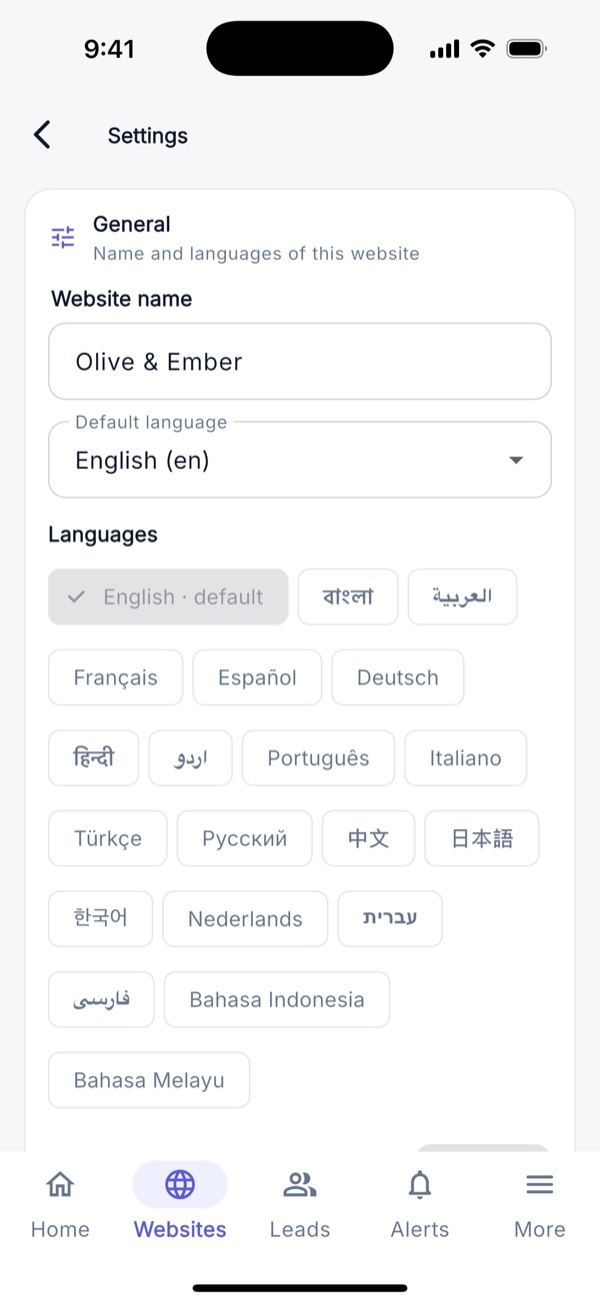
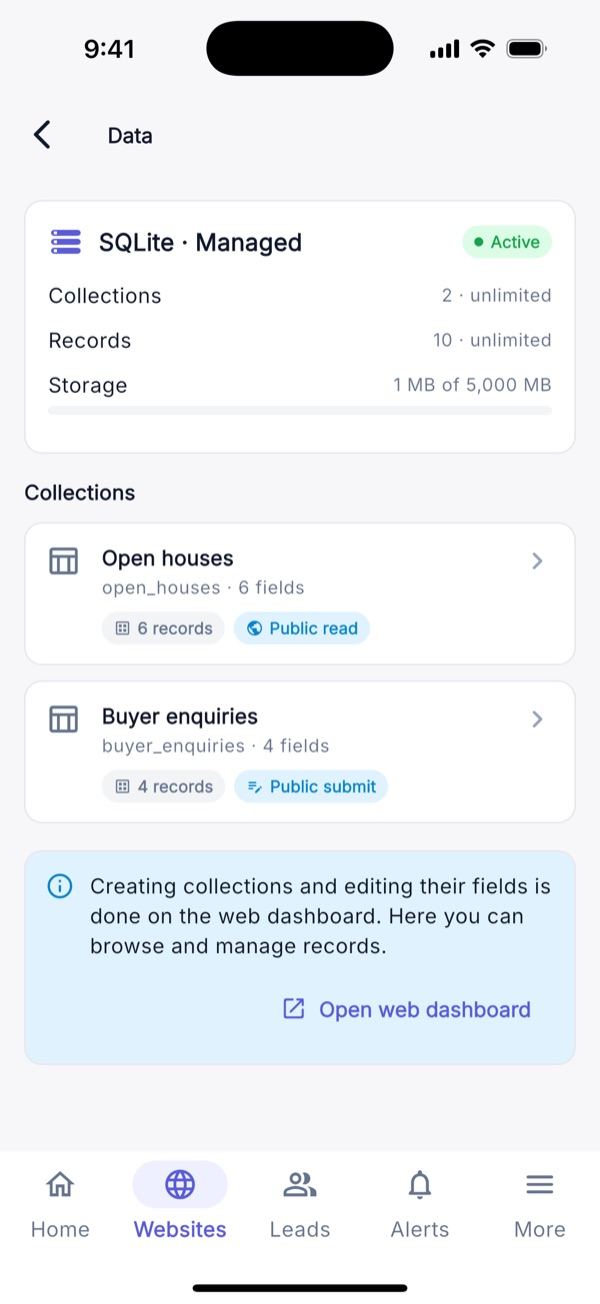
- Domains, SEO, Versions, Comments, Modules, Settings, Data store: connect and verify custom domains with copyable DNS records; site and per-page SEO and redirects; version history with restore and manual snapshots; comment threads; module on/off switches; languages, preview password, ZIP export and delete; data-store collections and records.
AI Studio & Templates
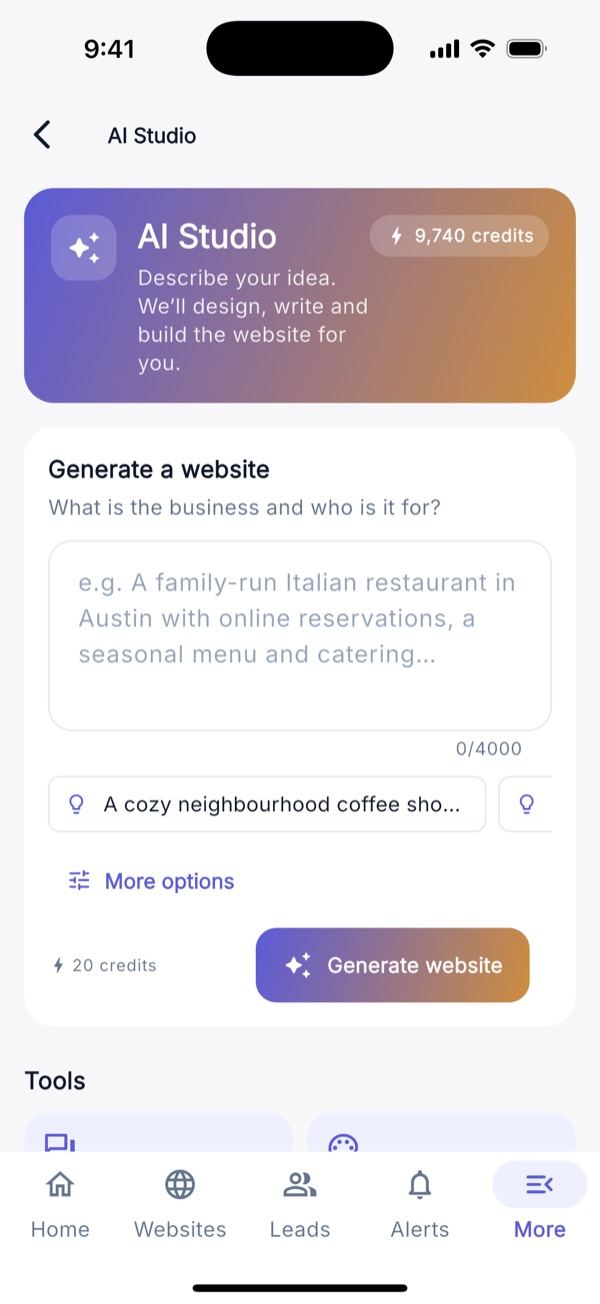
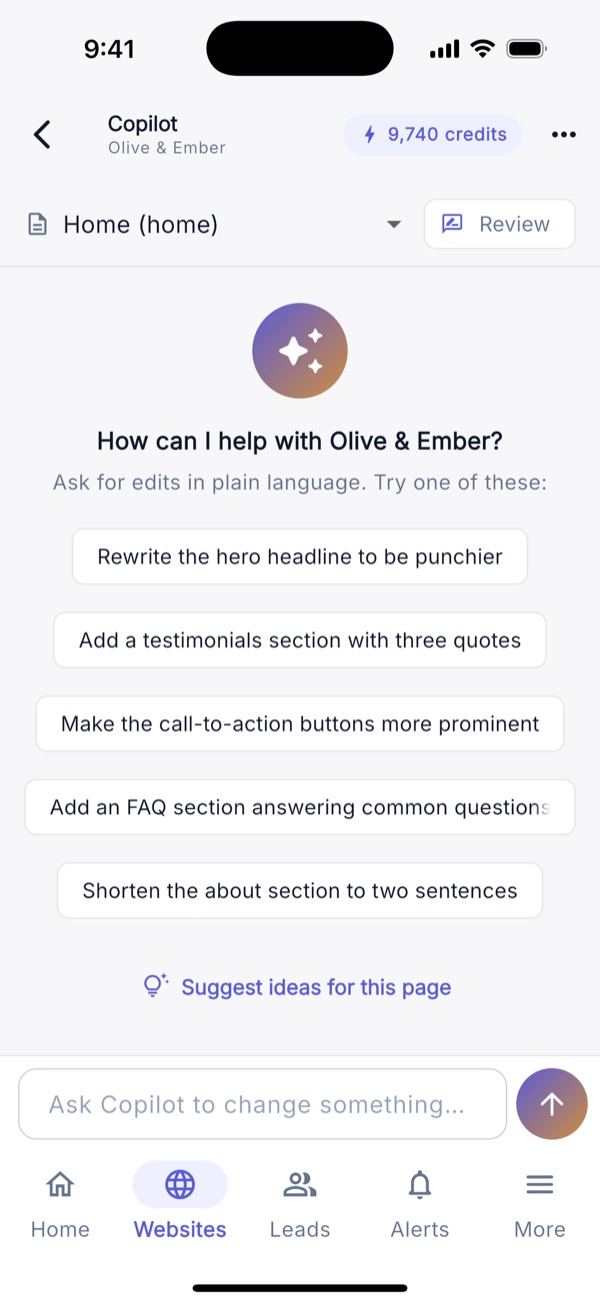
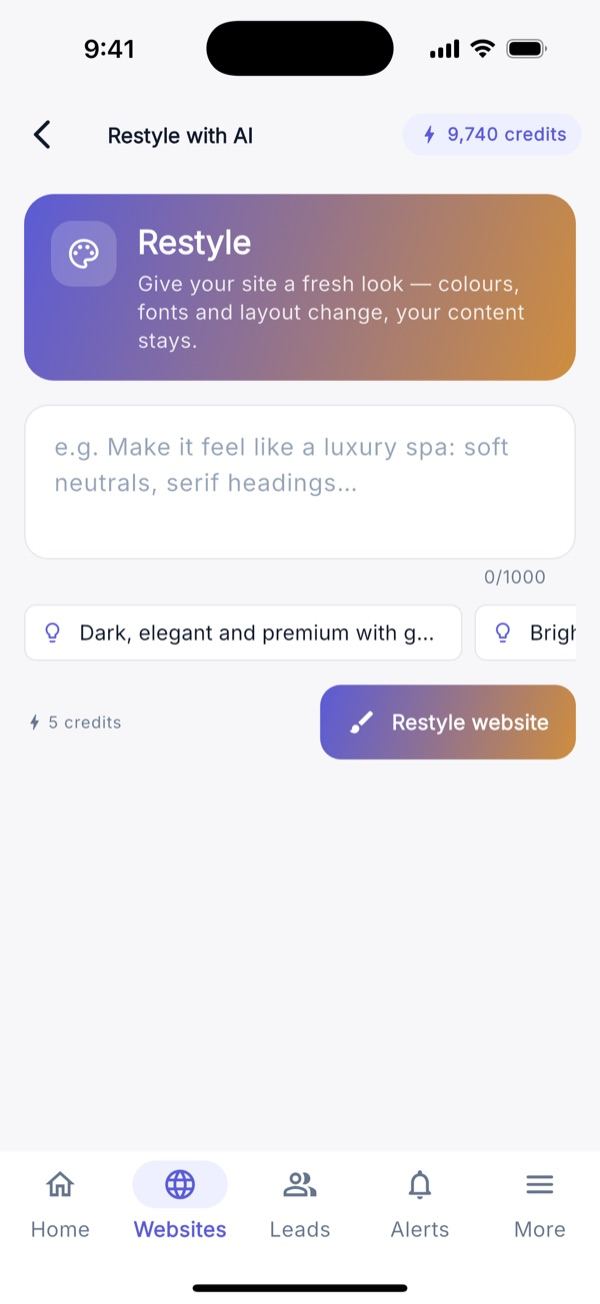
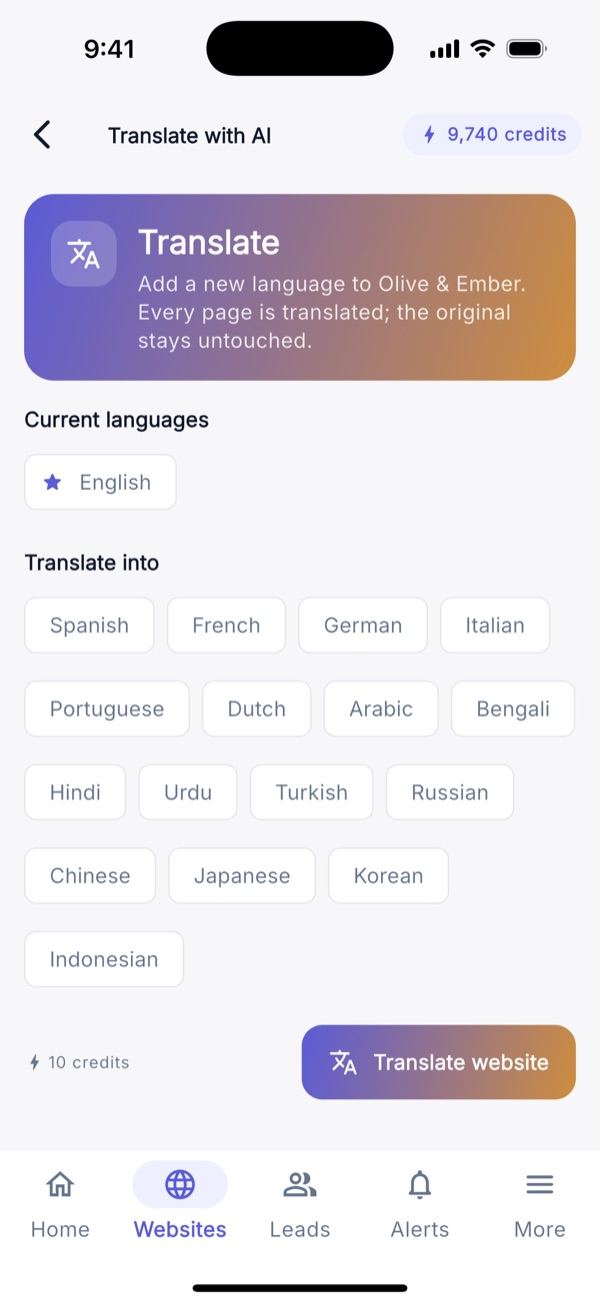
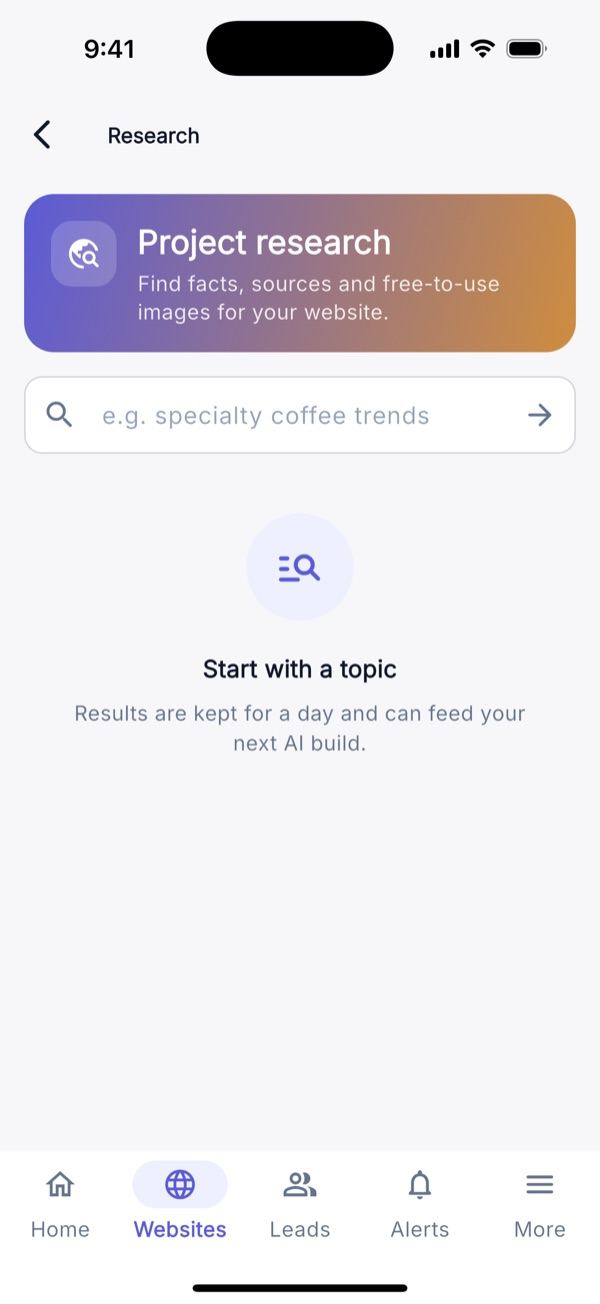
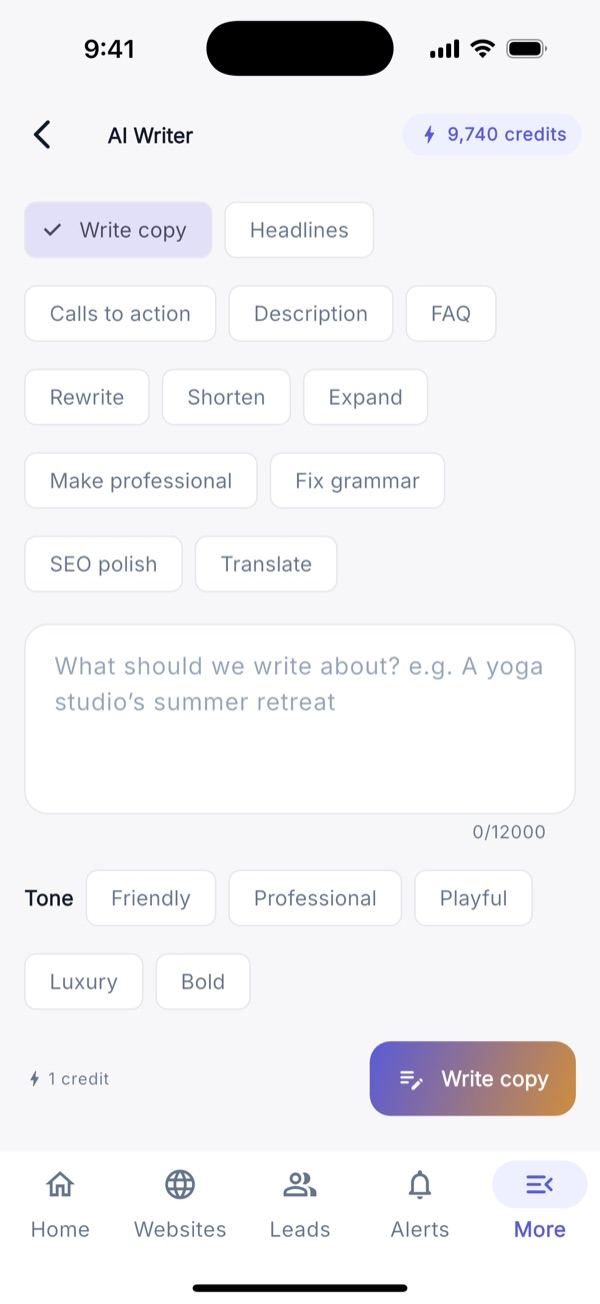
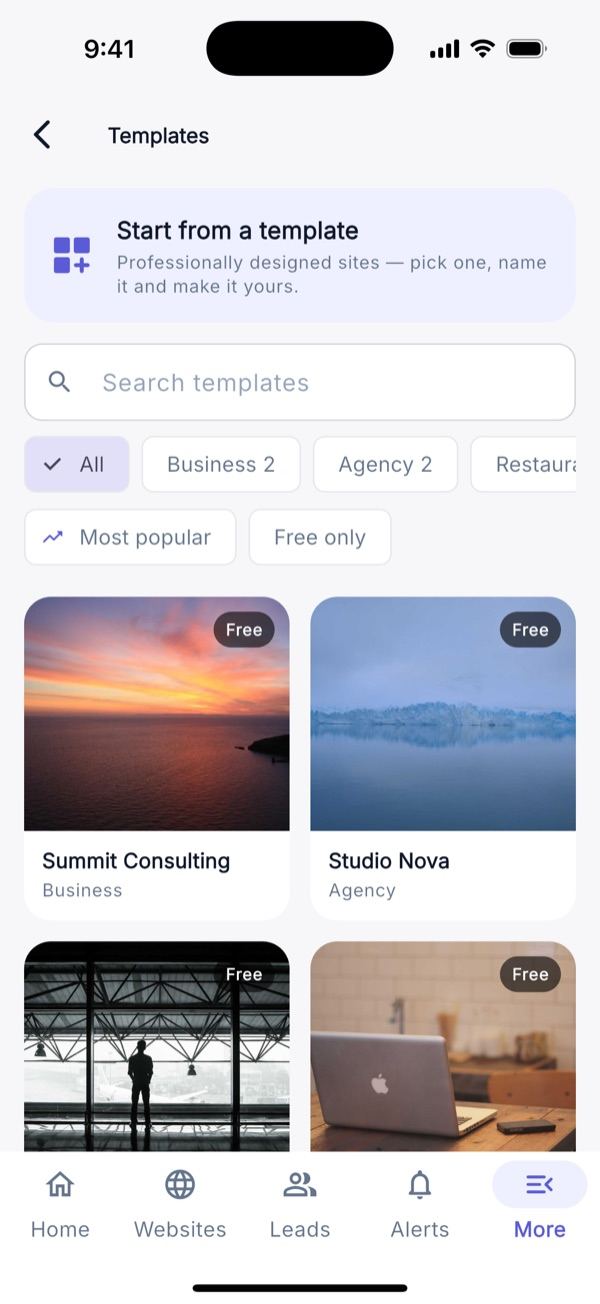
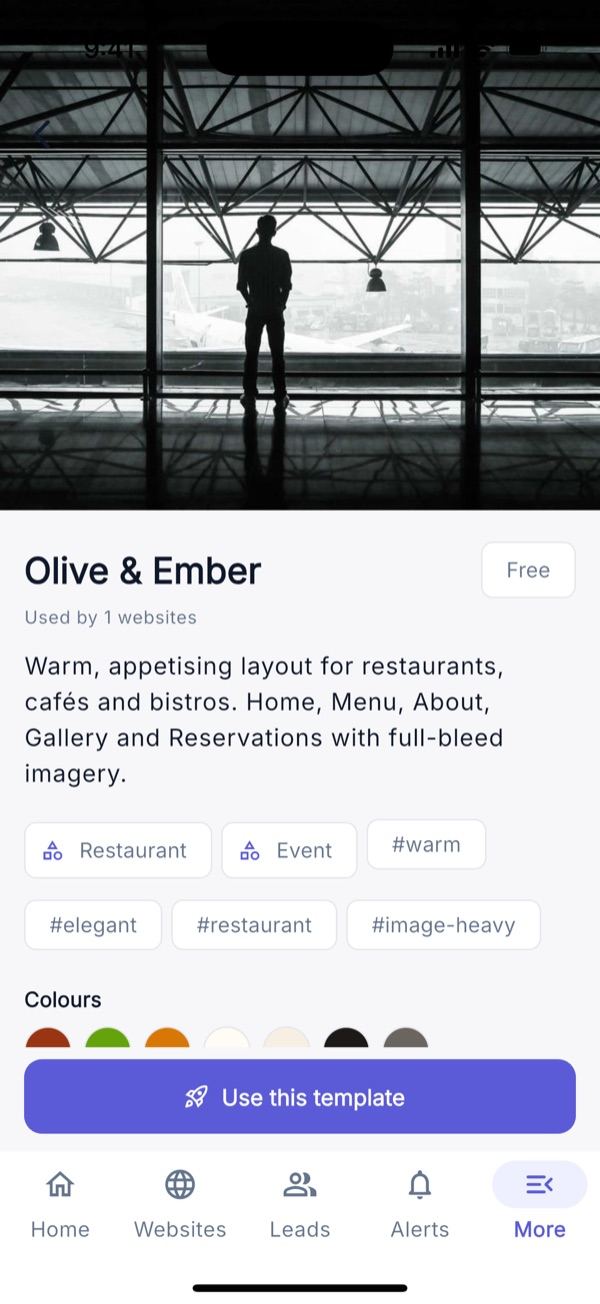
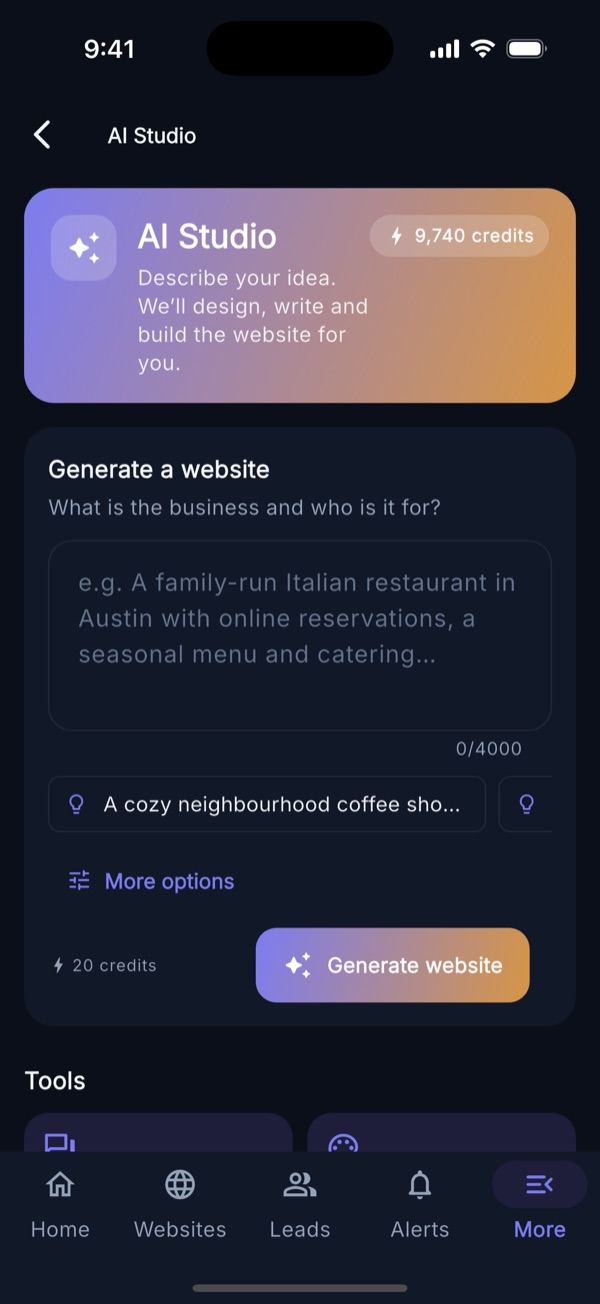
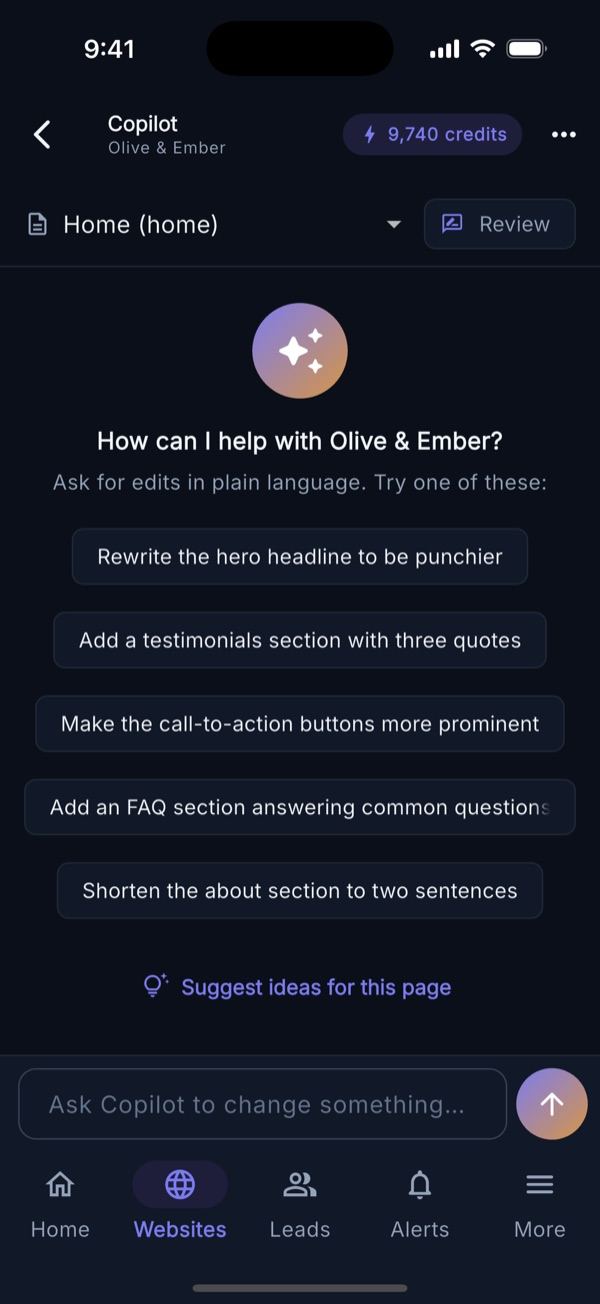
AI Studio starts a new website from a brief, shows the credit cost against the balance and opens the generation screen. Per website there are four AI tools: Copilot (chat to edit a page, streaming replies with Stop, “review before applying” Apply/Discard, whole-site task mode), Restyle, Translate (plan-gated) and Research (sources and free images you can import to Media). The AI Writer has 12 actions (copy, headlines, CTAs, FAQ, rewrite, shorten, expand, grammar, SEO polish, translate…) in 5 tones. Templates has search, categories, free/premium badges, a detail view and a live preview in a WebView.
Content & Insights
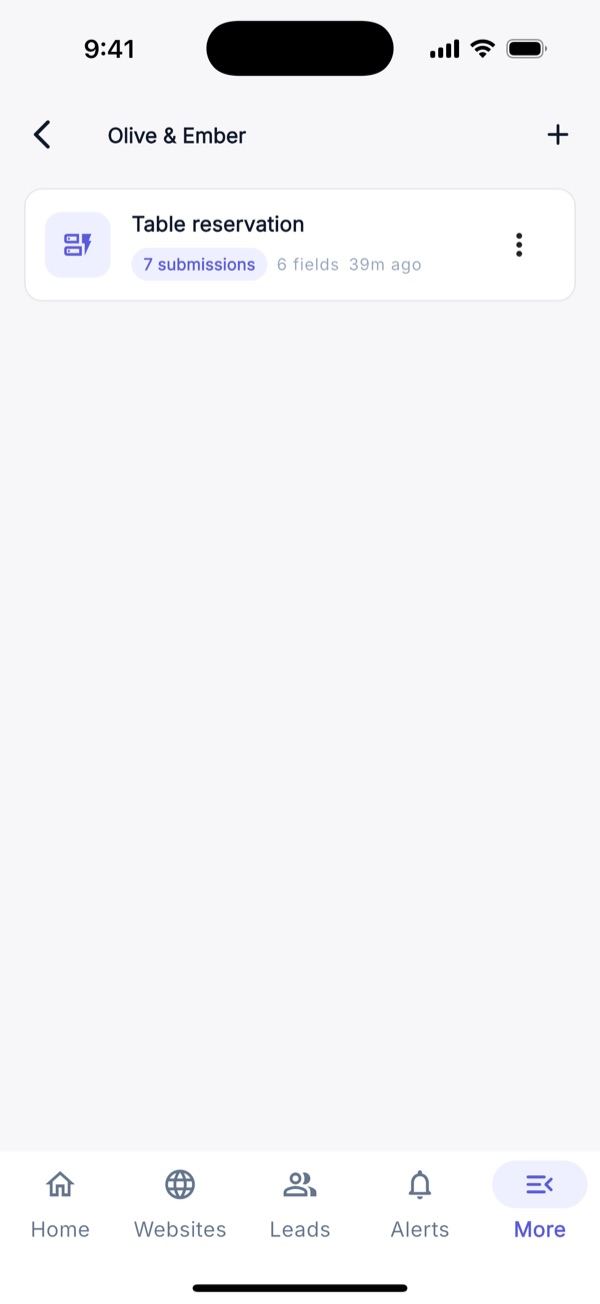
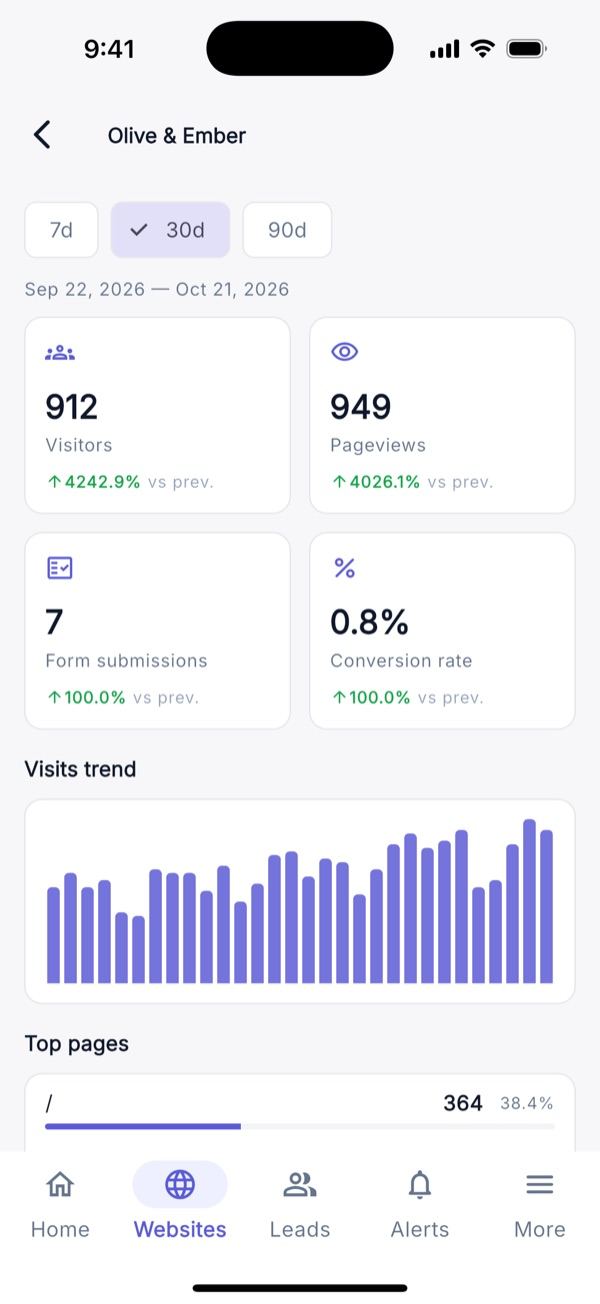
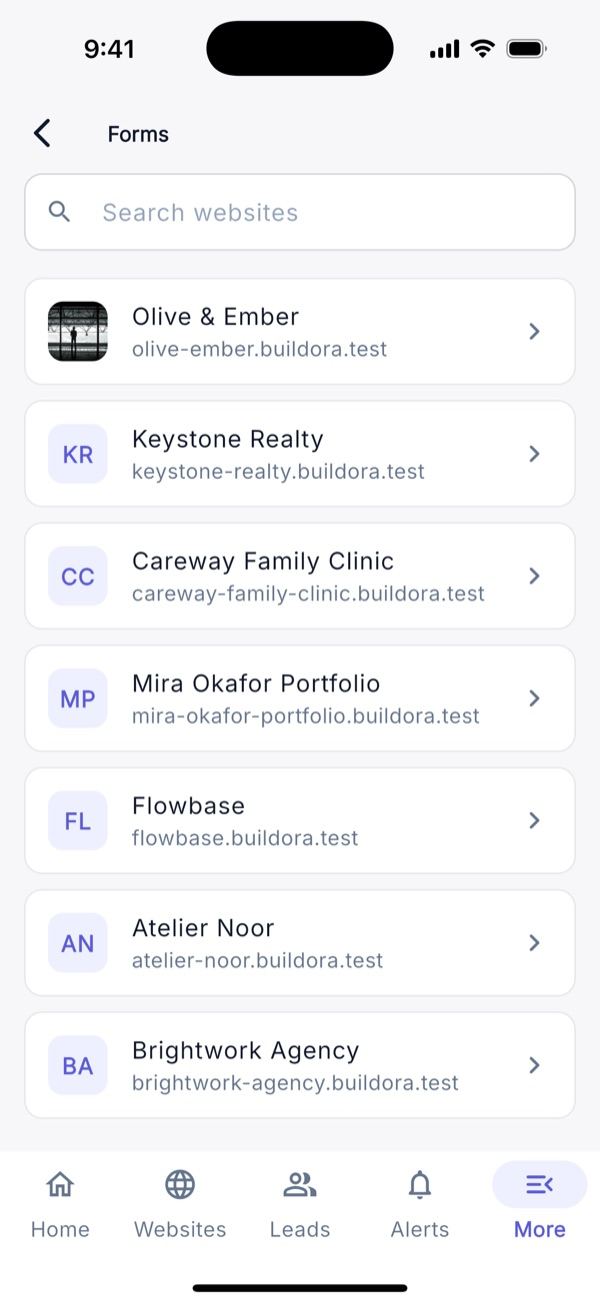
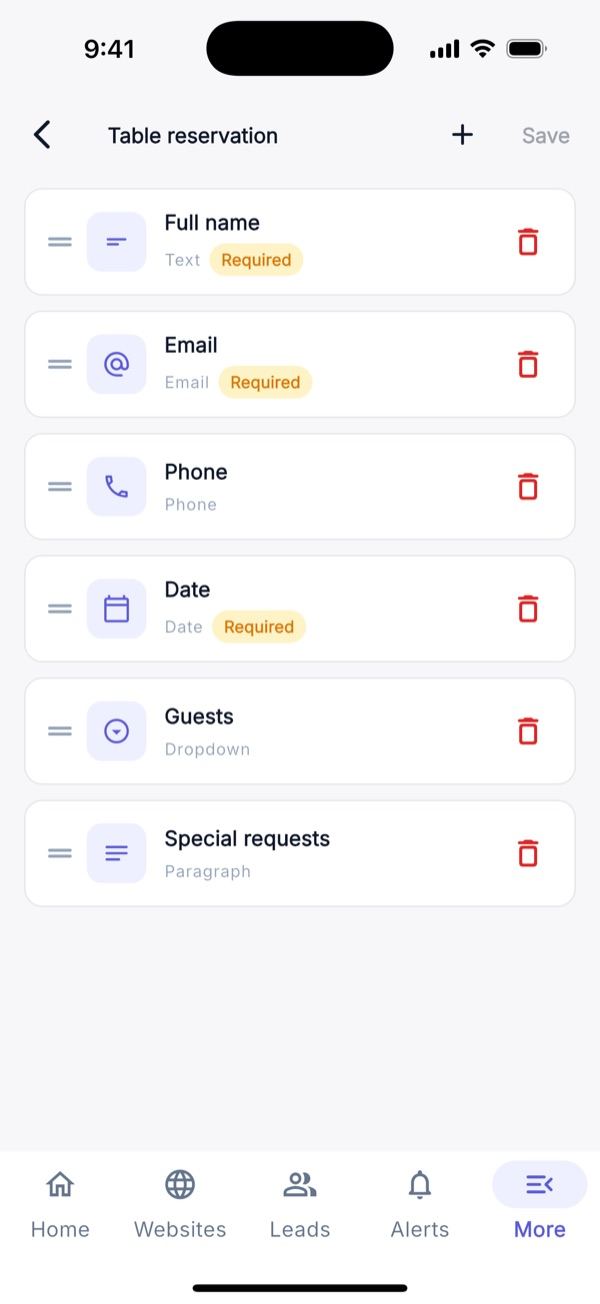
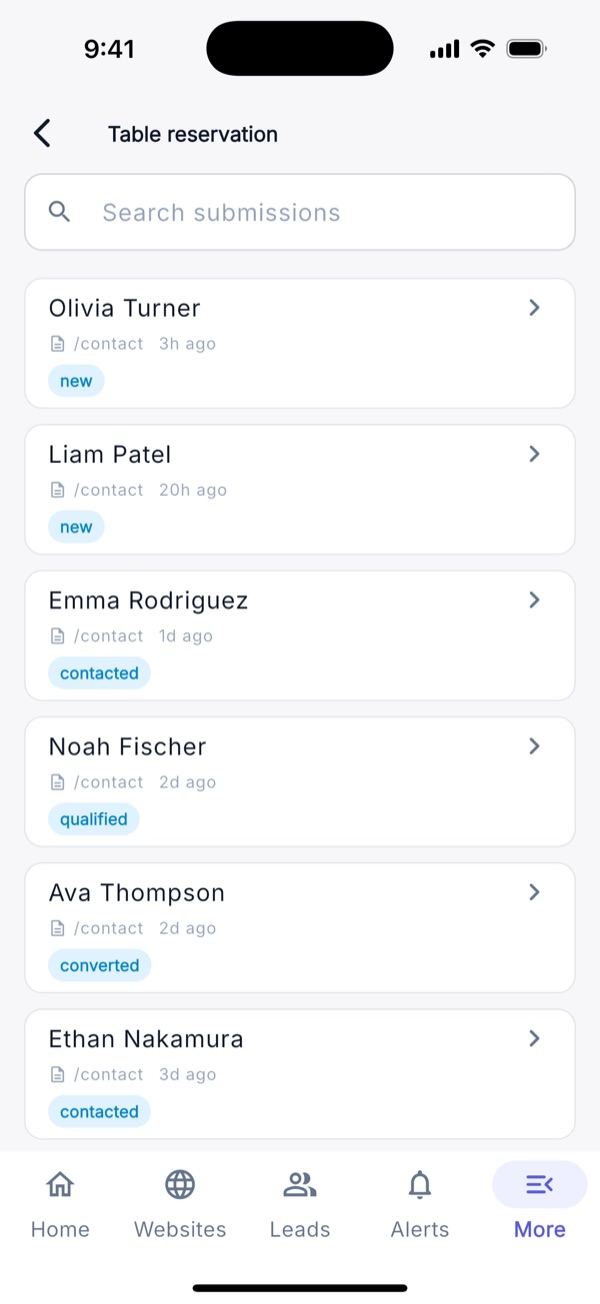
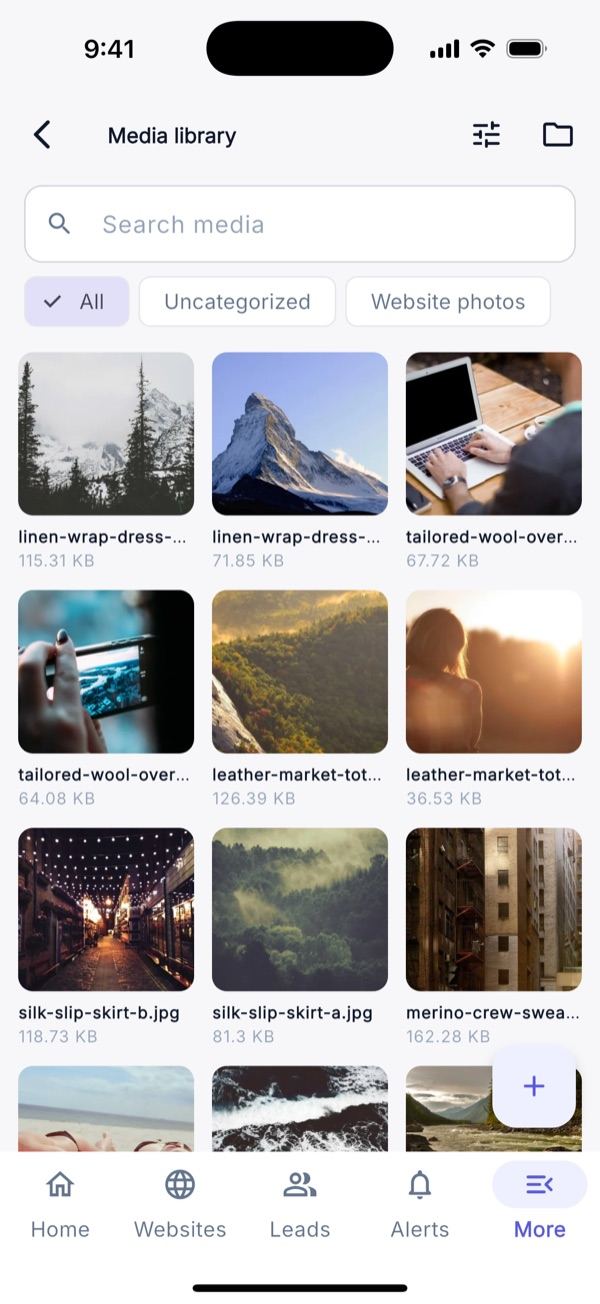
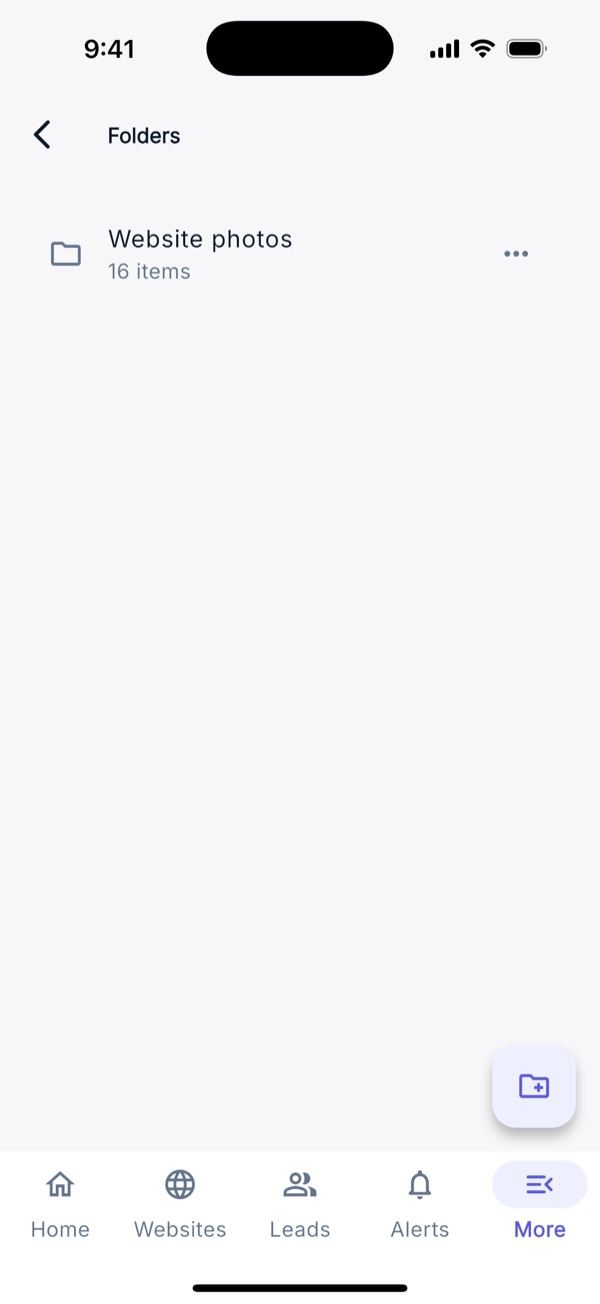
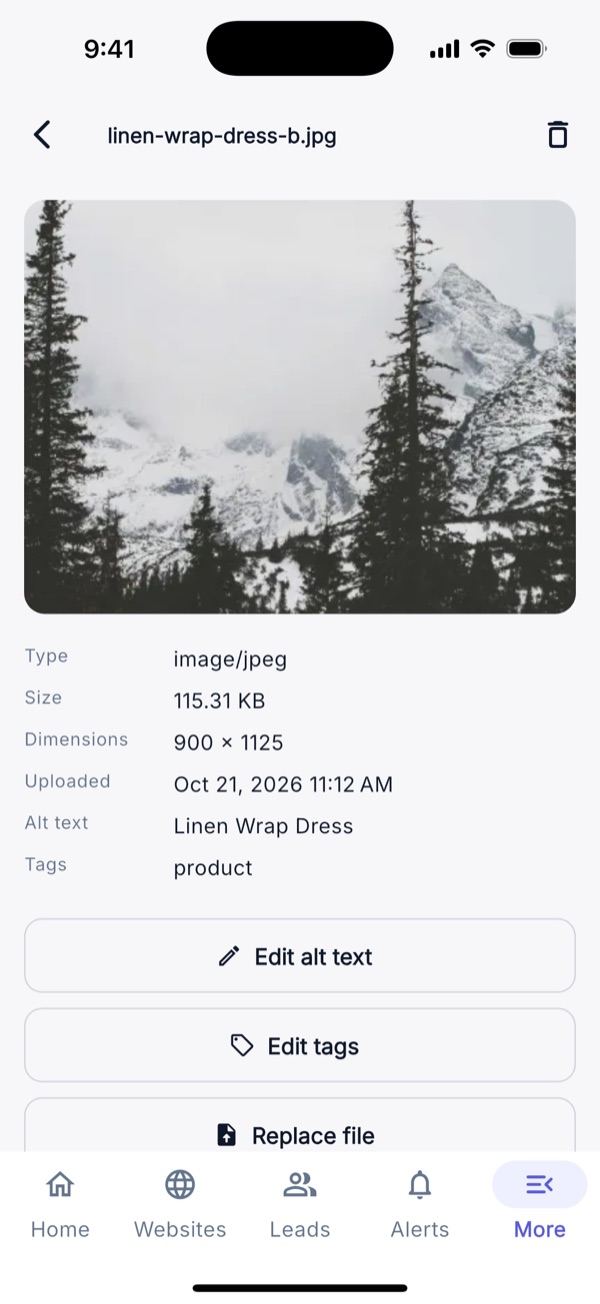
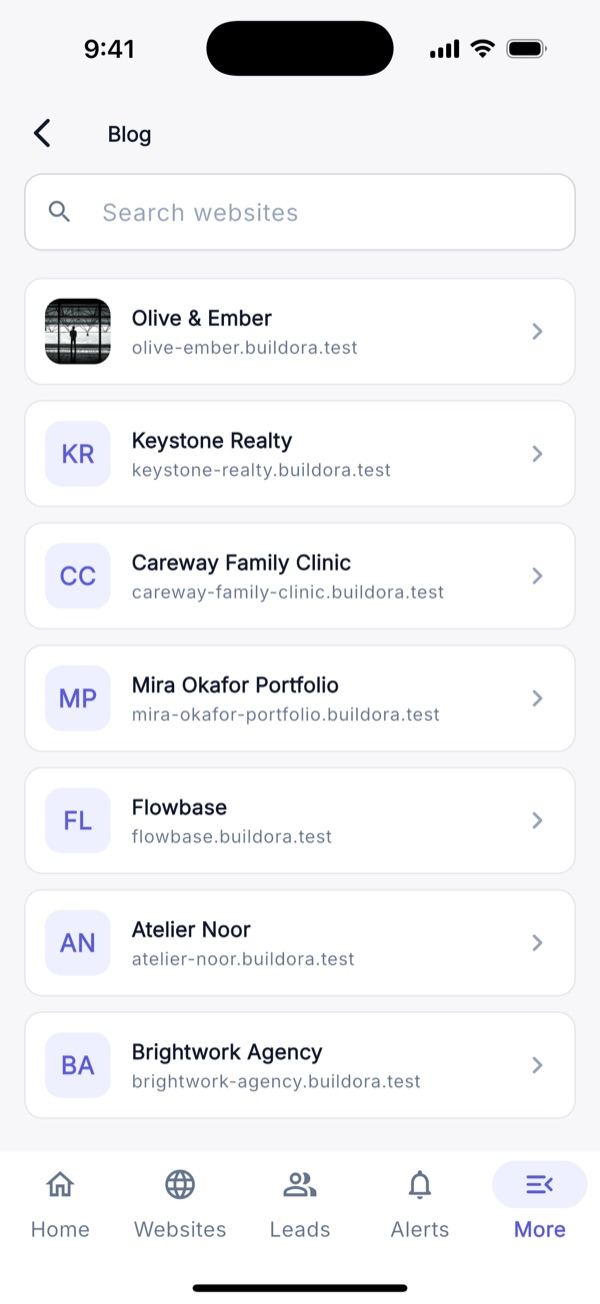
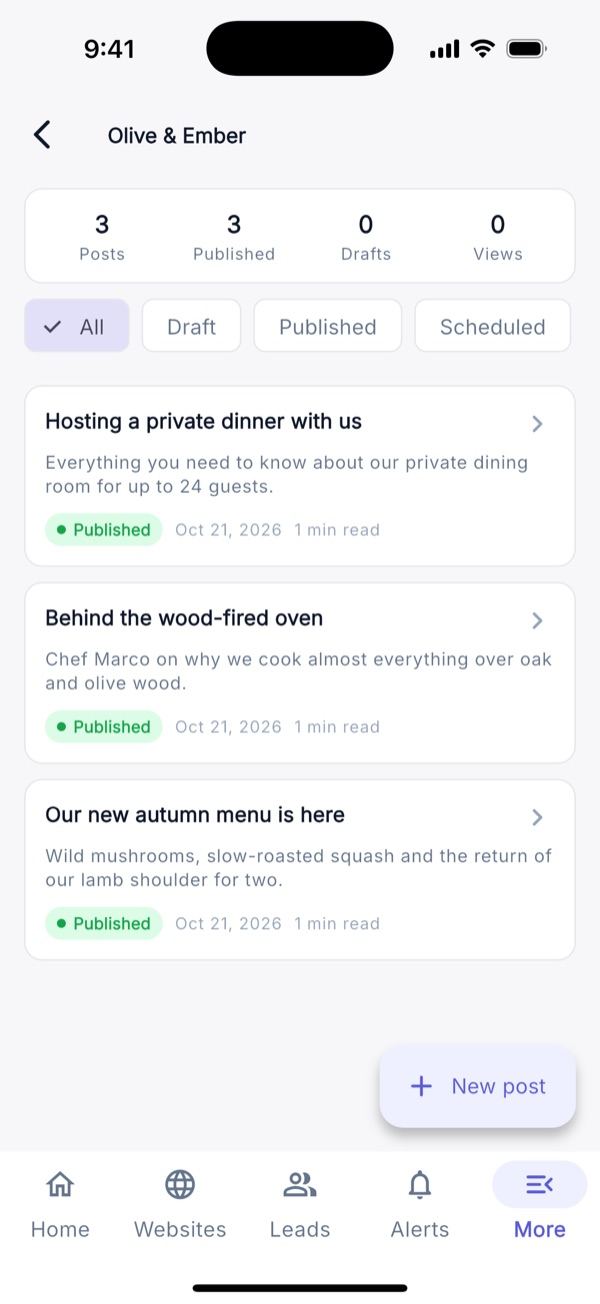
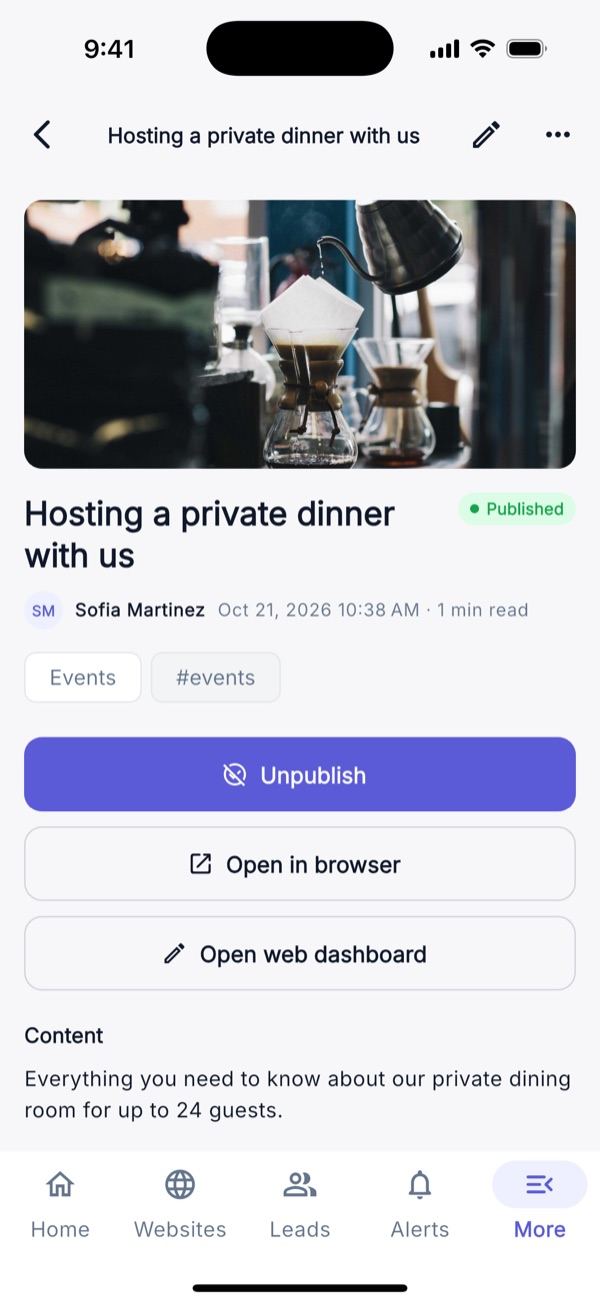
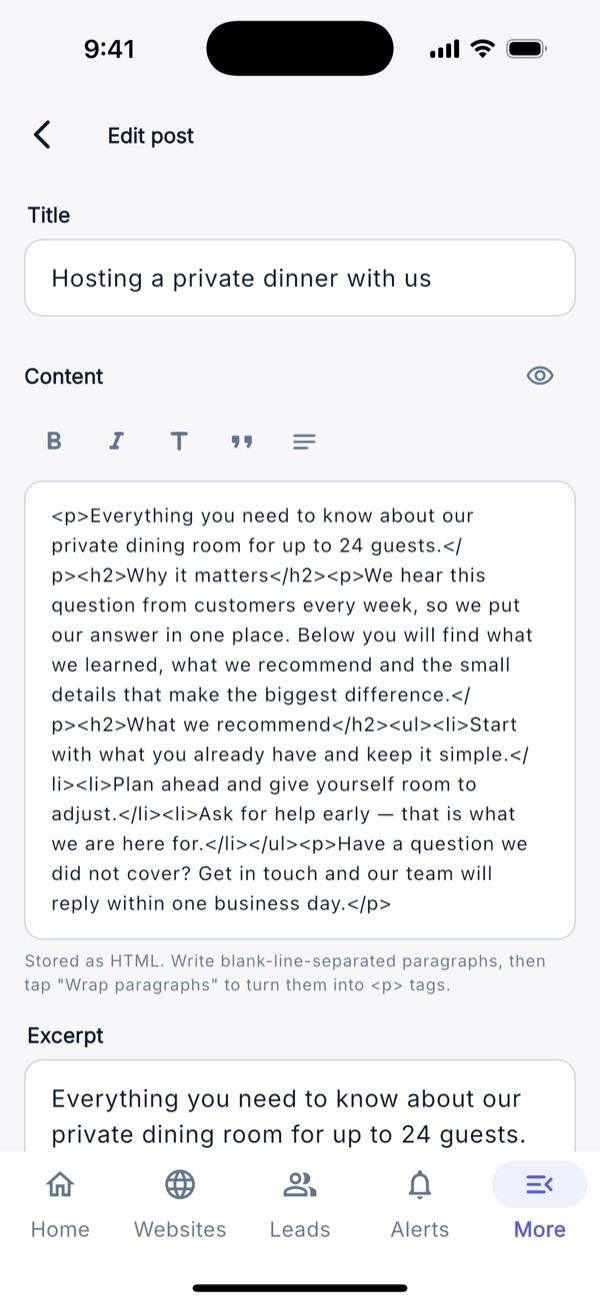
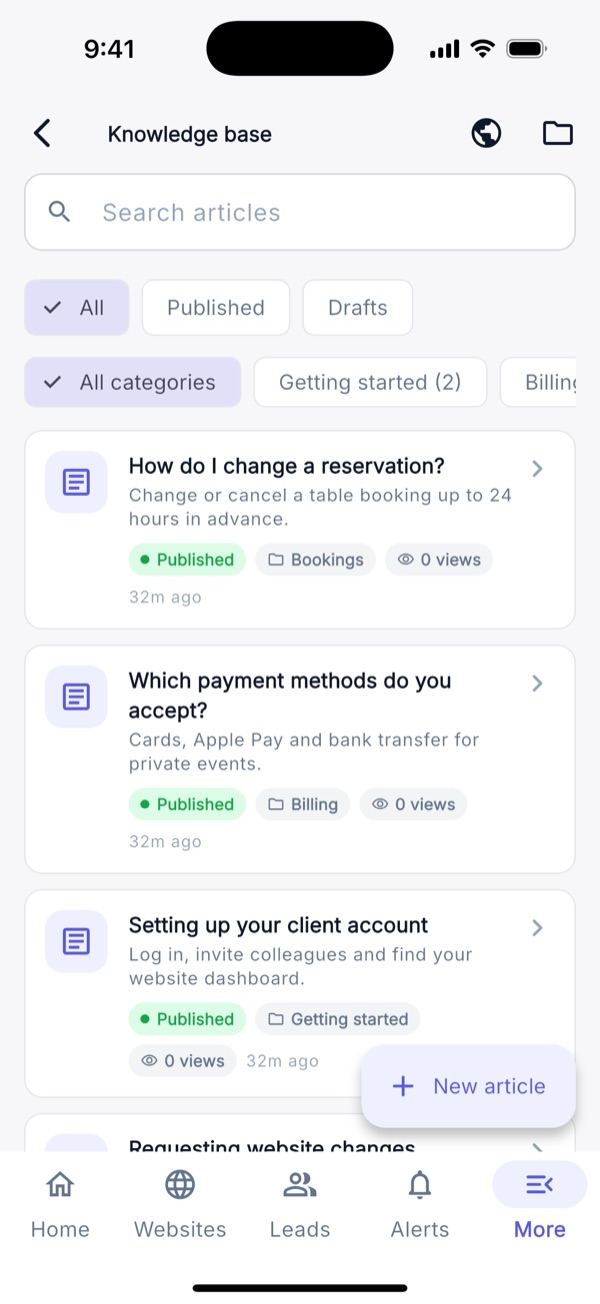
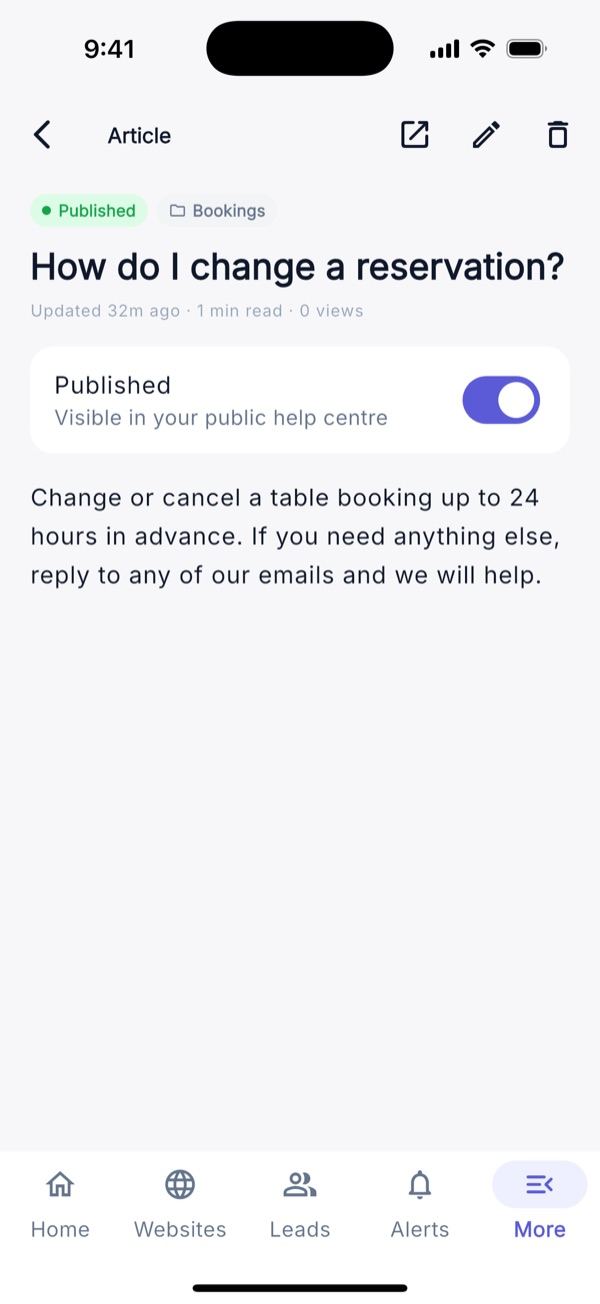
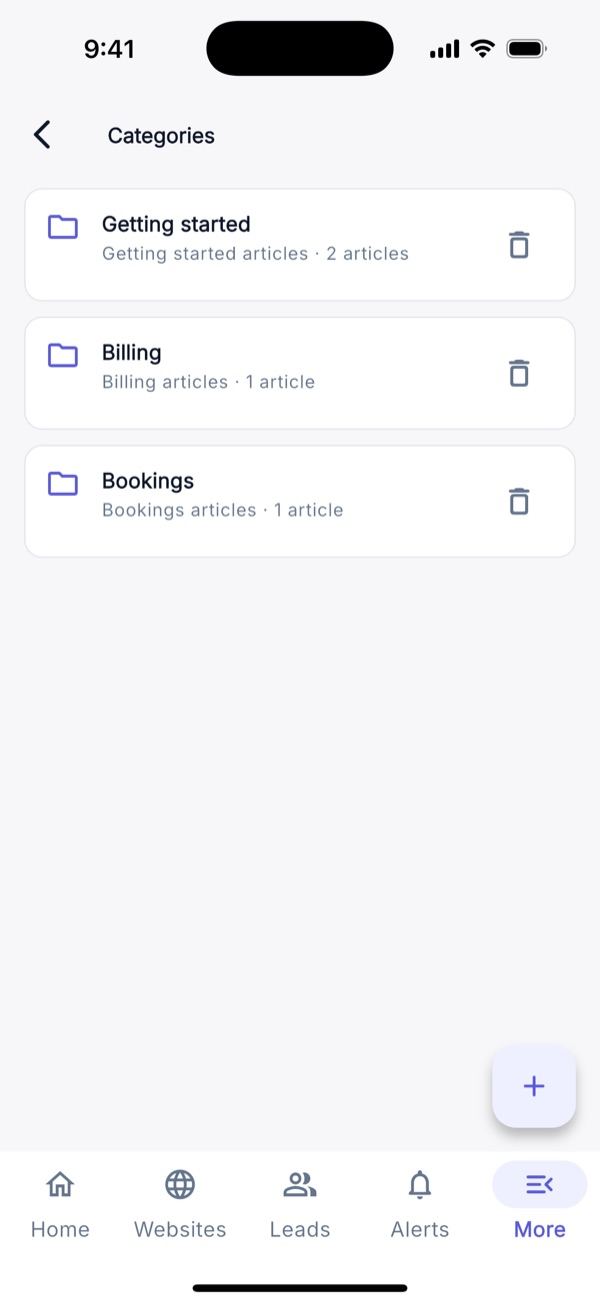
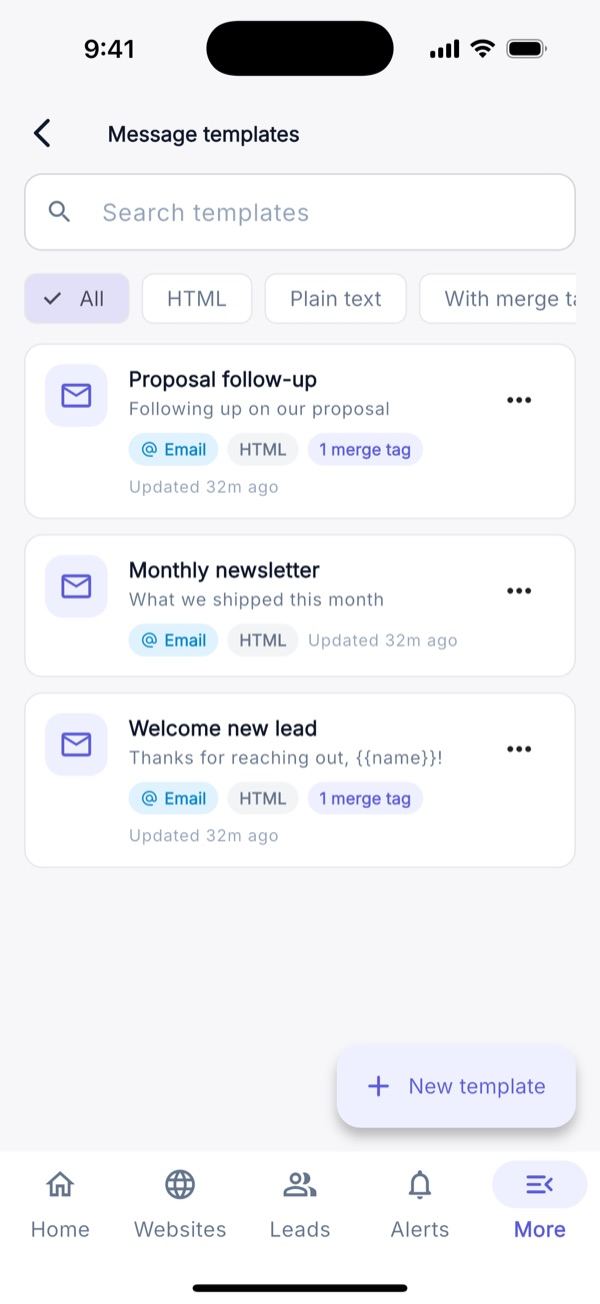
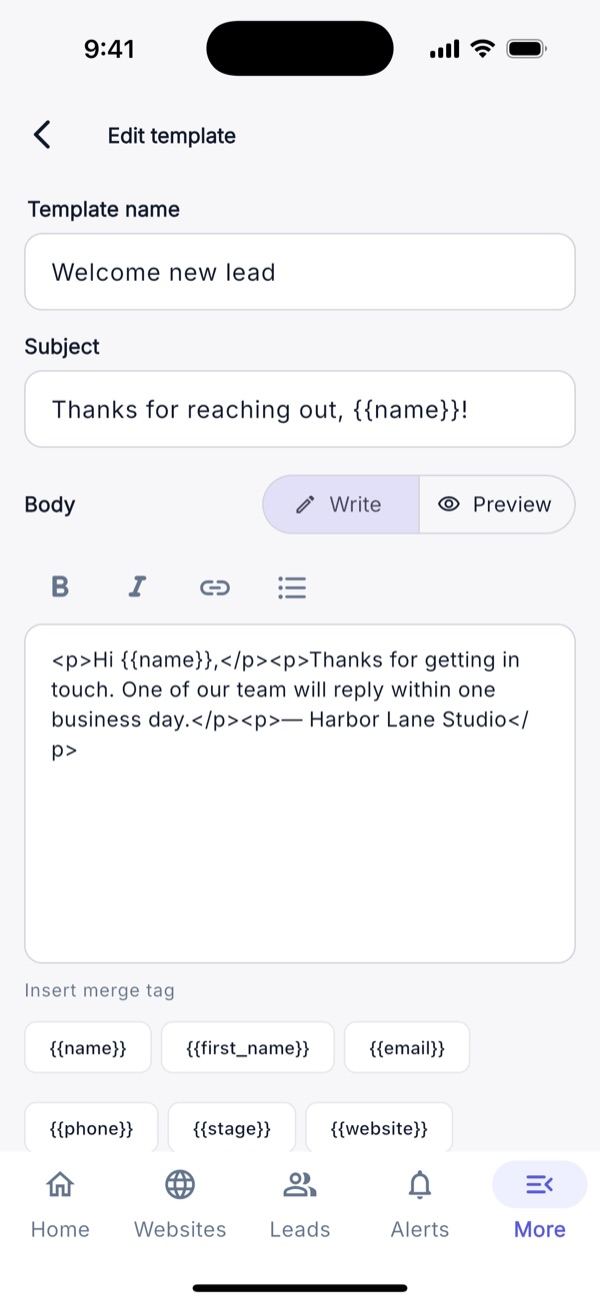
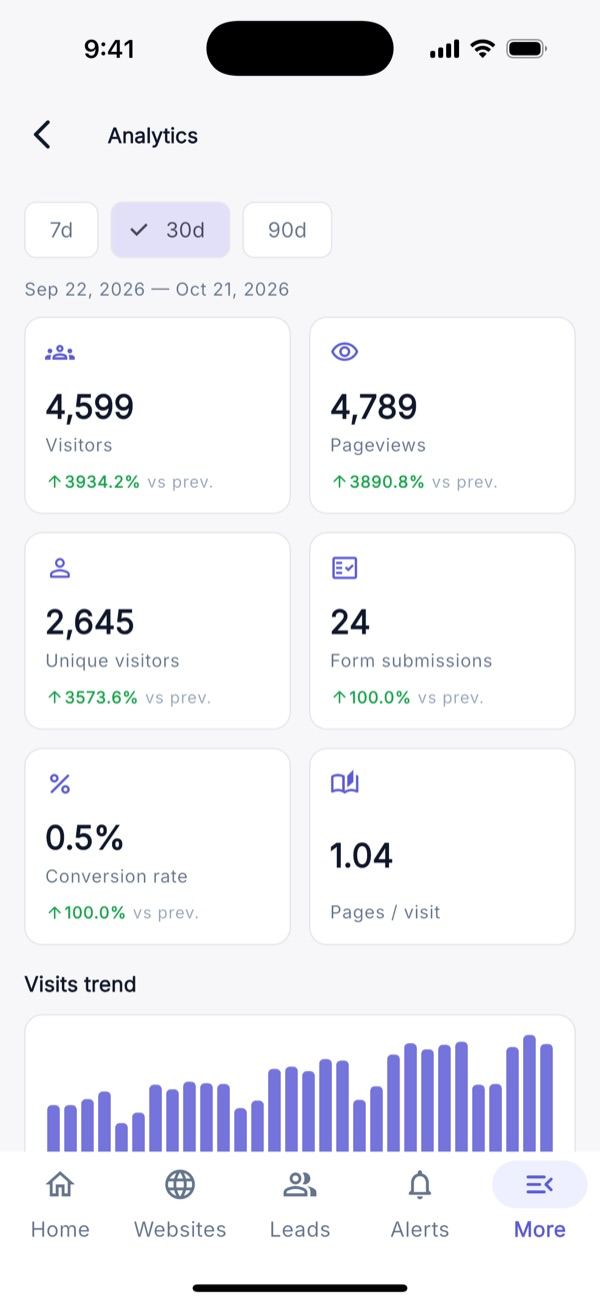
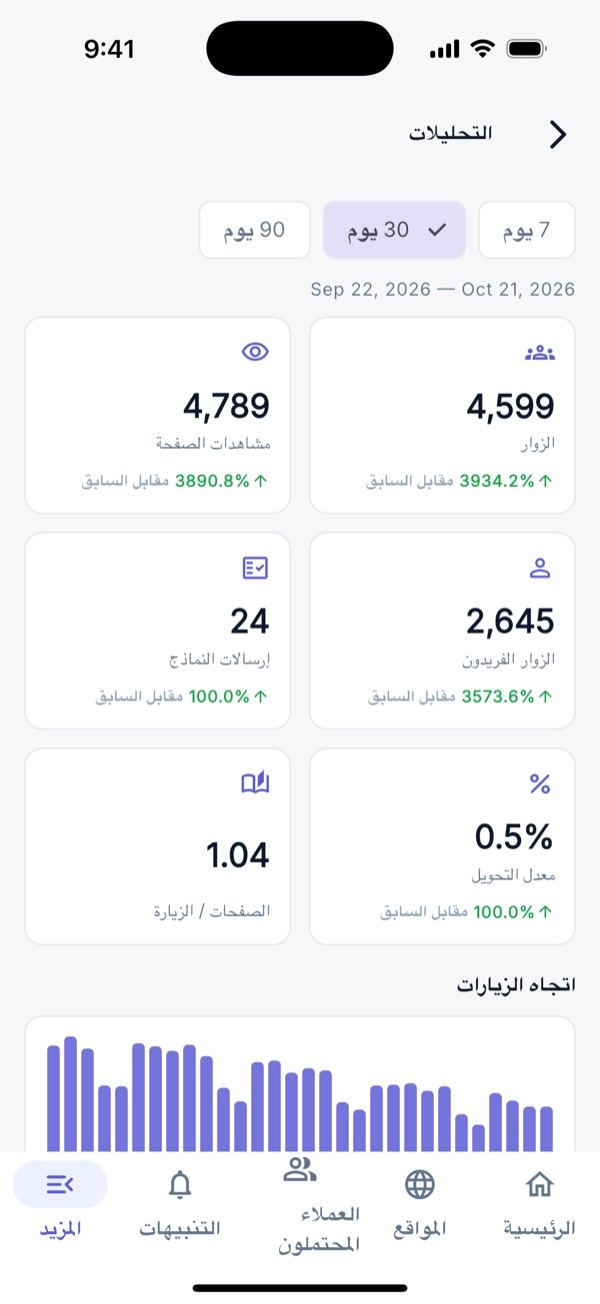
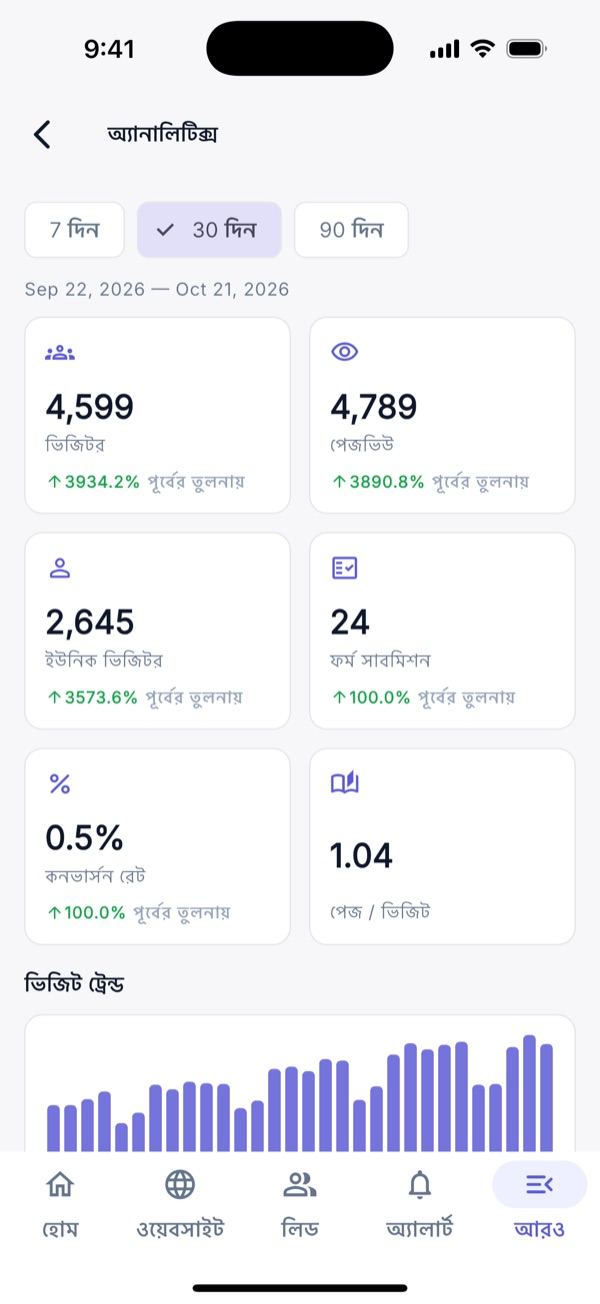
Forms: forms per website with a drag-and-drop field builder (9 field types) and read-only submissions. Media: folders, search and type filter, upload from camera, gallery or file, add from URL, alt text, tags, replace and crop. Blog: posts per website with an HTML editor, categories, tags, schedule and AI generate post. Knowledge base: Markdown articles with preview and categories. Message templates: HTML/plain templates with merge tags and preview. Analytics: workspace overview for 7/30/90 days and per-website reports (top pages, referrers, countries, devices, browsers); read-only.
Sales & CRM
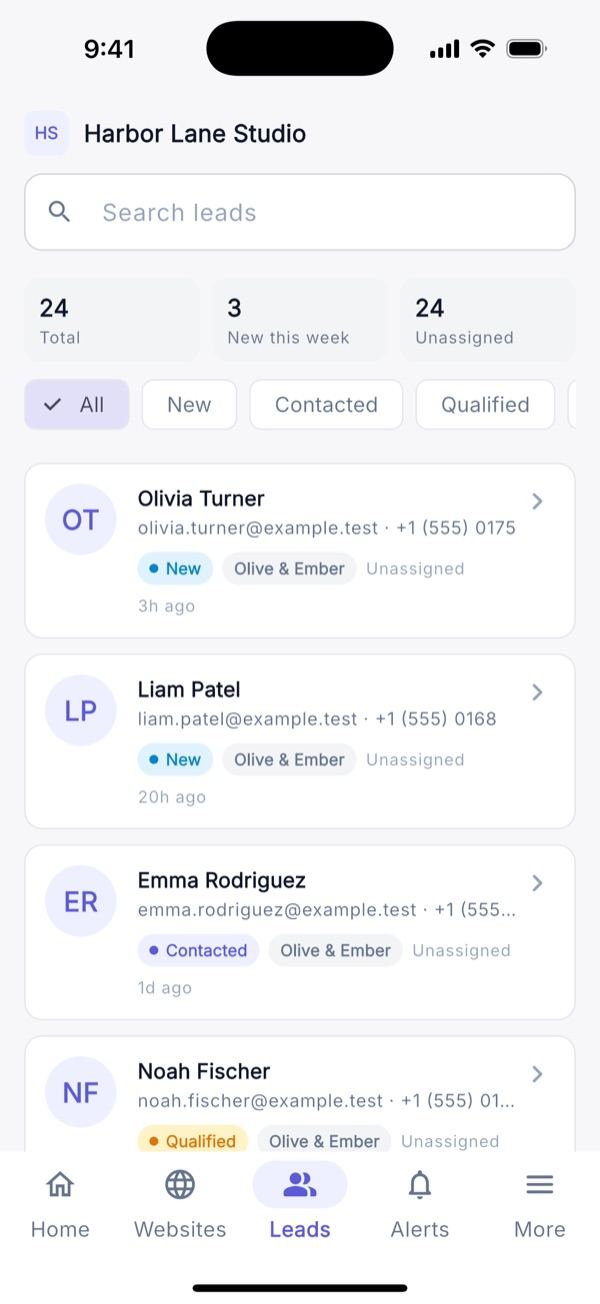
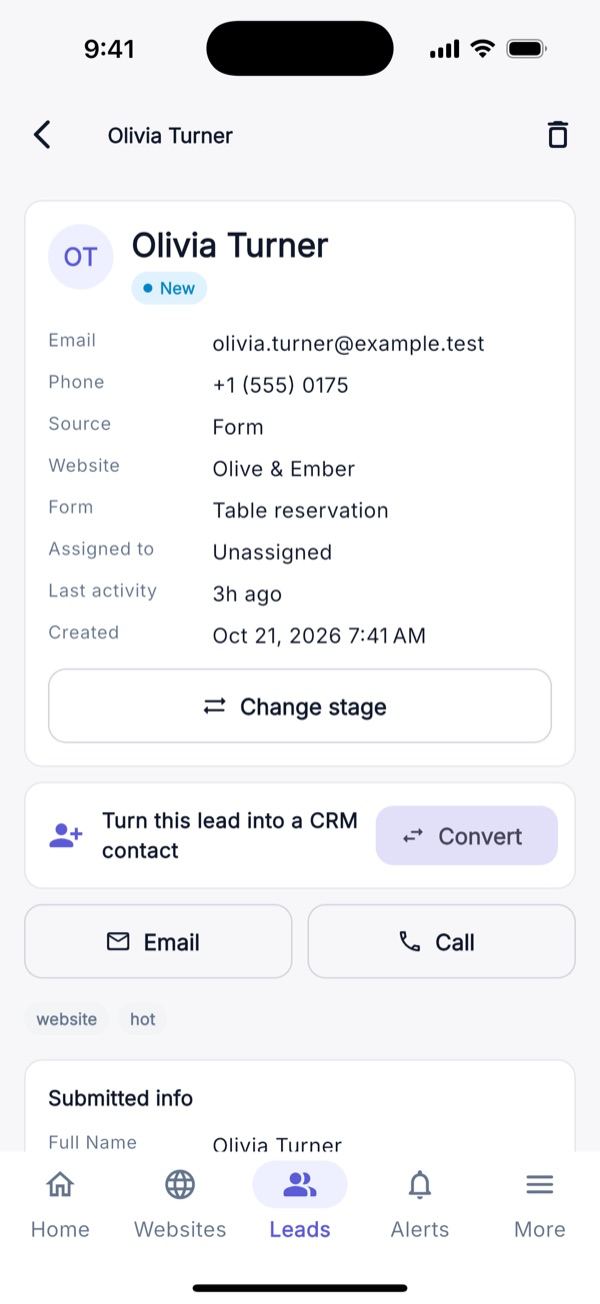
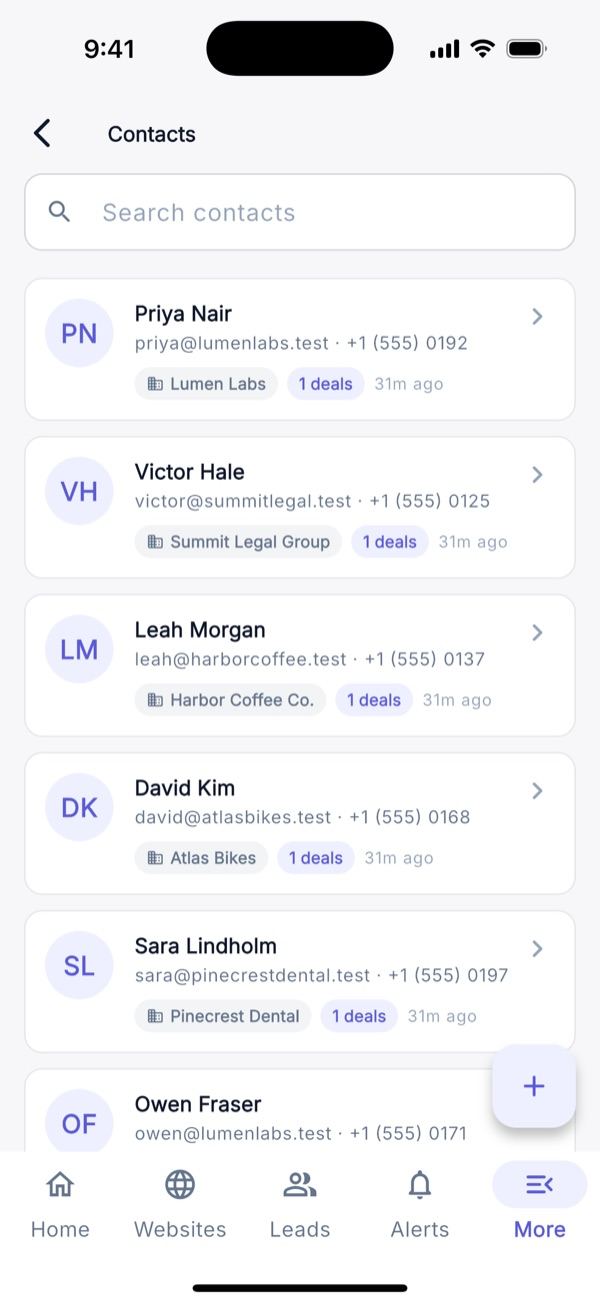
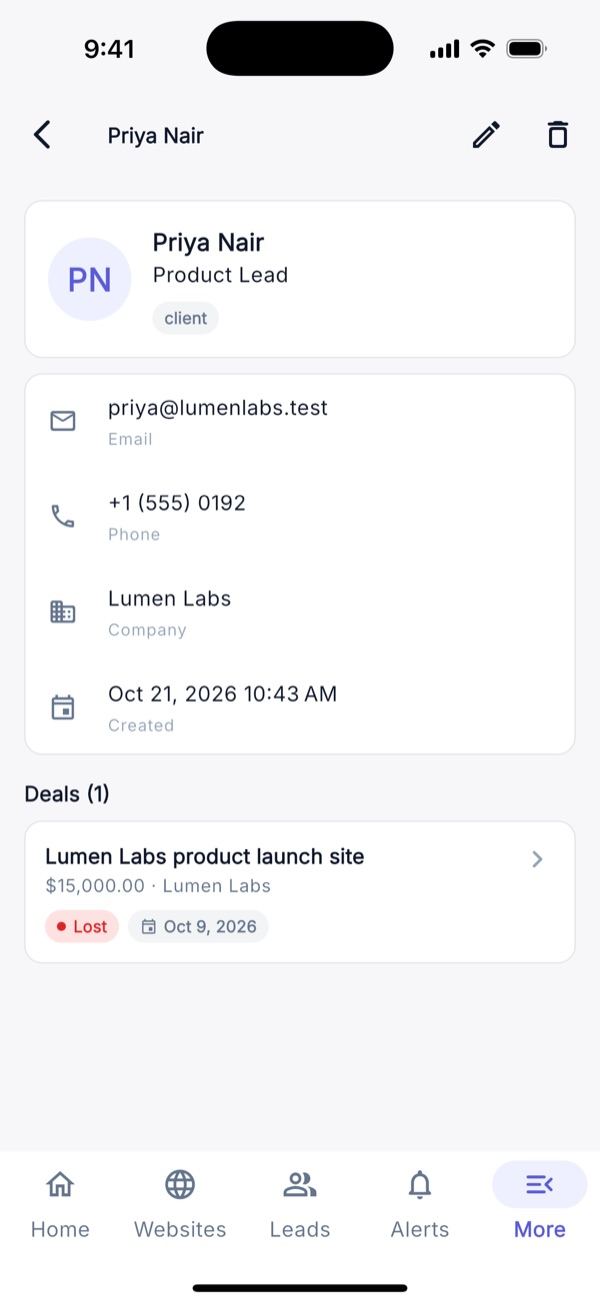
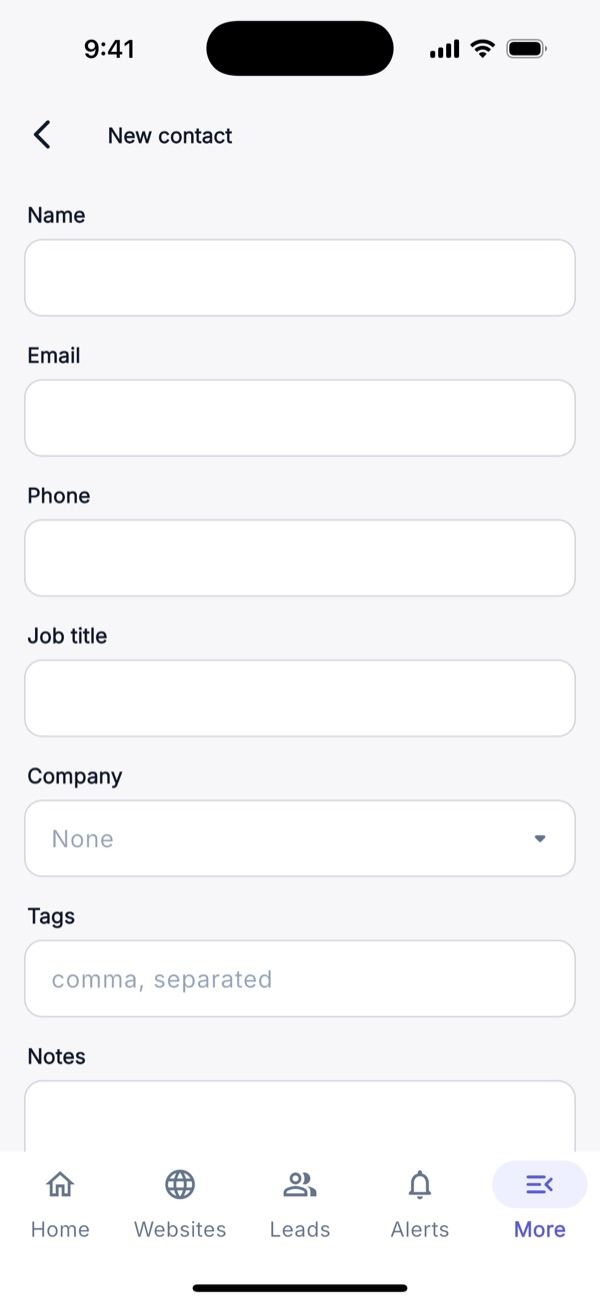
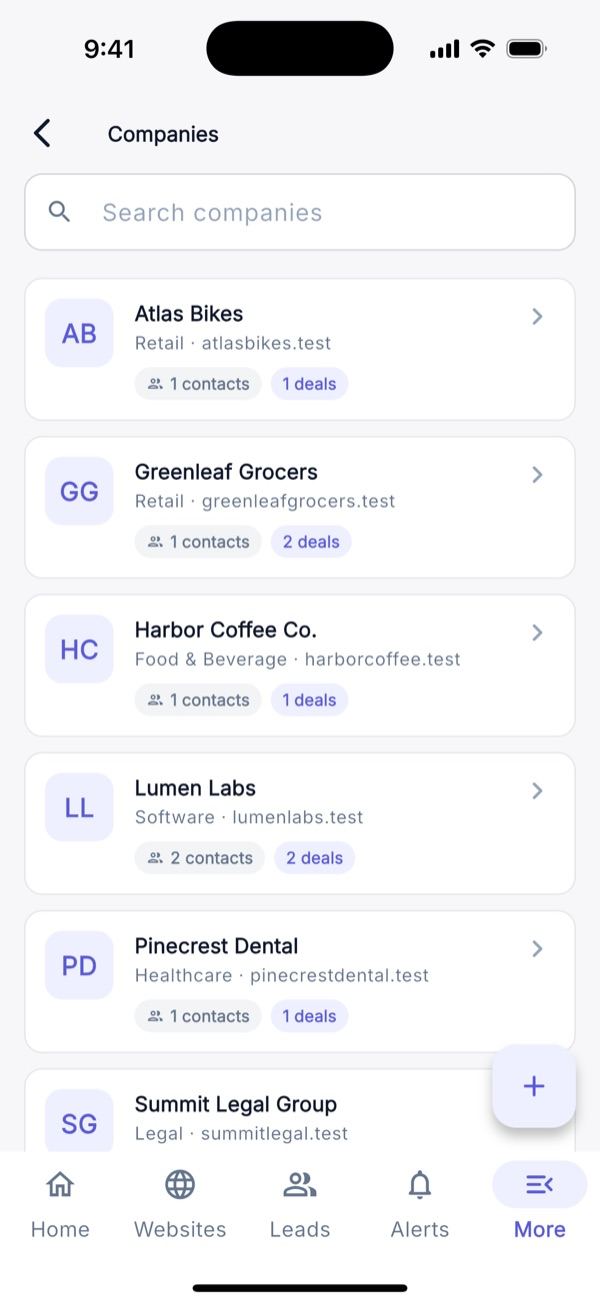
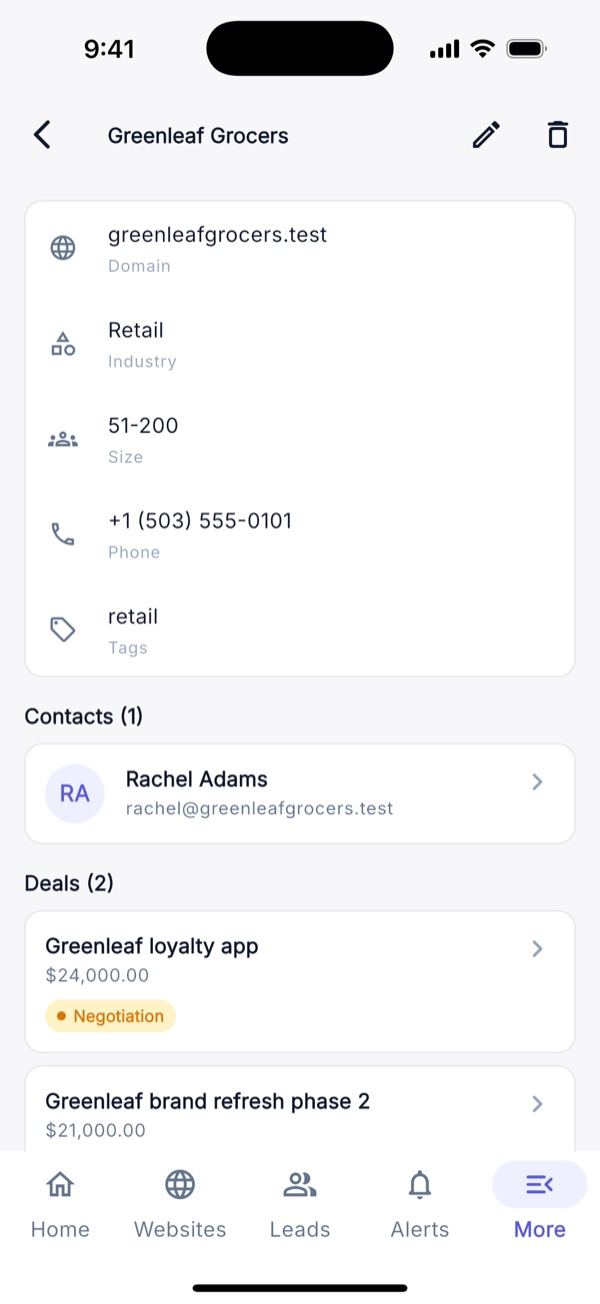
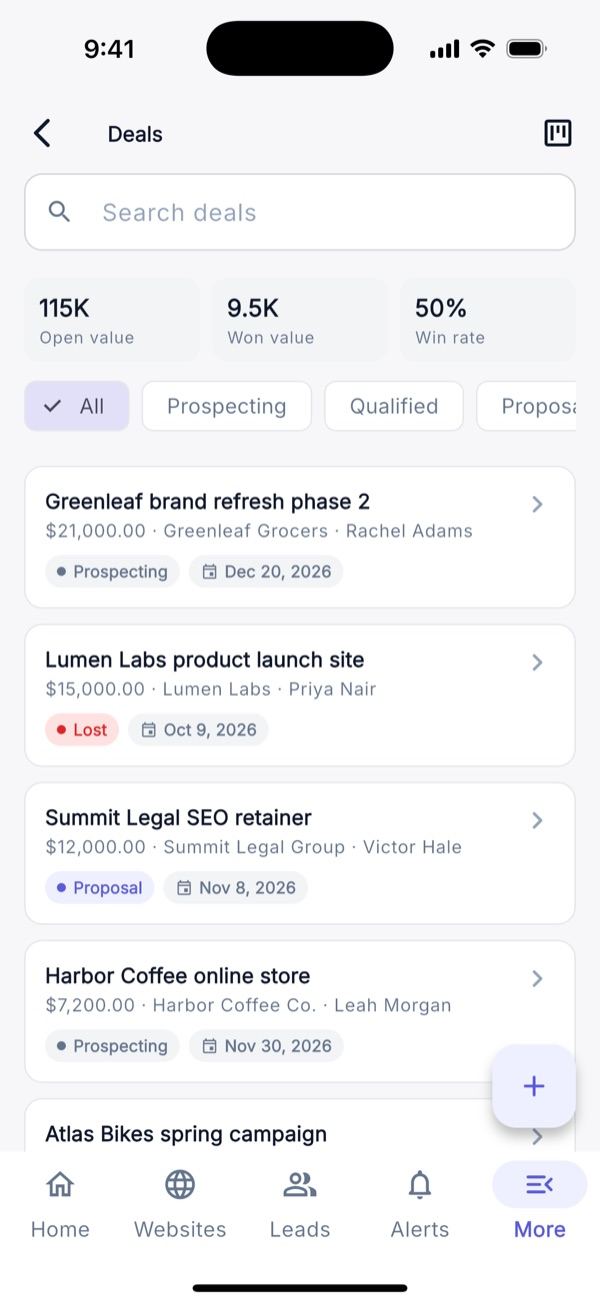
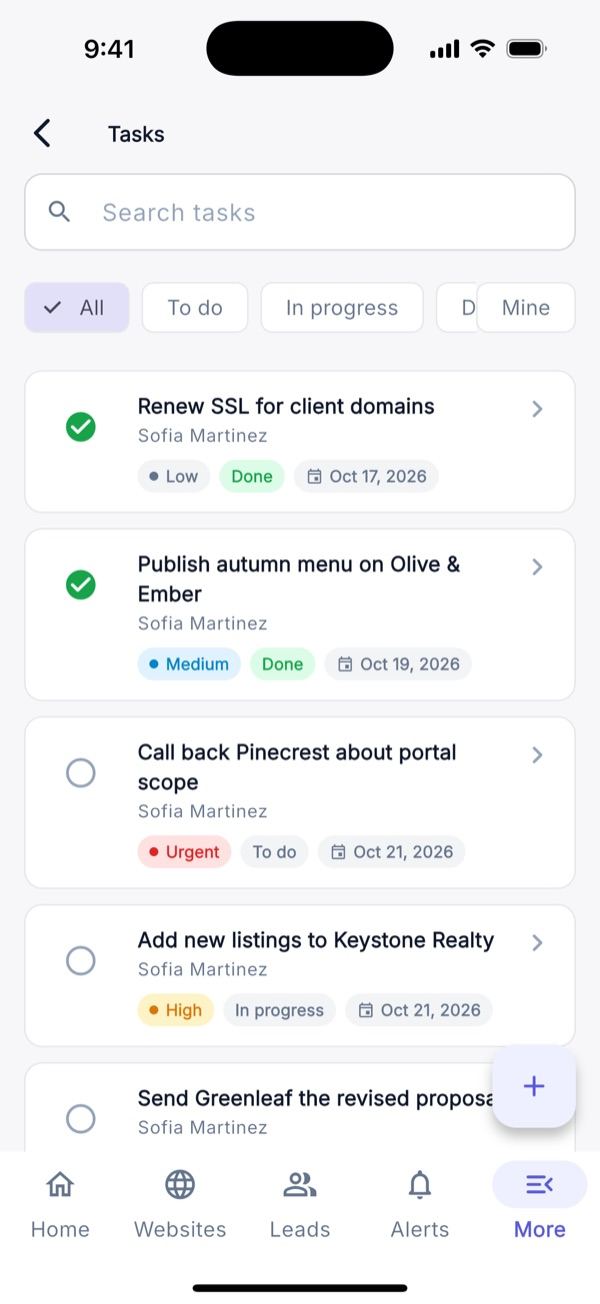
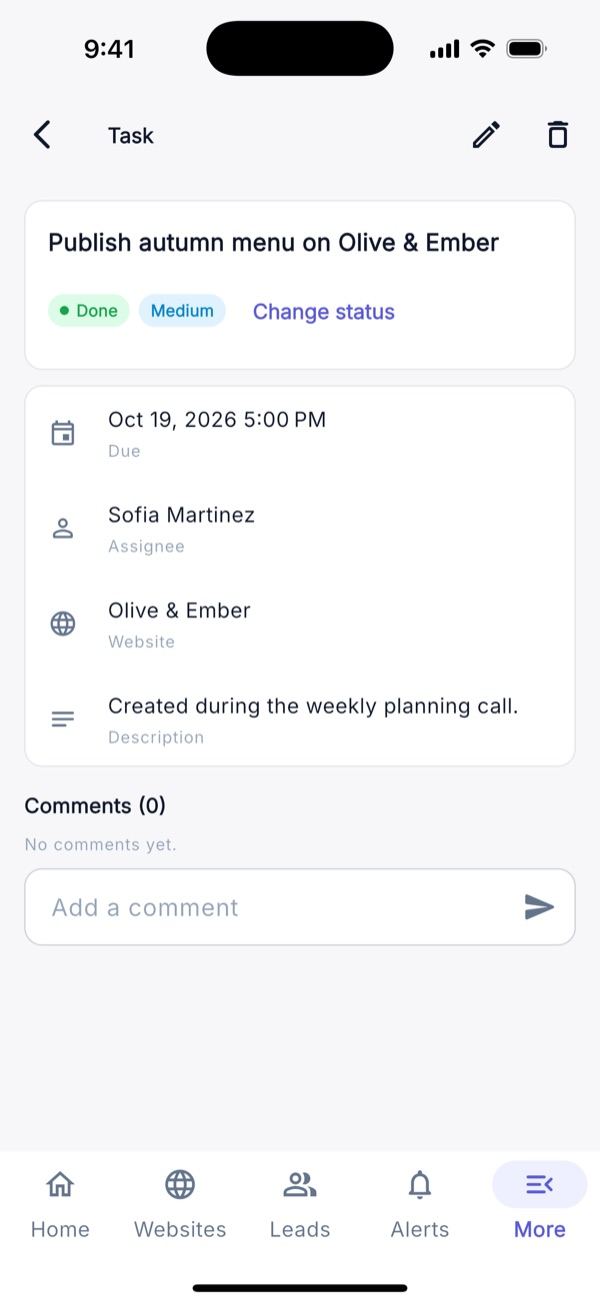
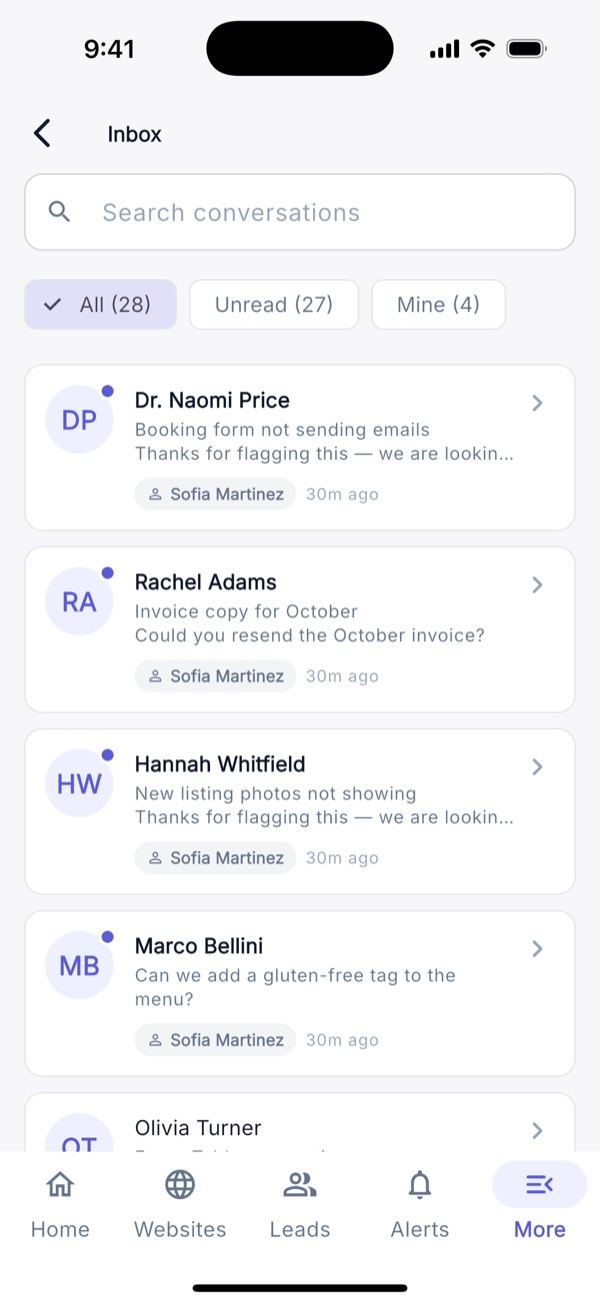
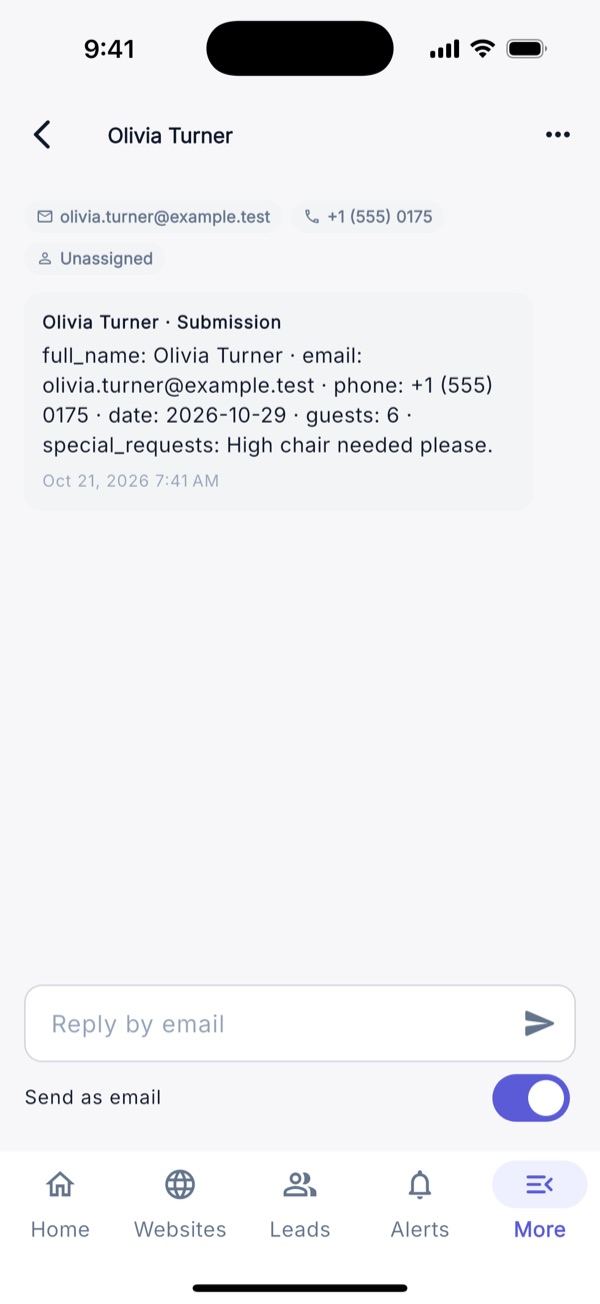
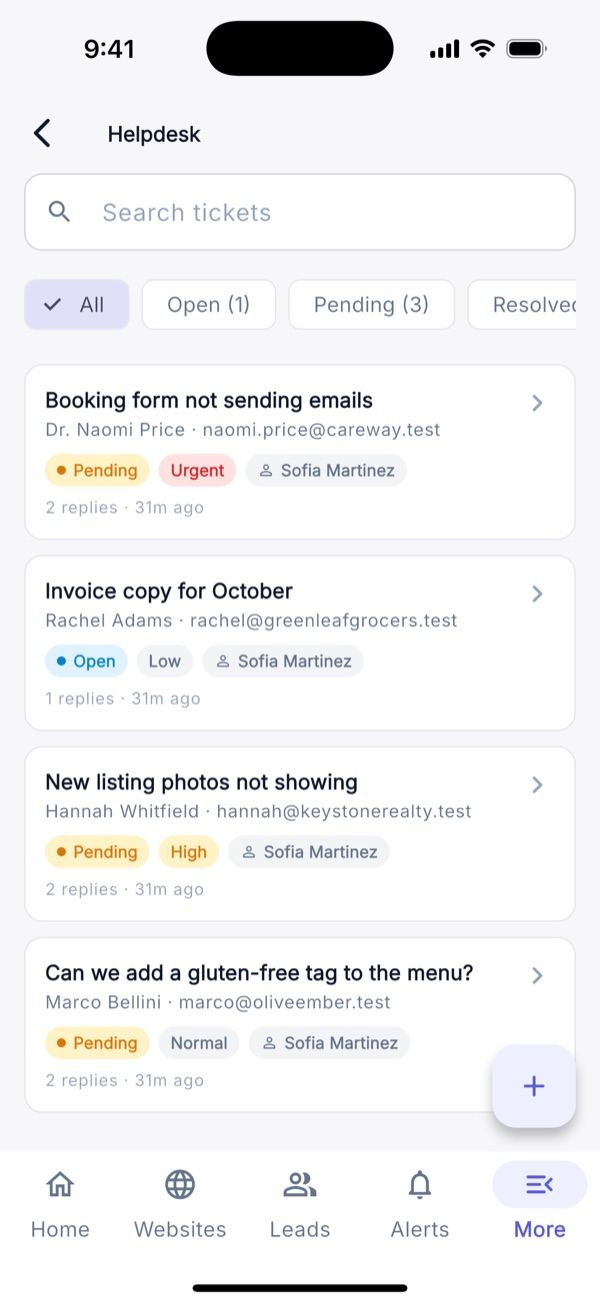
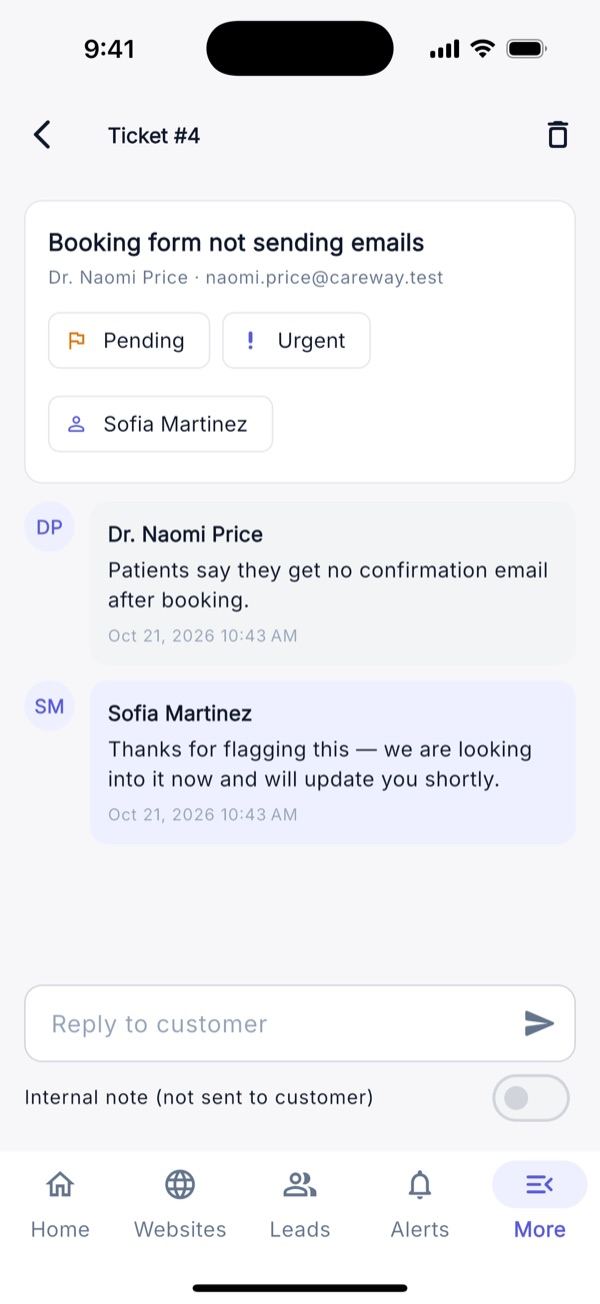
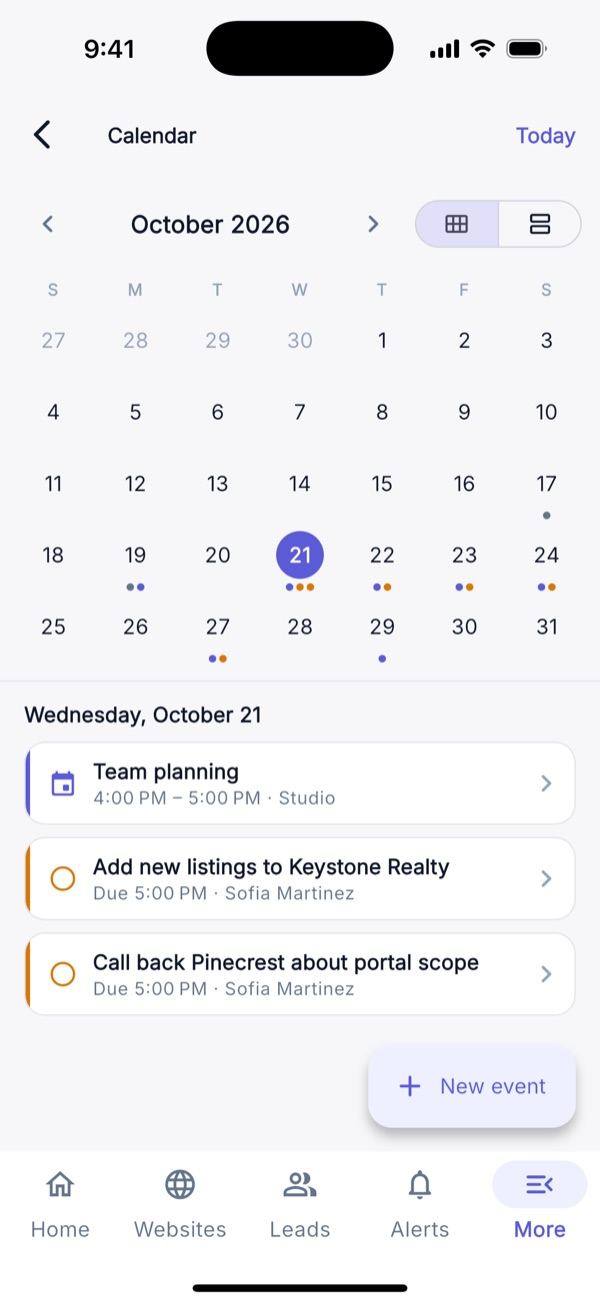
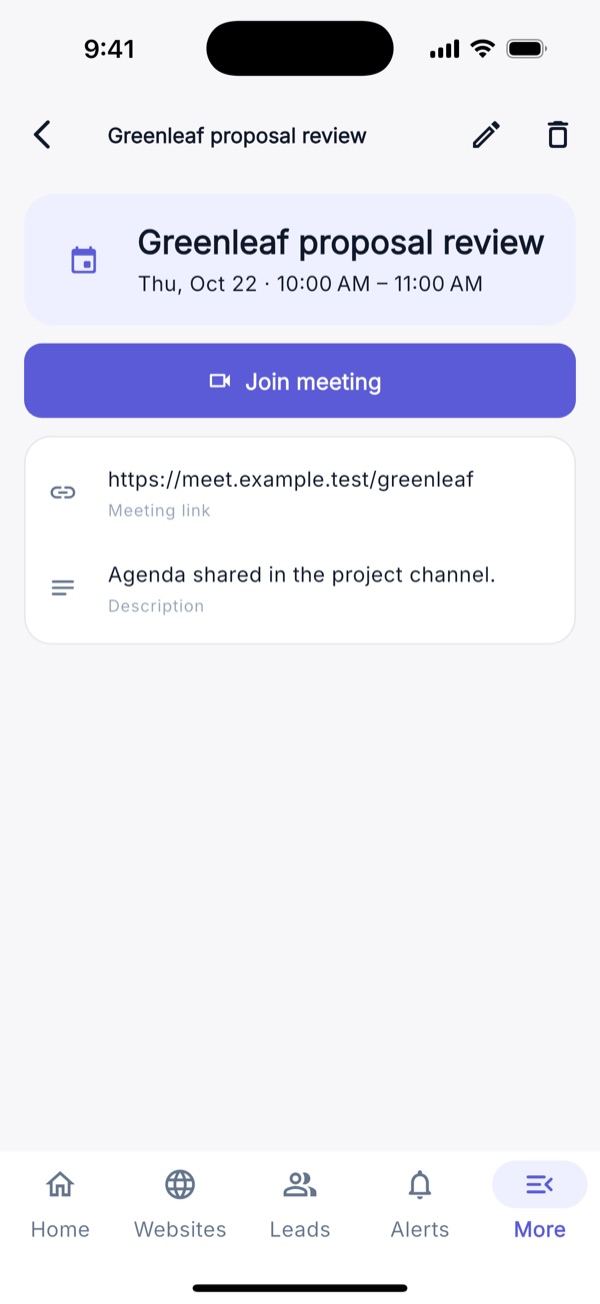
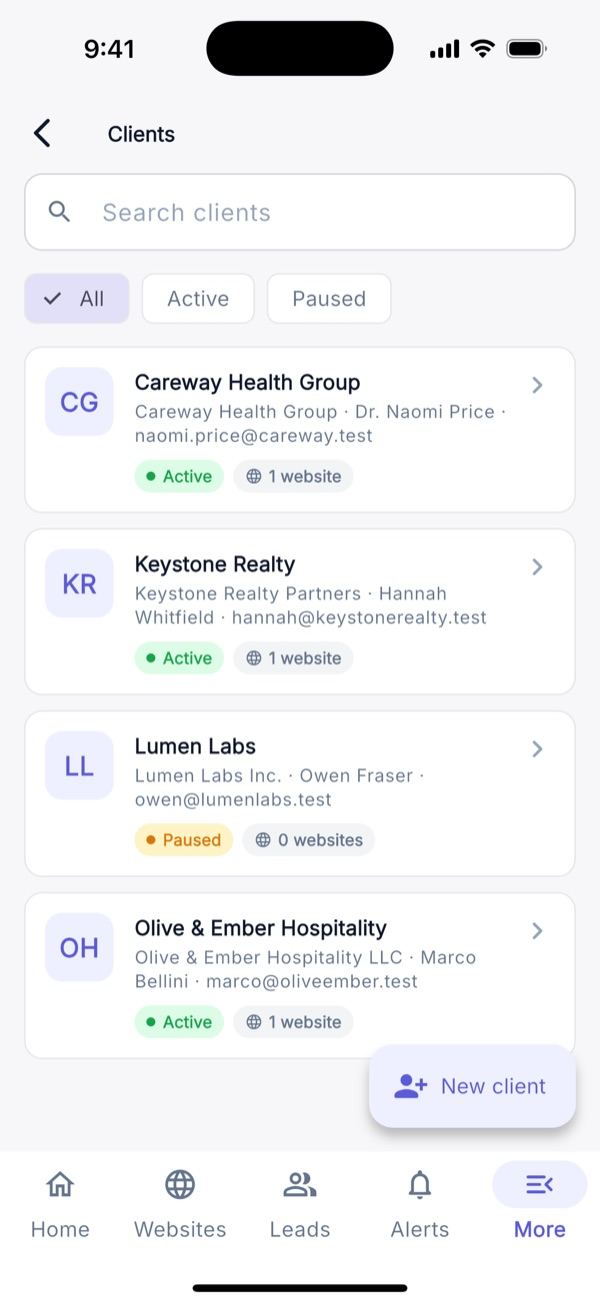
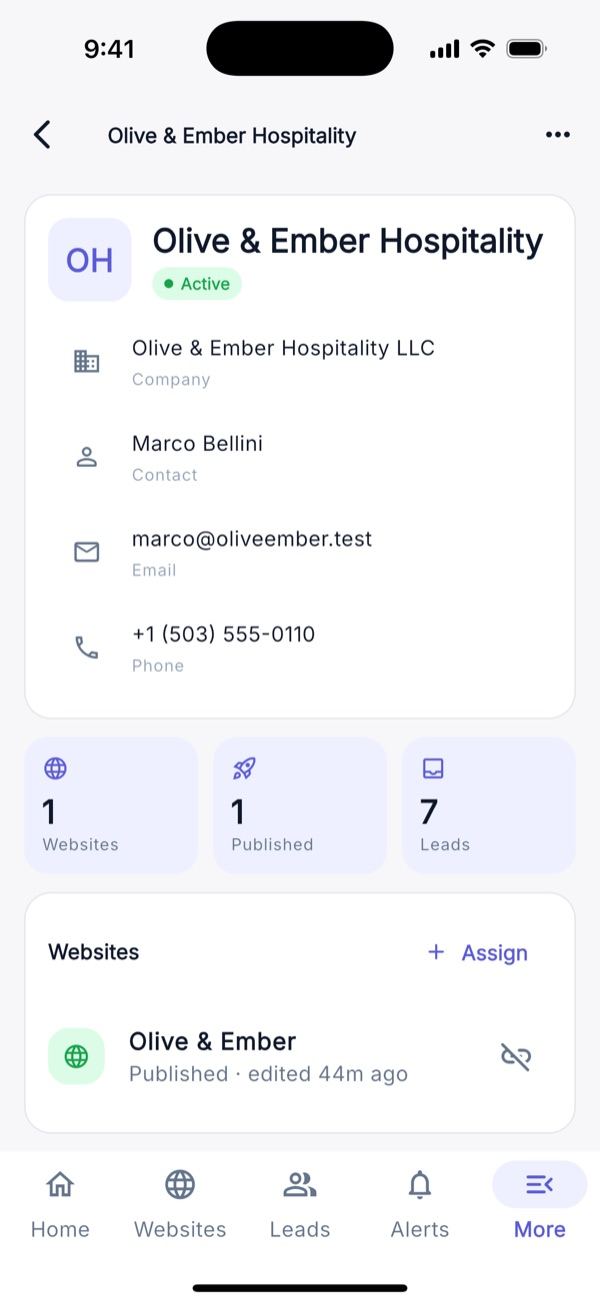
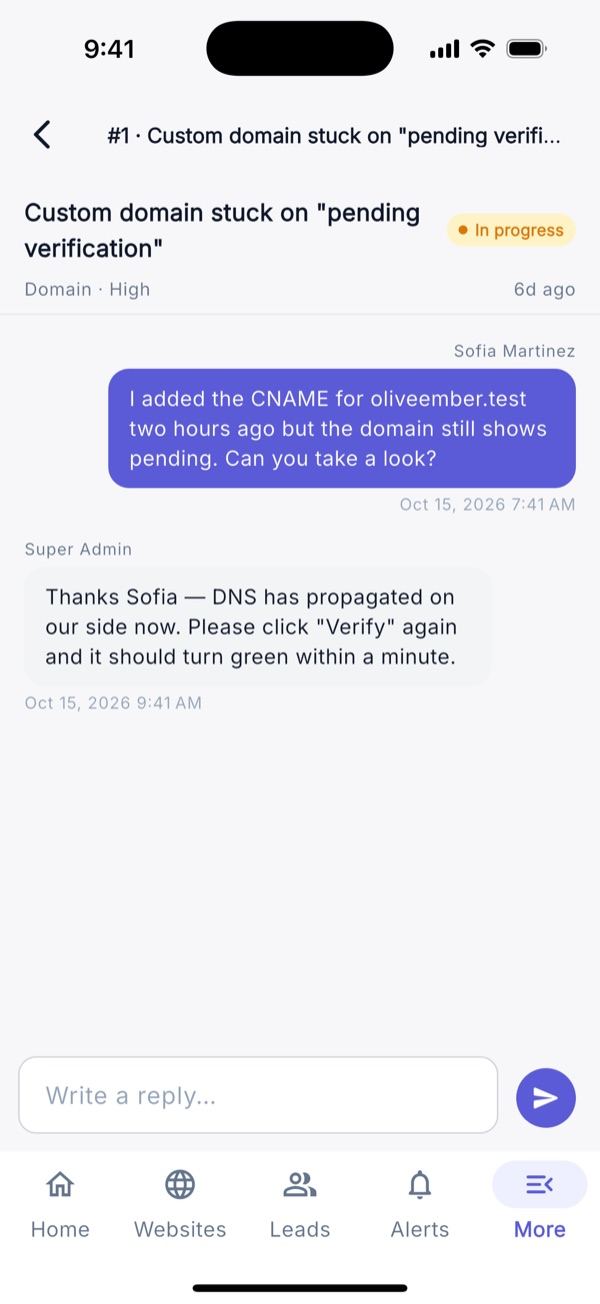
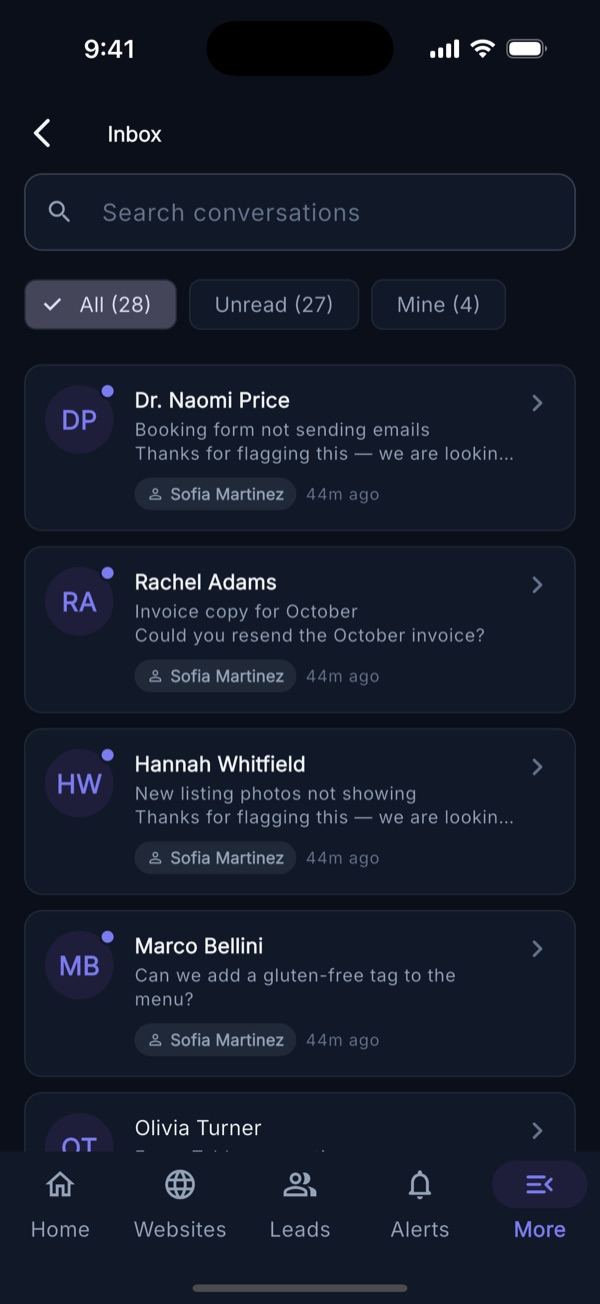
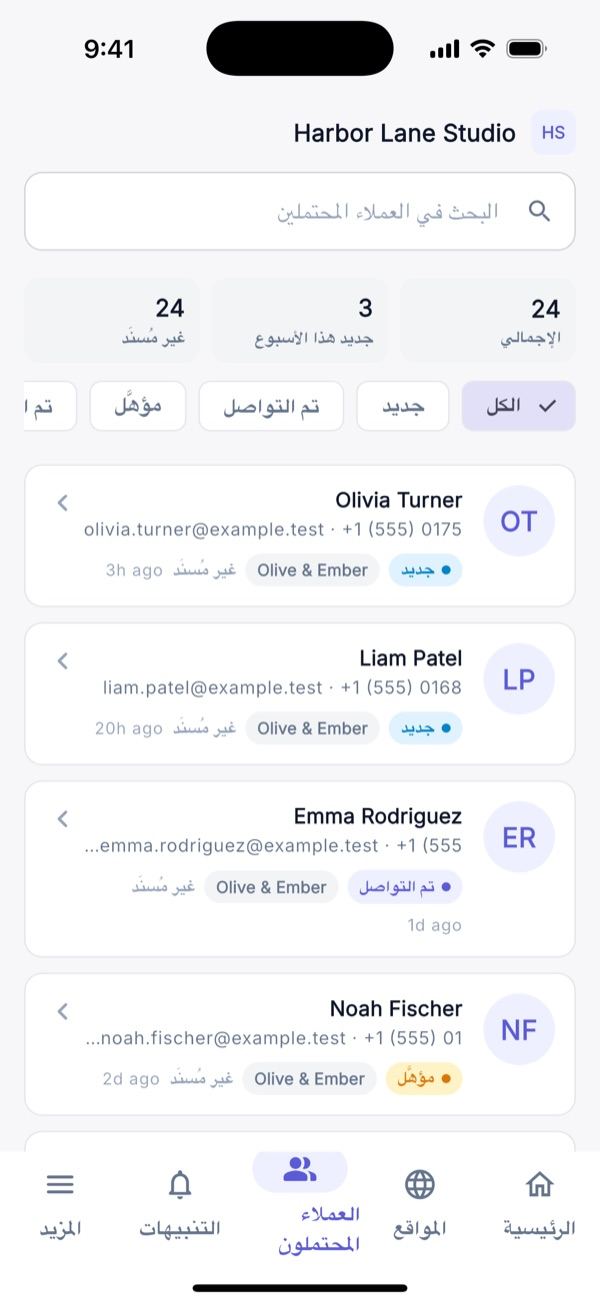
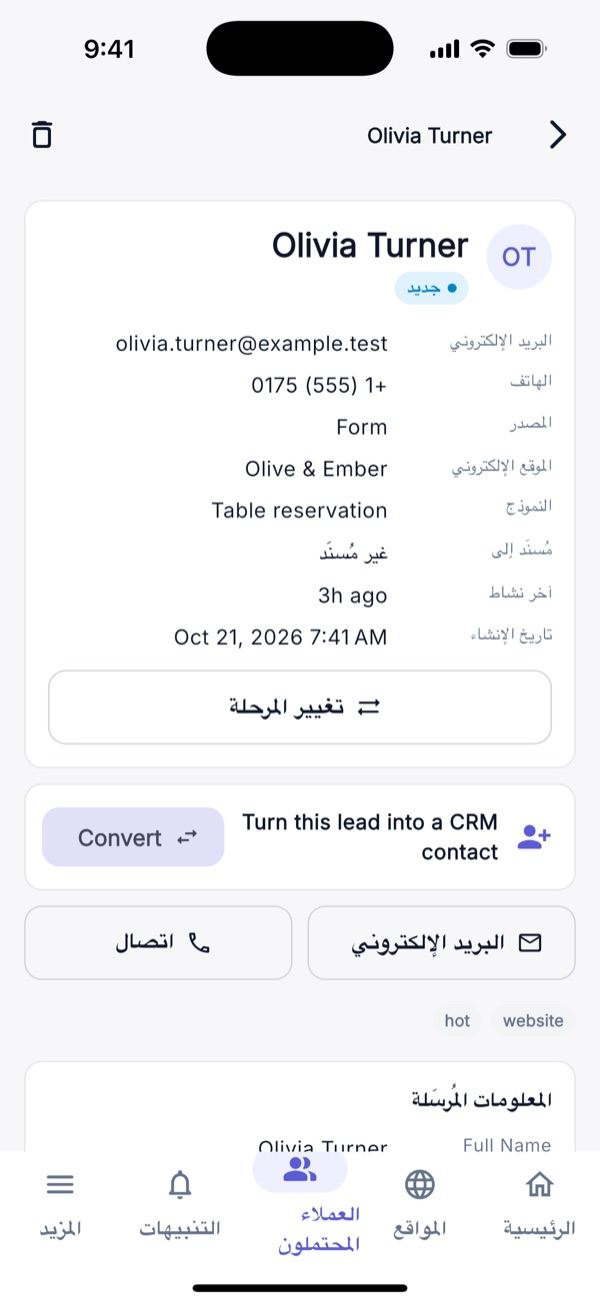
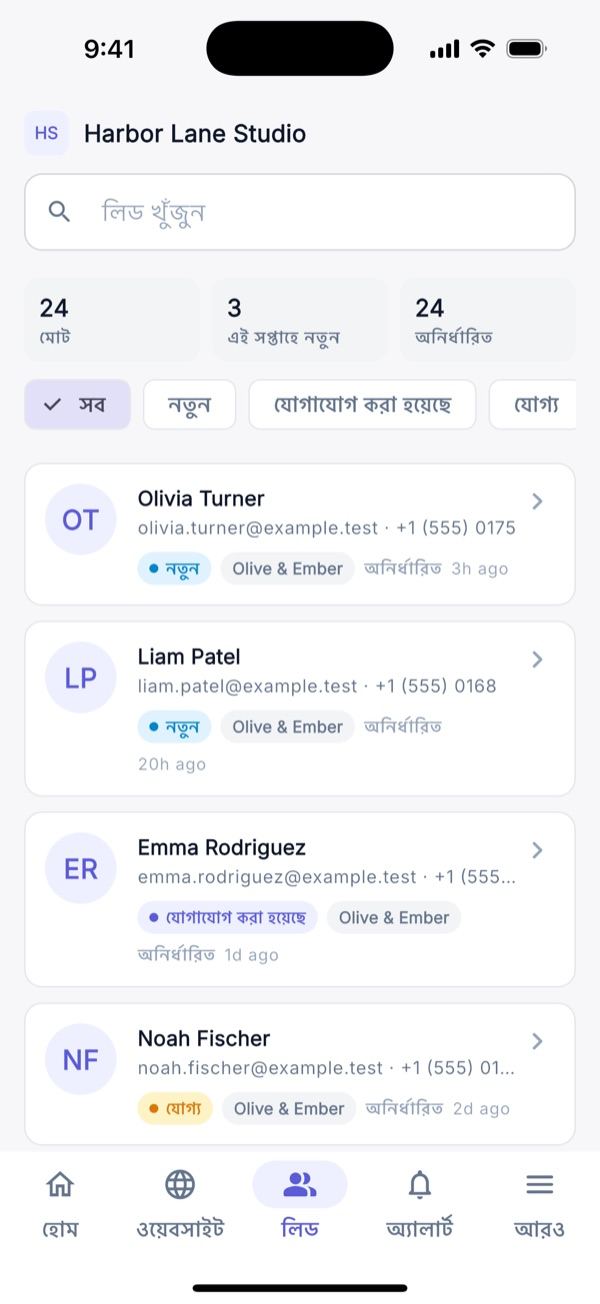
Leads: search, stats and stage chips; the detail screen has call/e-mail buttons, stage change, a notes timeline, the submitted form data and Convert to CRM contact. Contacts and Companies with create/edit. Deals: stats, list and a Kanban board view (move stage from the deal; the board has no drag). Tasks with priority, due date, assignee and comments. Inbox: lead conversations, reply by e-mail or internal note. Helpdesk tickets with status, priority, assignee and internal notes. Calendar: month grid and agenda of appointments. Agency clients (agency plans): clients, assigned websites and client-portal invites.
Commerce & Finance
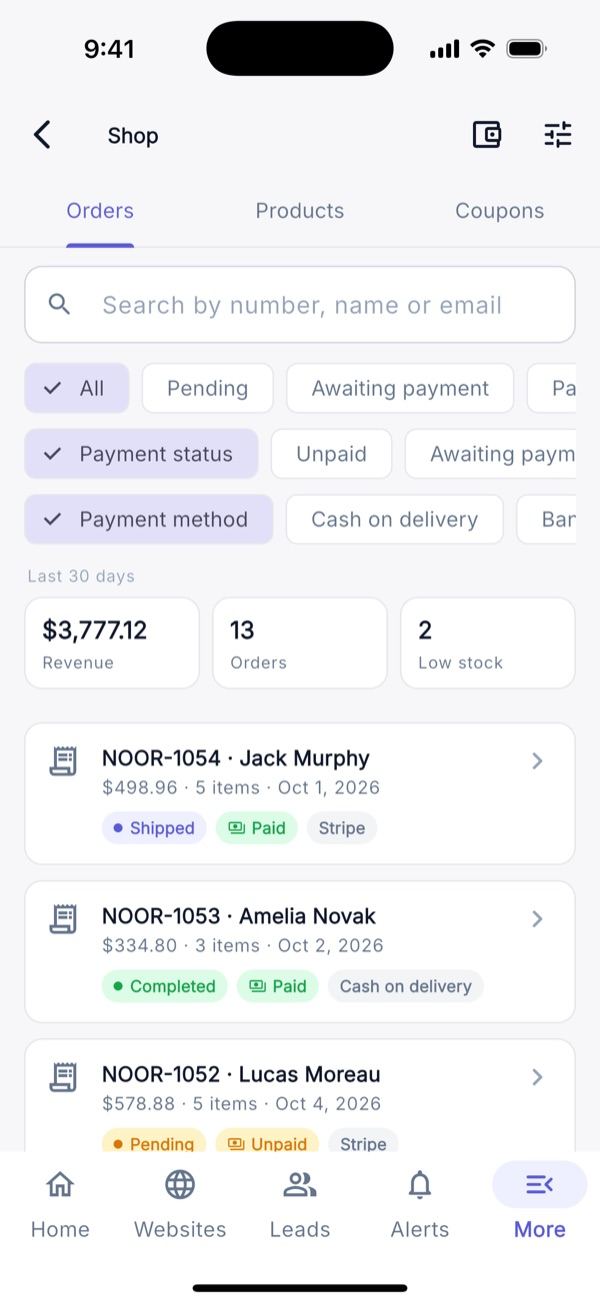
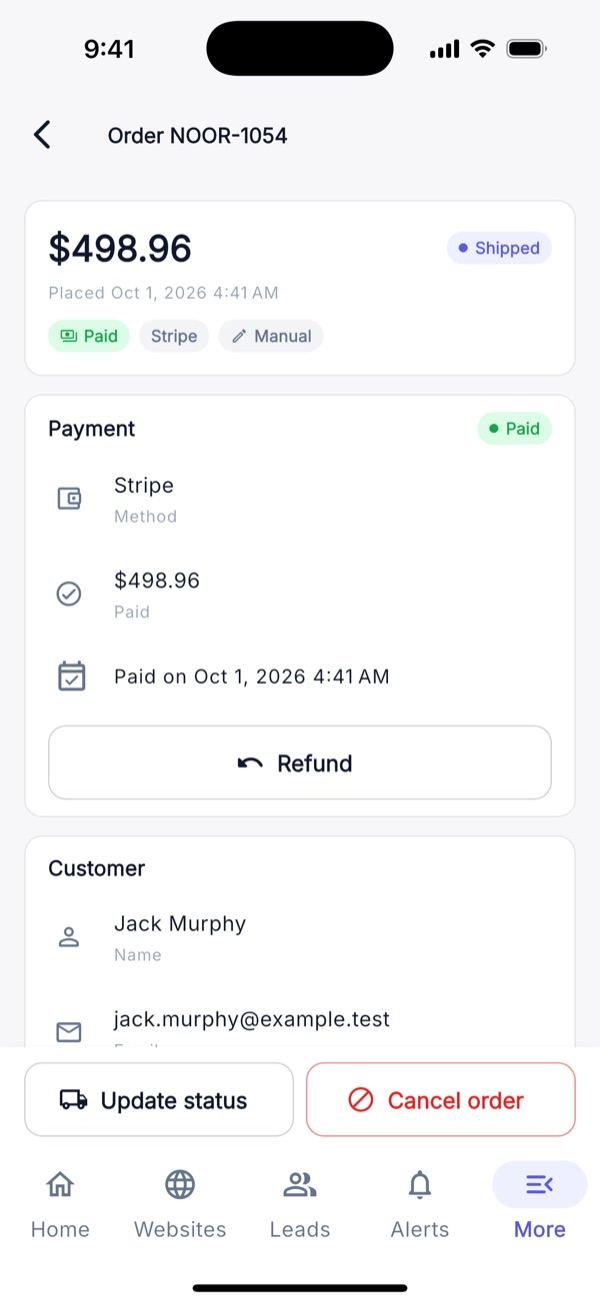
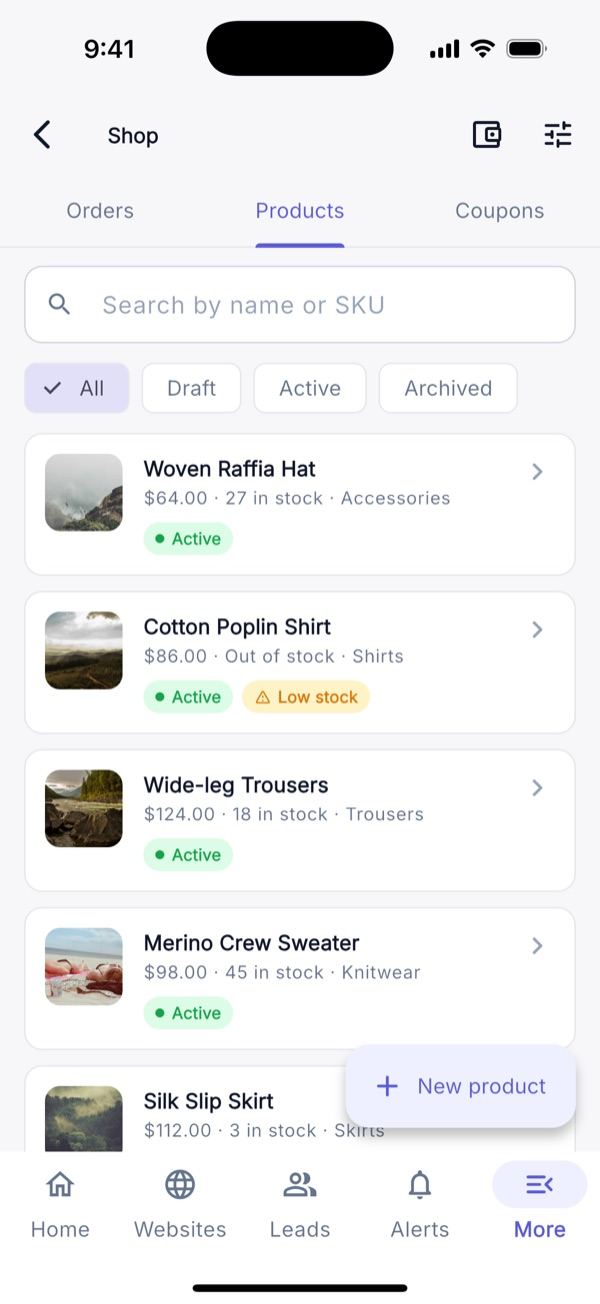
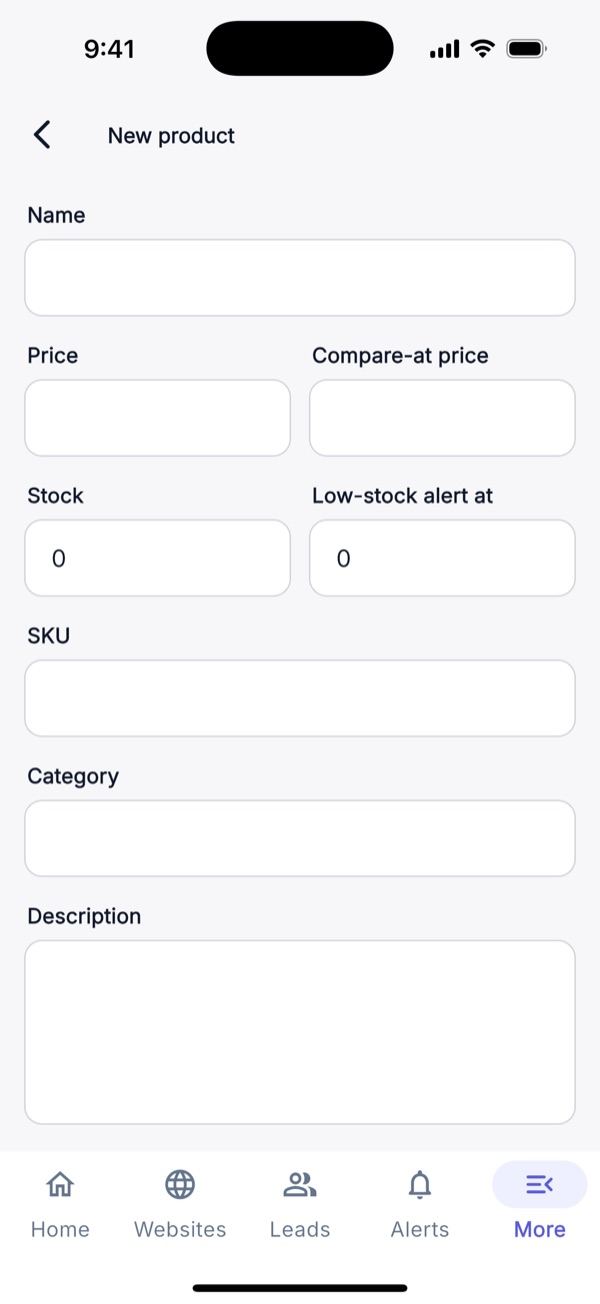
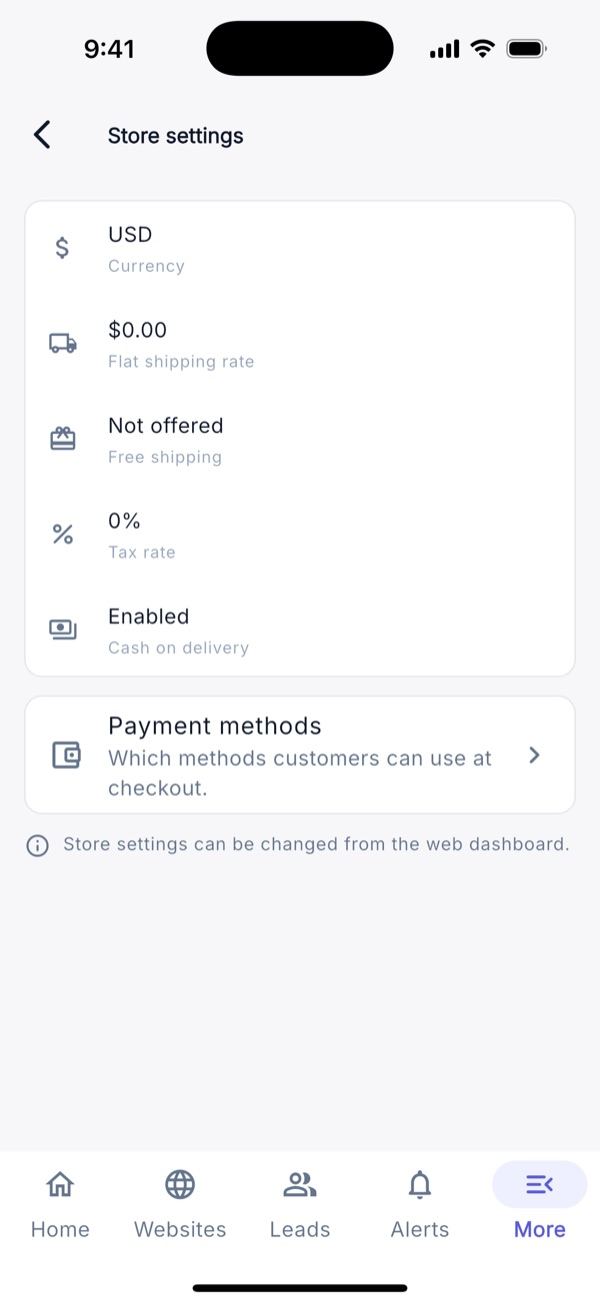
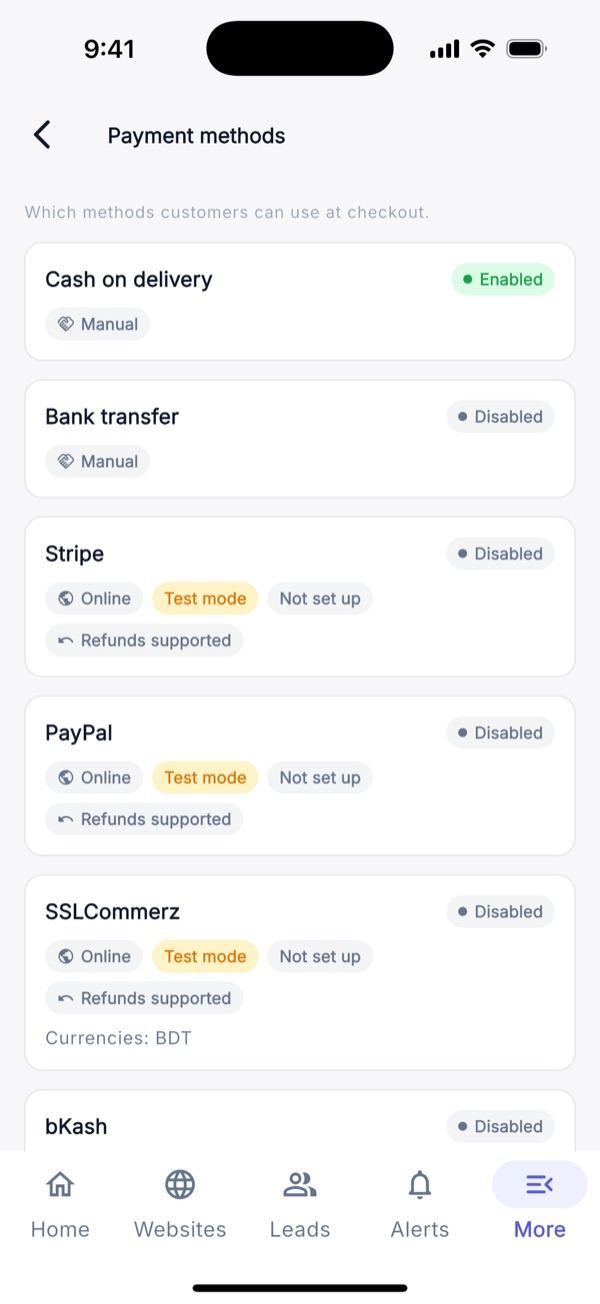
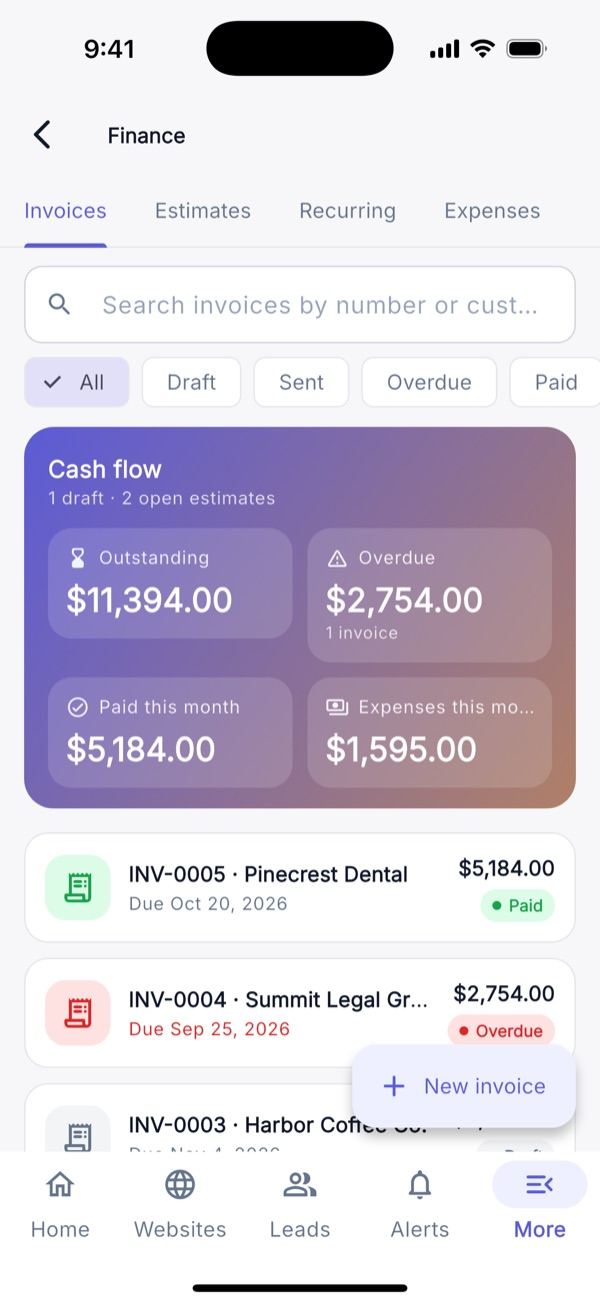
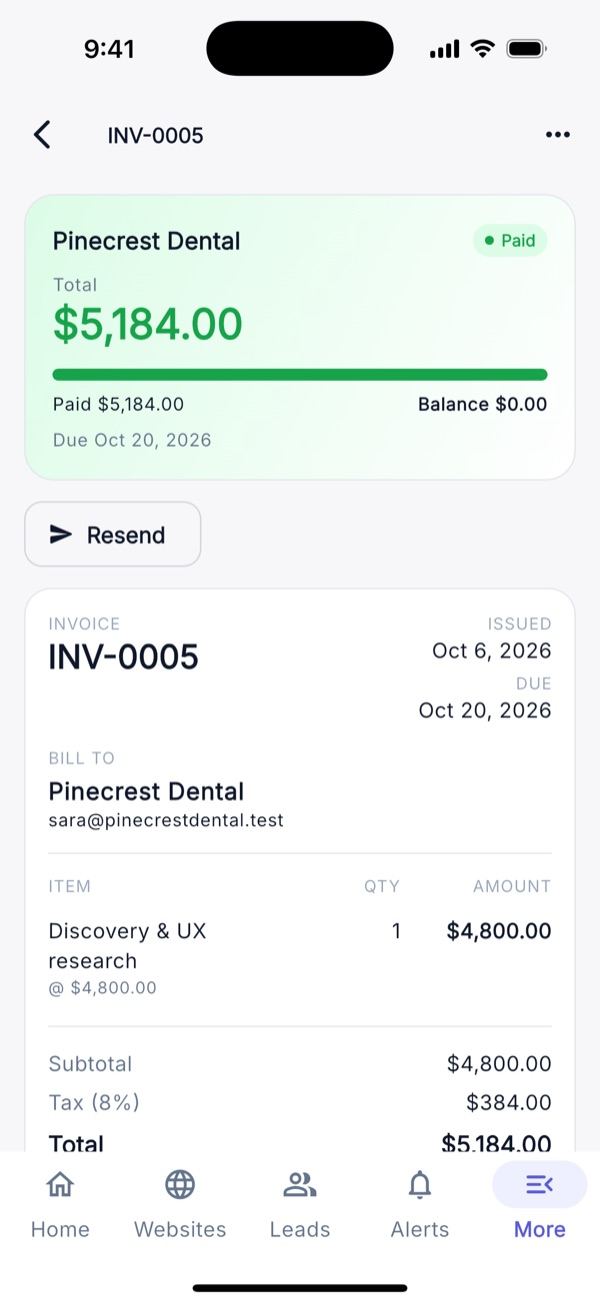
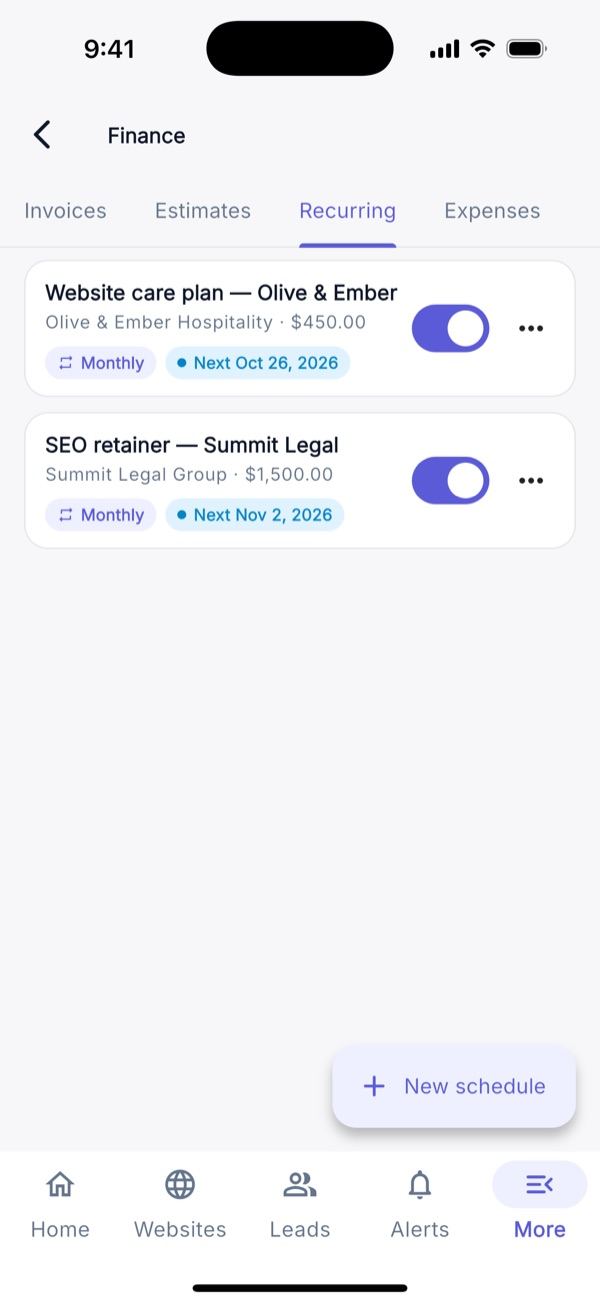
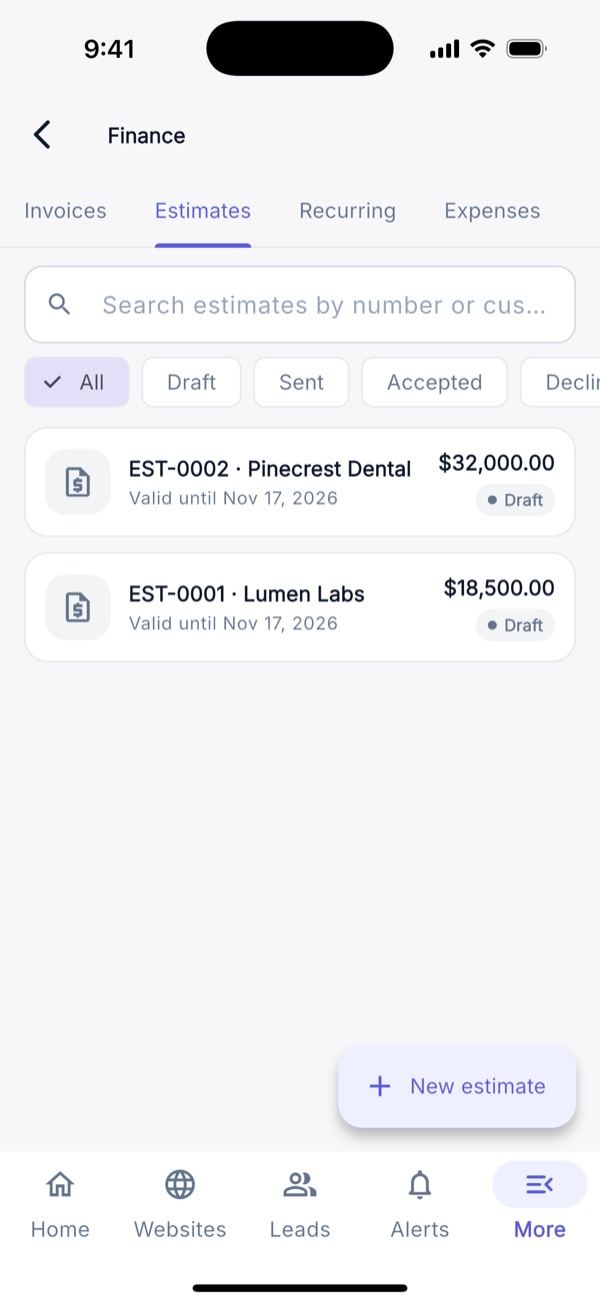
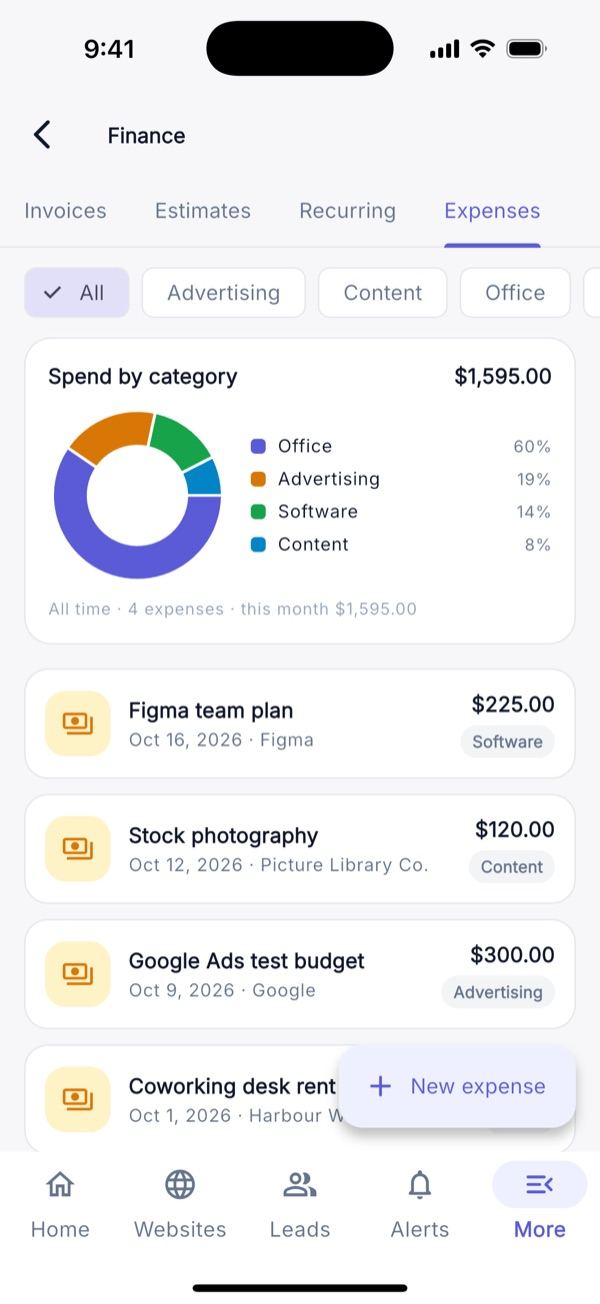
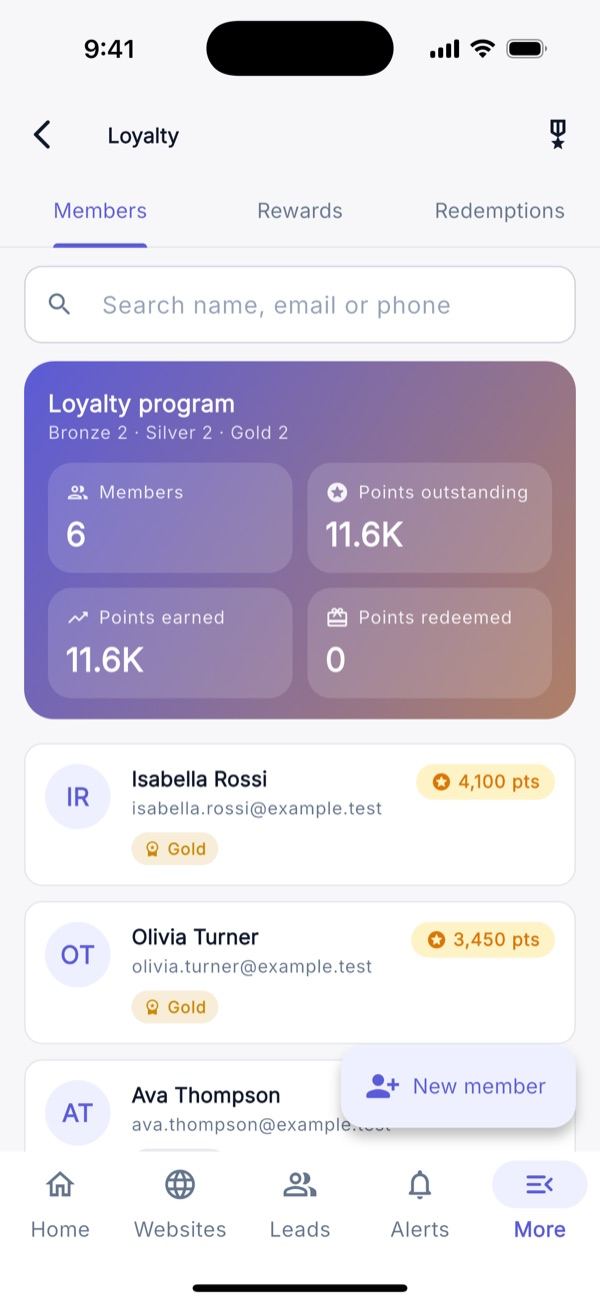
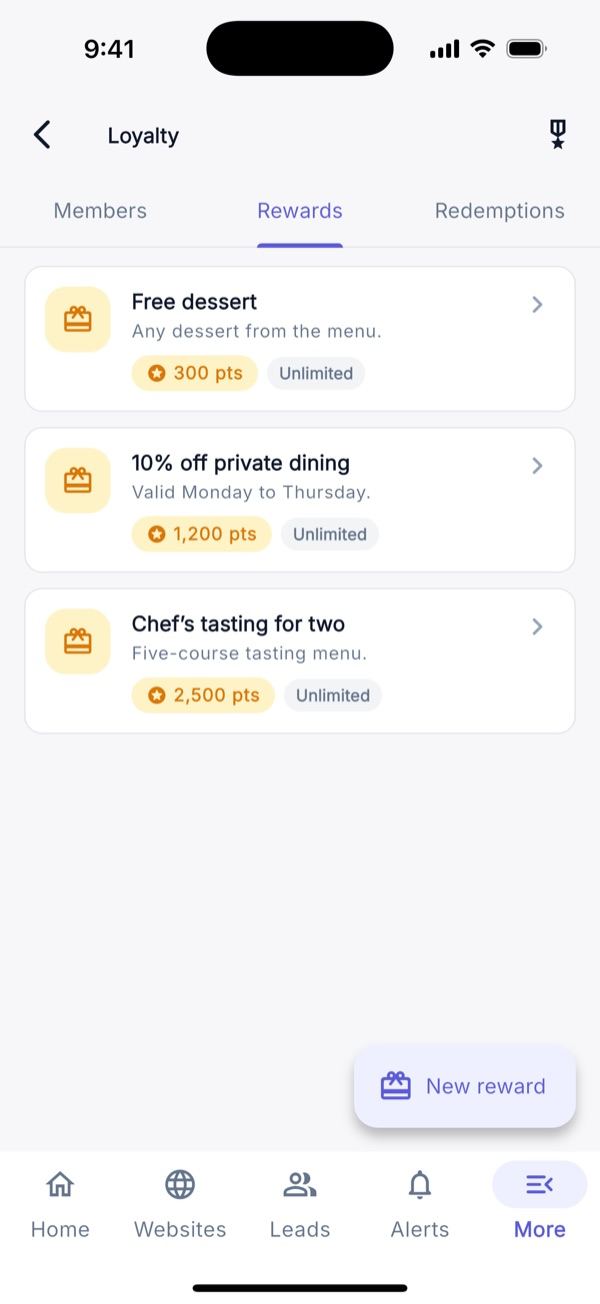
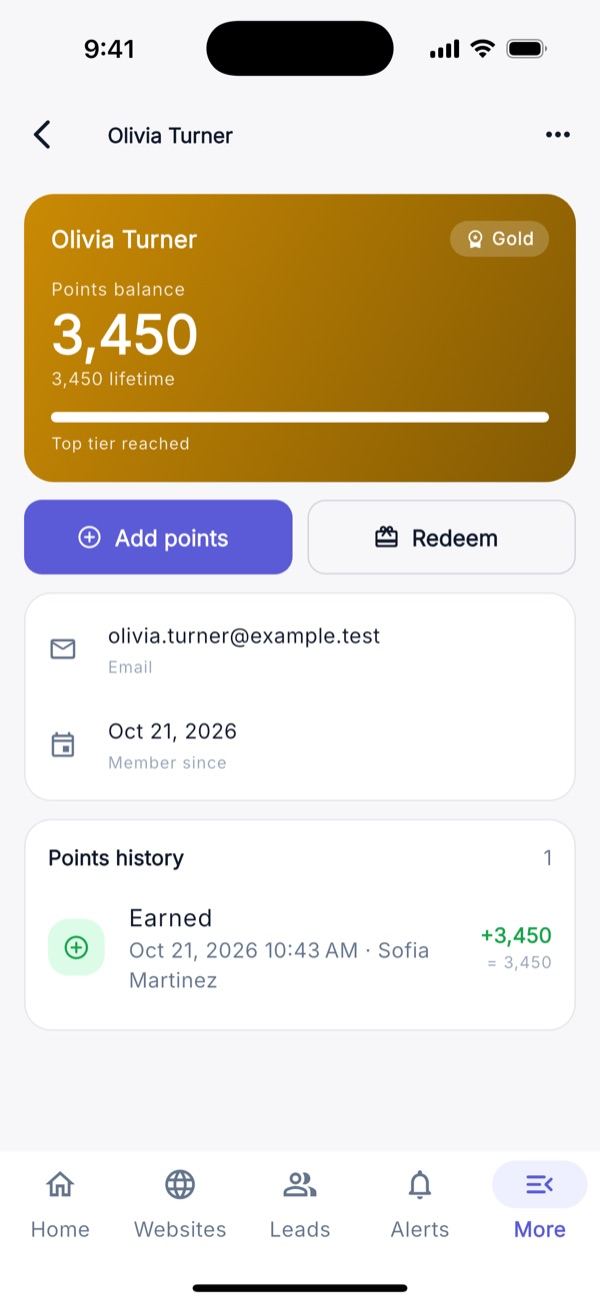
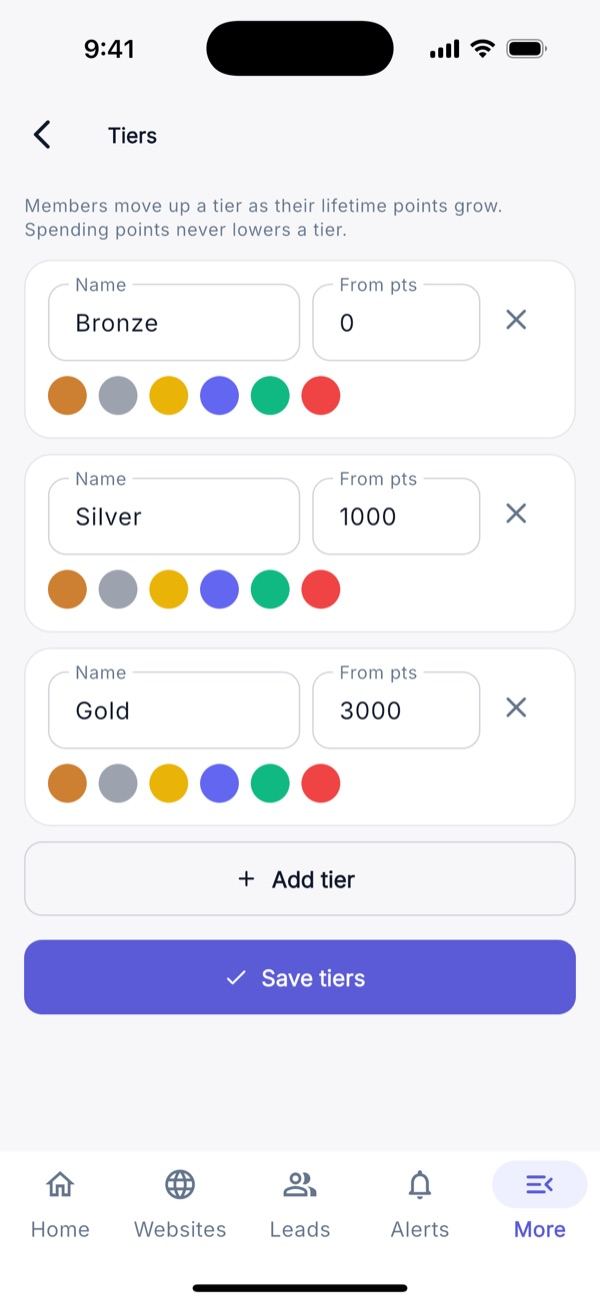
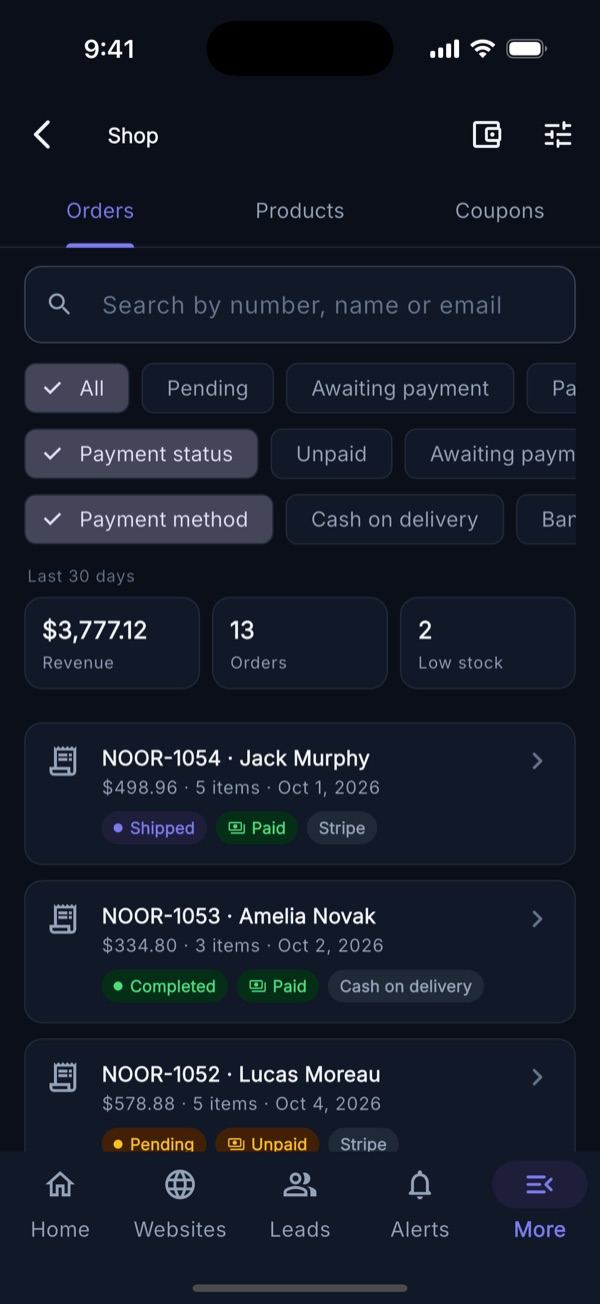
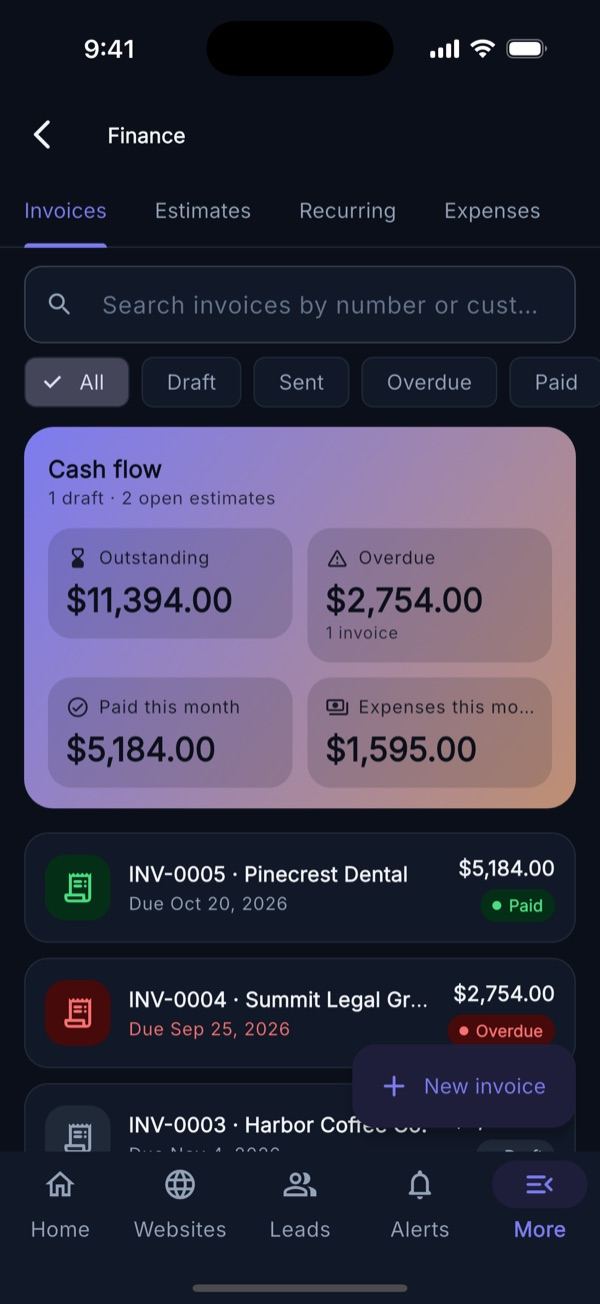
Shop (plan ecommerce): orders with status, mark paid, cancel and full or partial refund through the gateway; products with prices, stock, SKU, up to 10 images and a variants editor; coupons. Shop settings and payment methods are shown read-only (edit them on the web). Finance: invoices (line items, record payment, send, void, PDF, share link), estimates (accept/decline, convert to invoice), recurring invoices and expenses with a receipt photo and category chart. Loyalty: members with points and tier progress, rewards, redemptions and a tiers editor.
Marketing
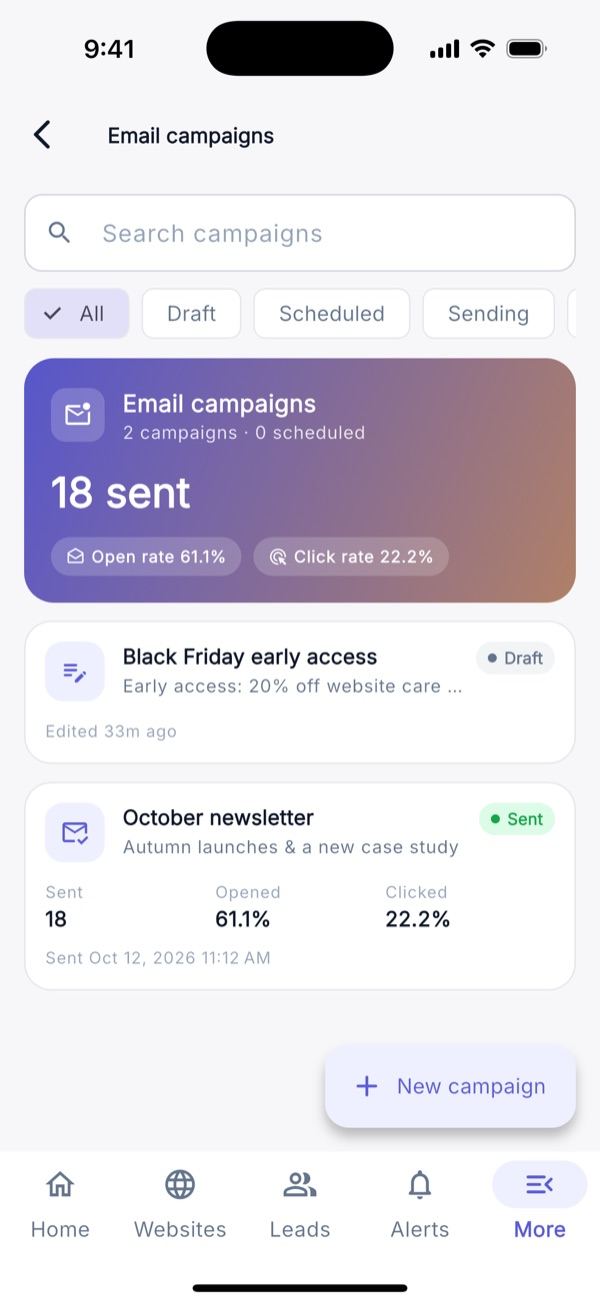
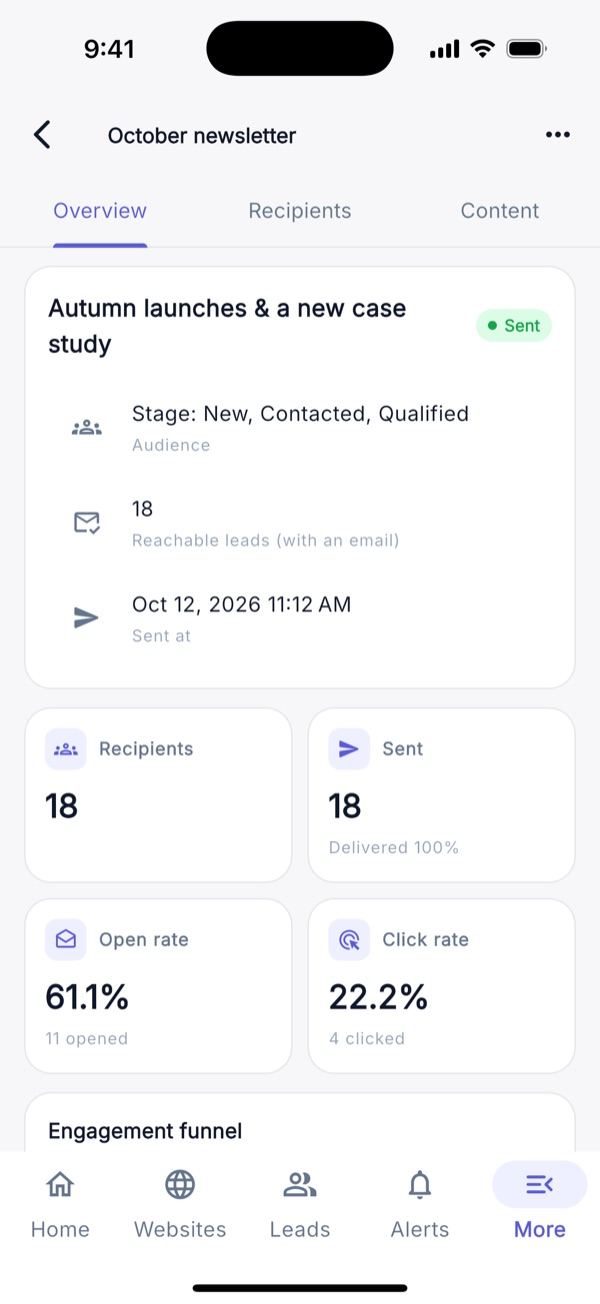
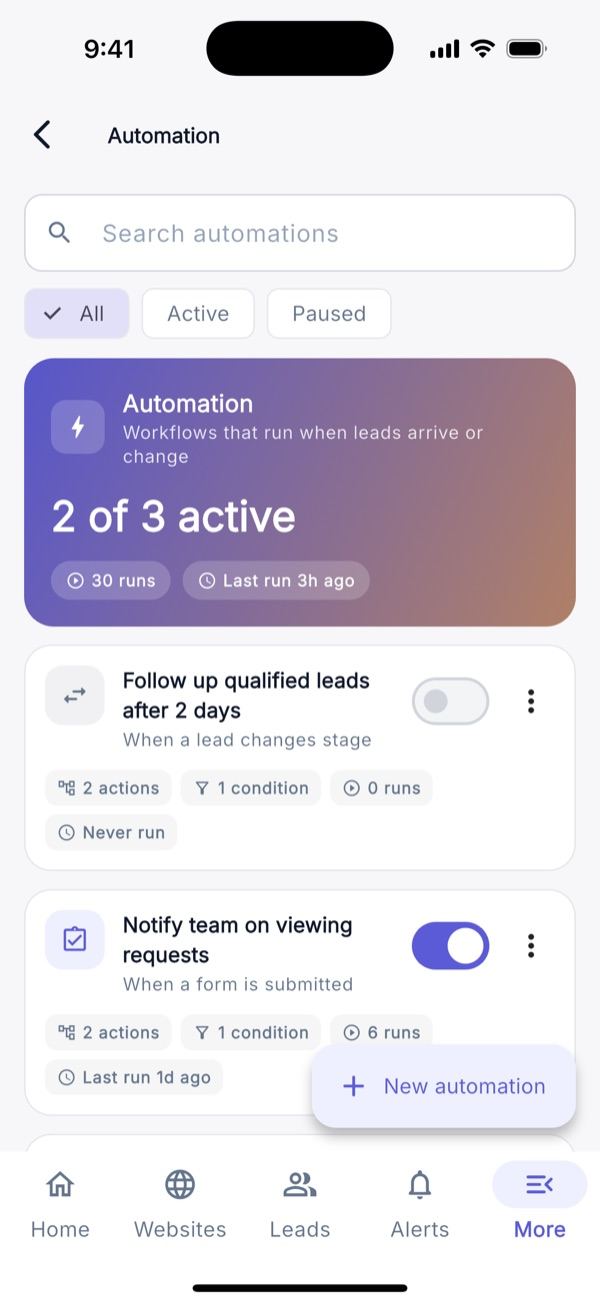
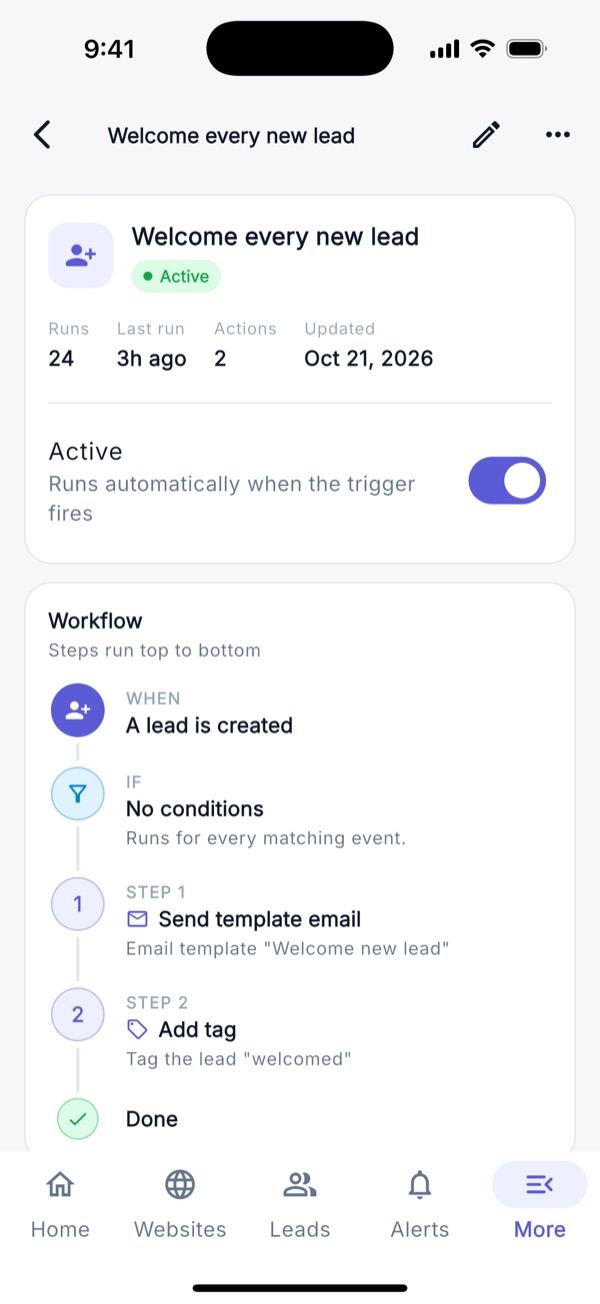
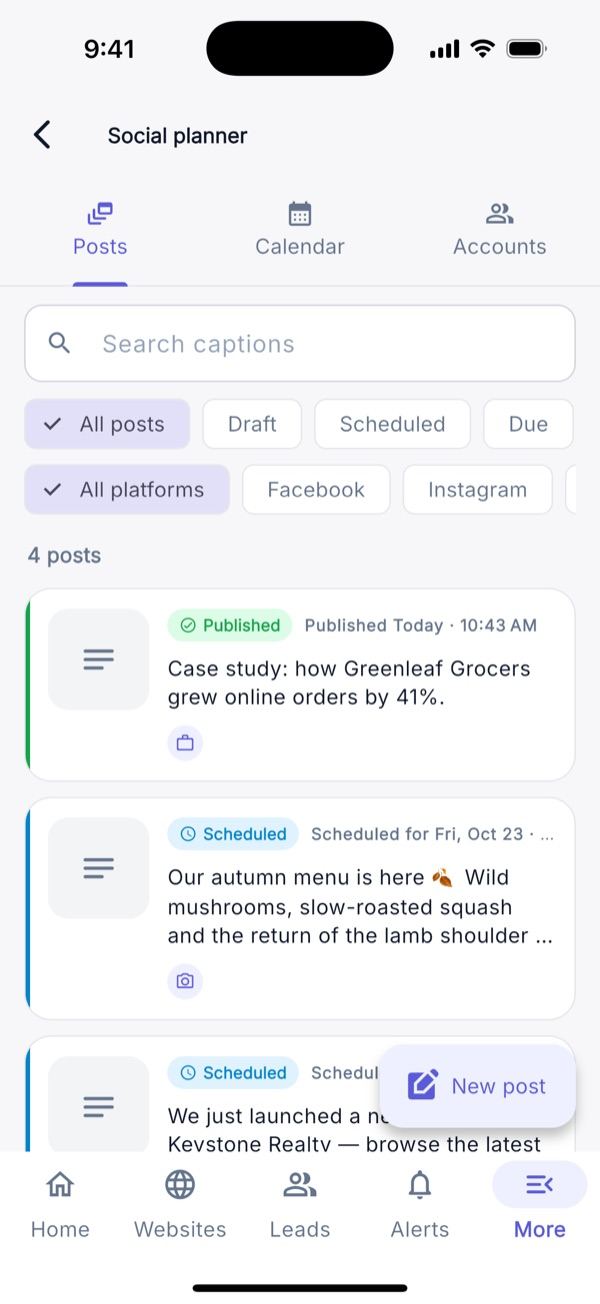
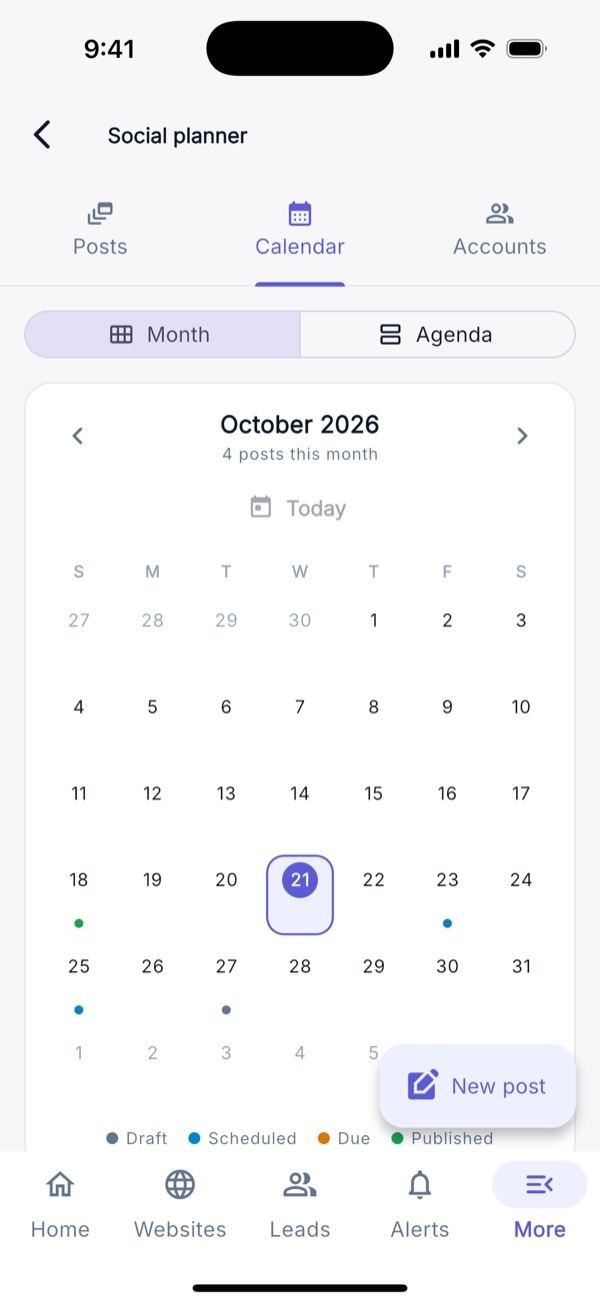
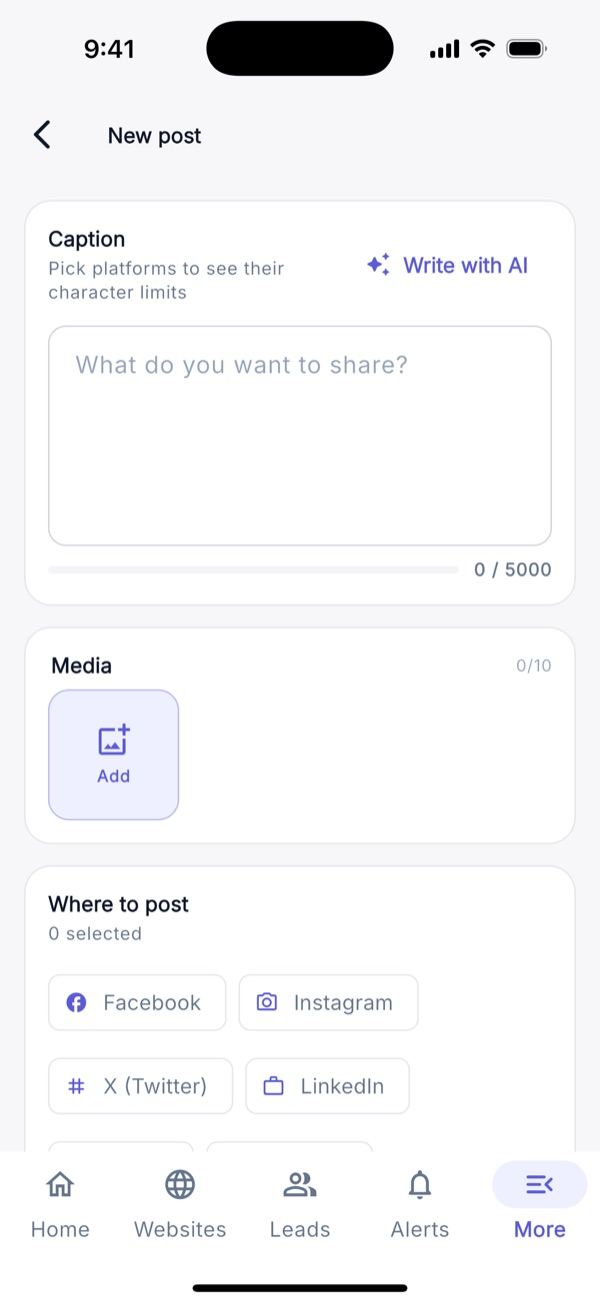
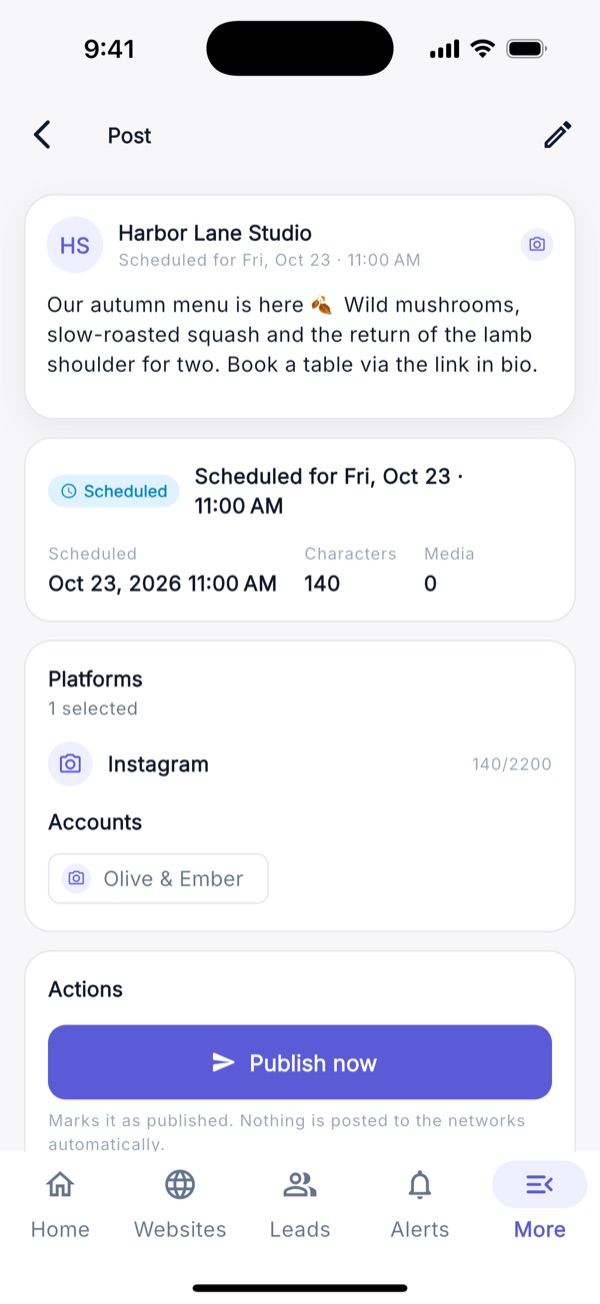
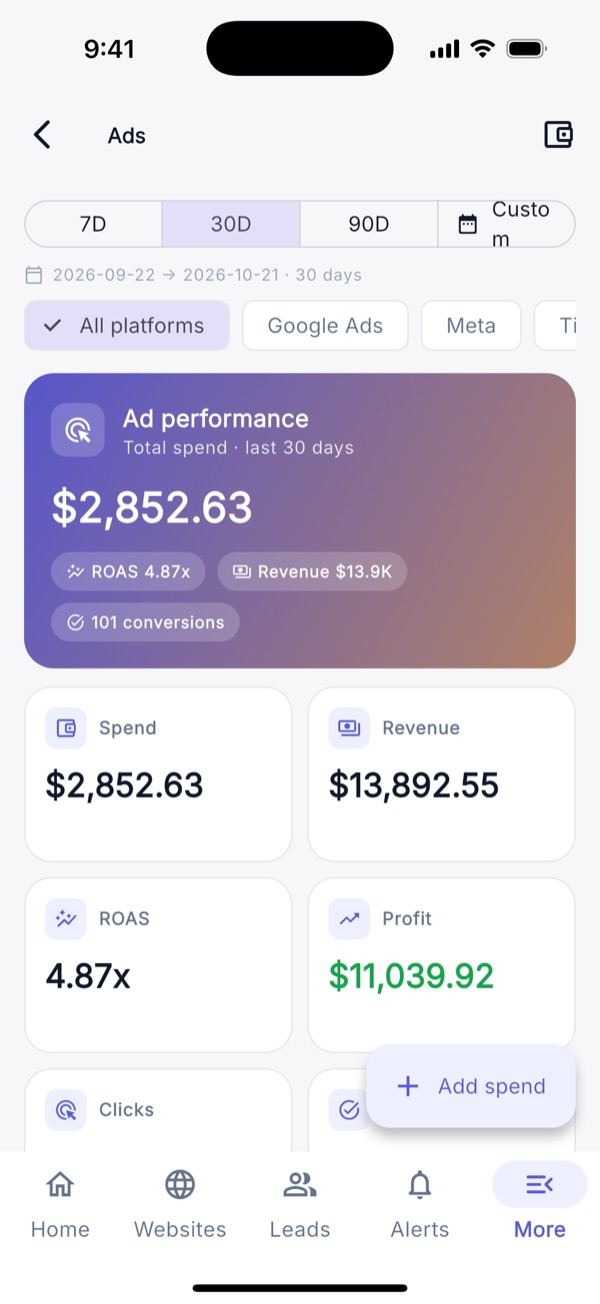
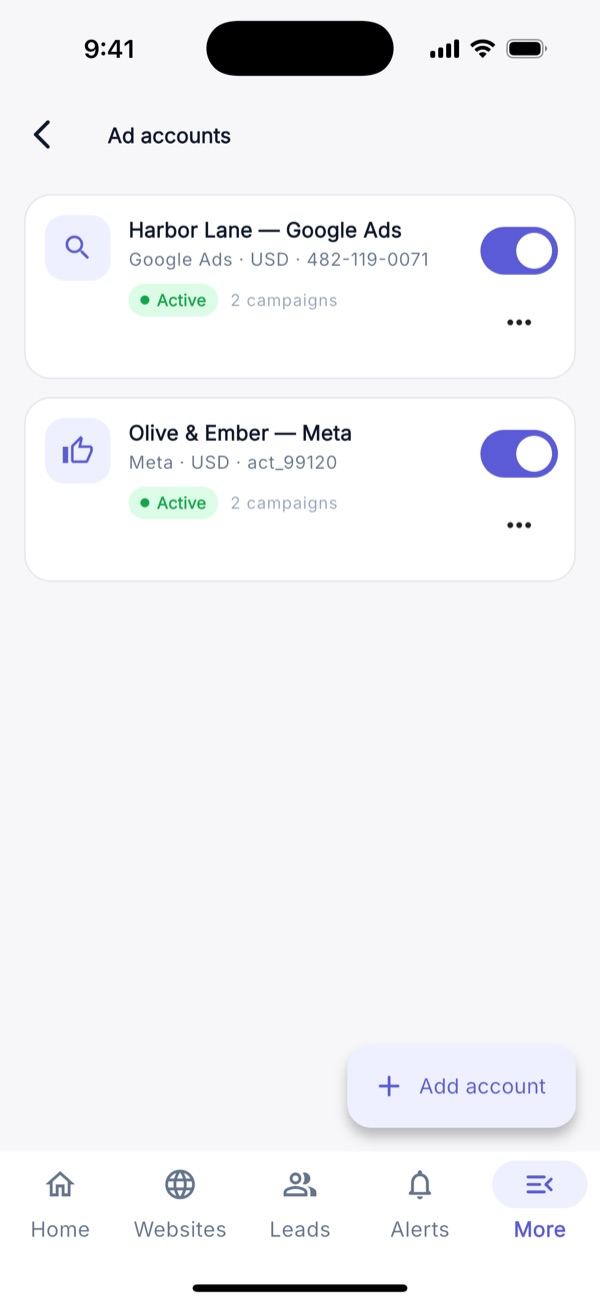
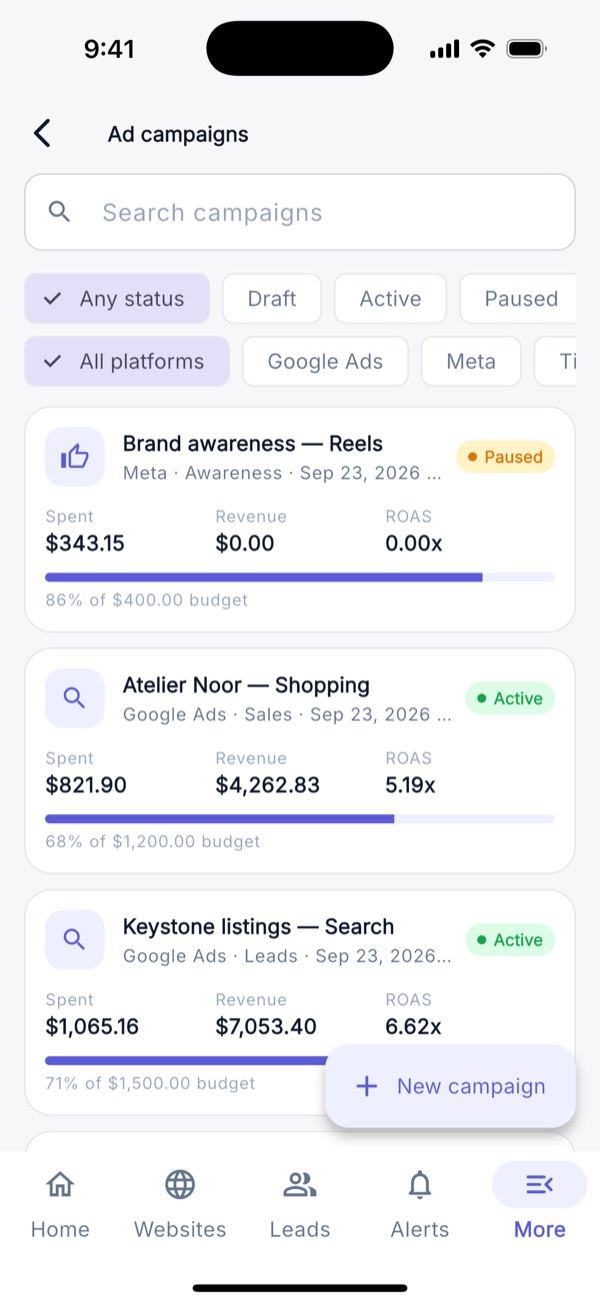
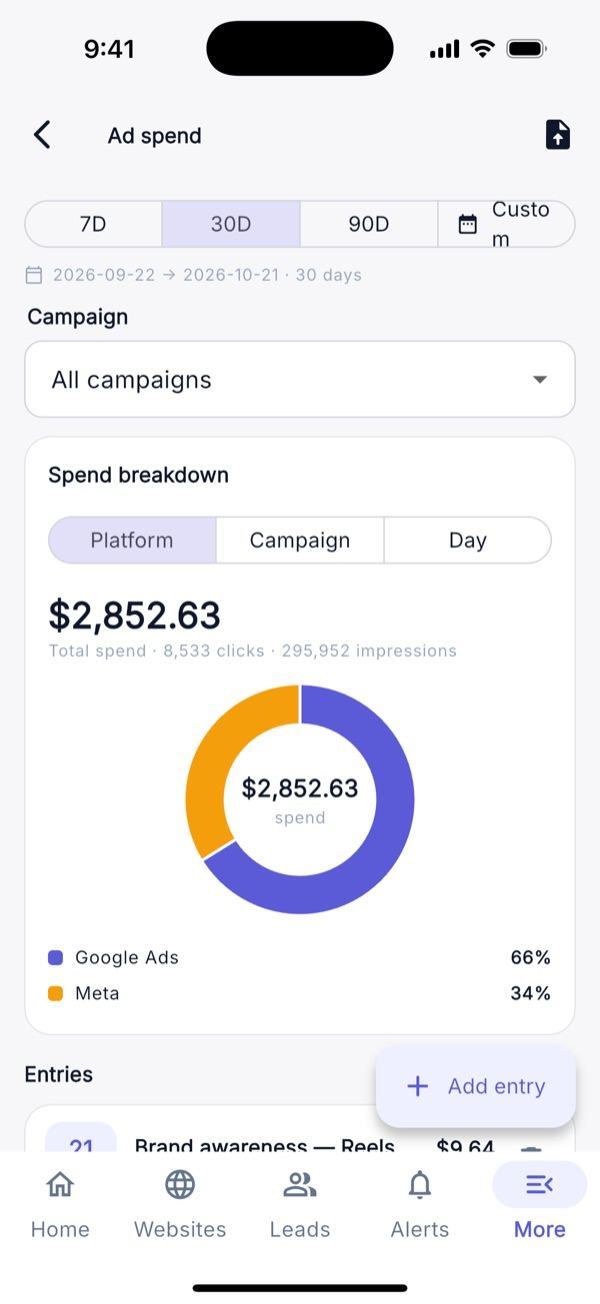
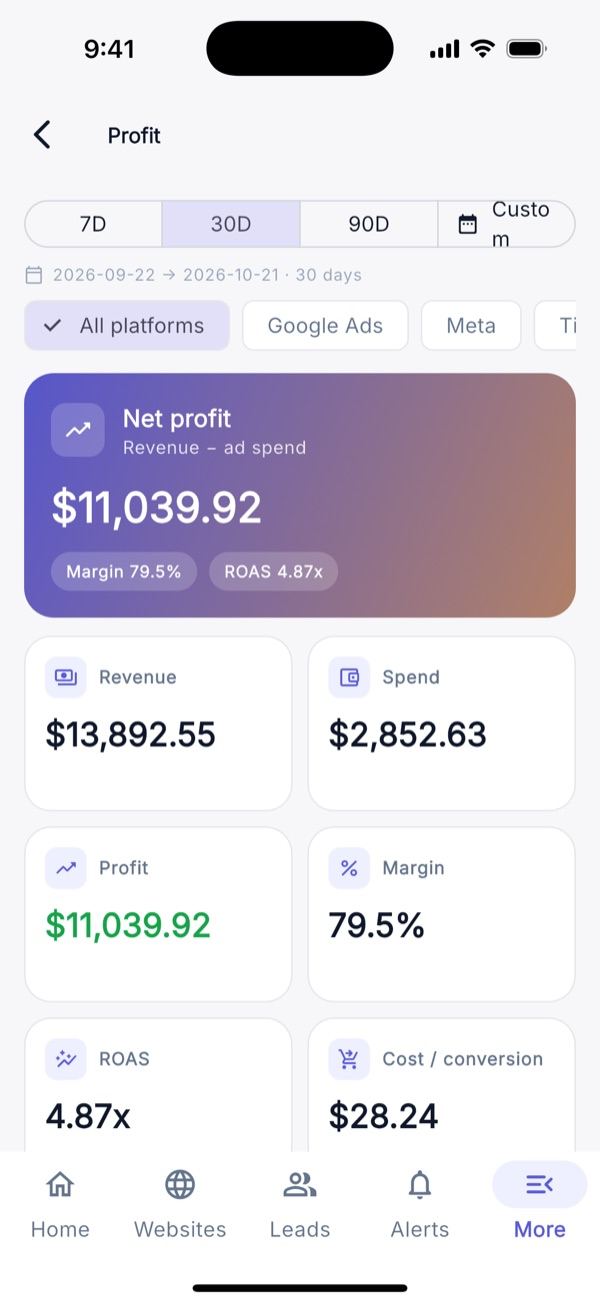
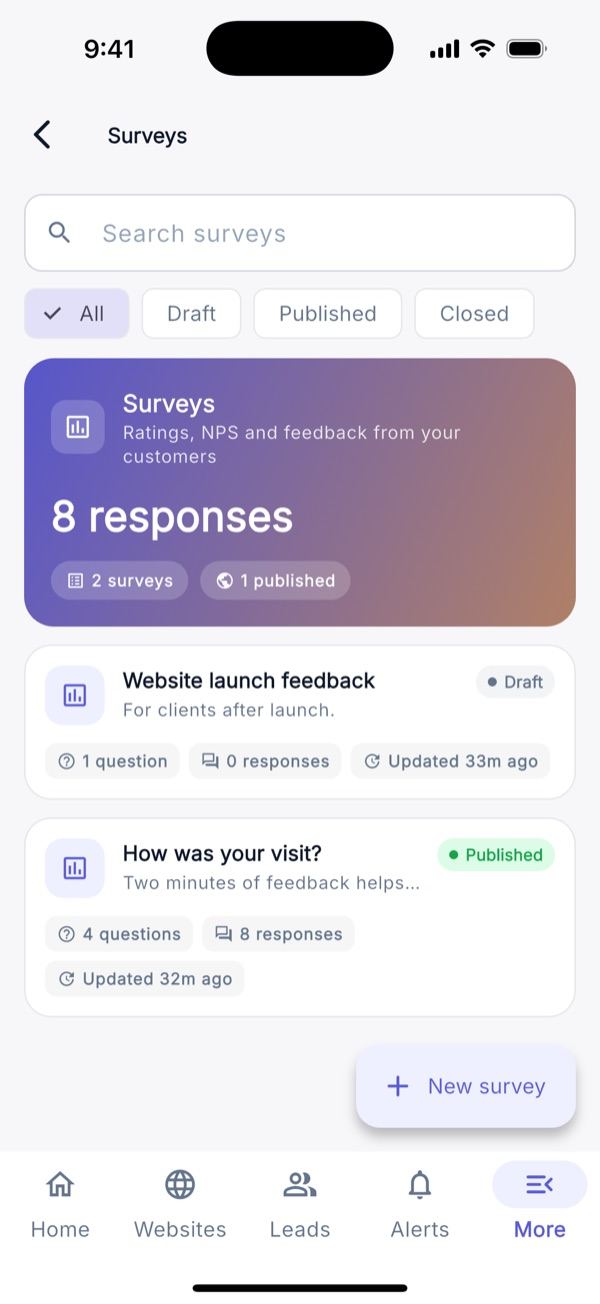
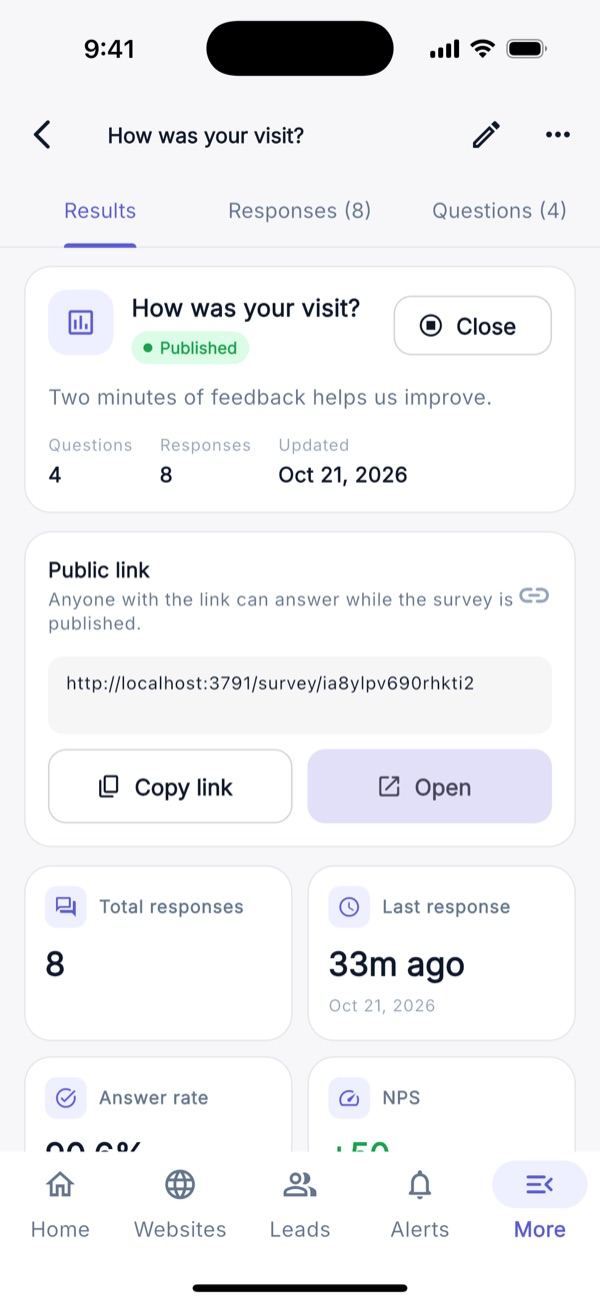
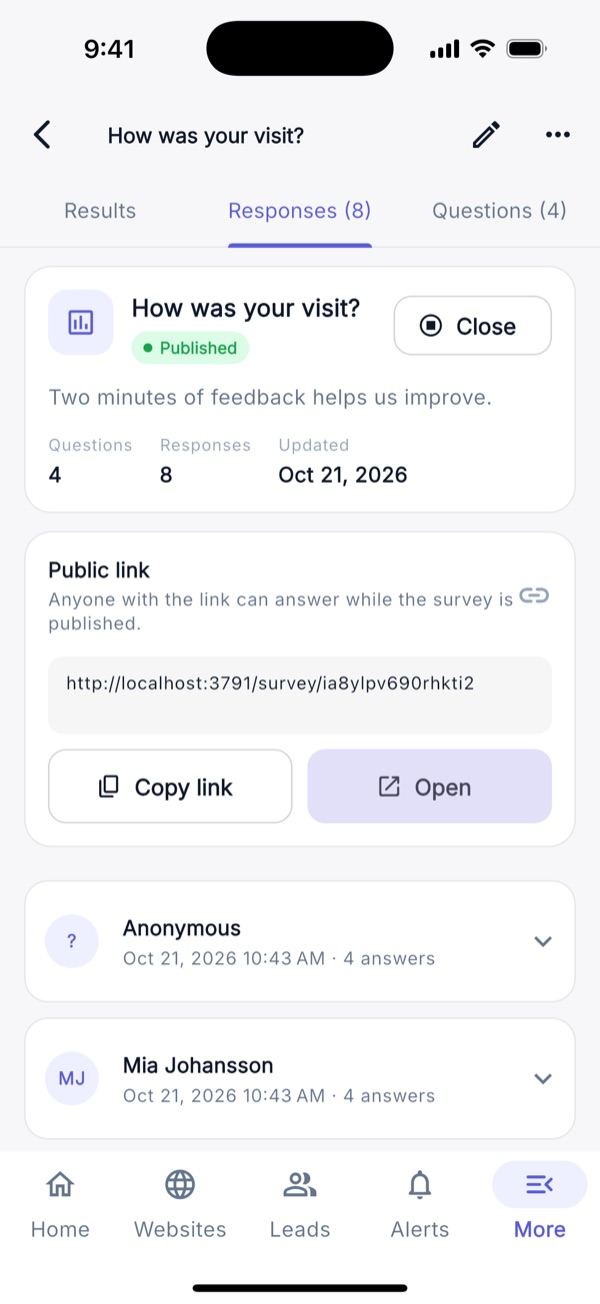
E-mail campaigns to leads: editor, audience filters with a live count, send now or schedule, stats and recipients. Automation: a trigger (lead created, form submitted, stage changed), conditions and actions with a flow diagram and run history. Social planner: posts, calendar and accounts, captions with per-network limits and AI captions; it is a planner, it does not post to the networks. Ads: spend, ROAS, revenue and profit with daily spend entries and CSV import (internal tracking). Surveys: rating, NPS, text and multiple-choice questions, public link and results.
Workspace & Account
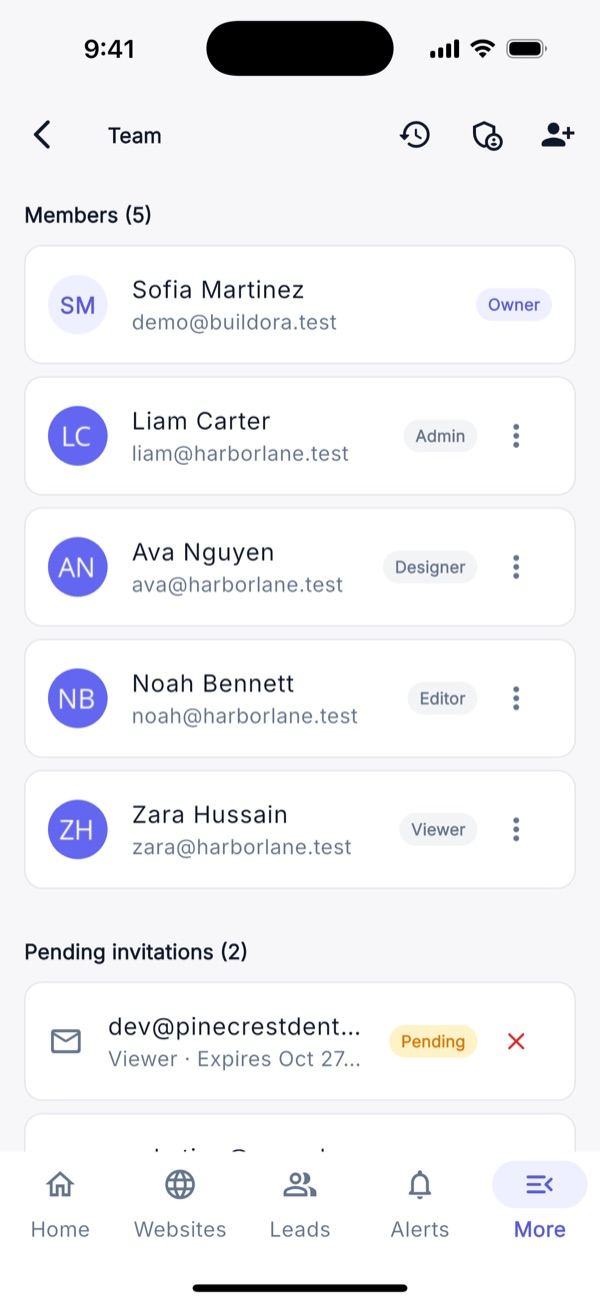
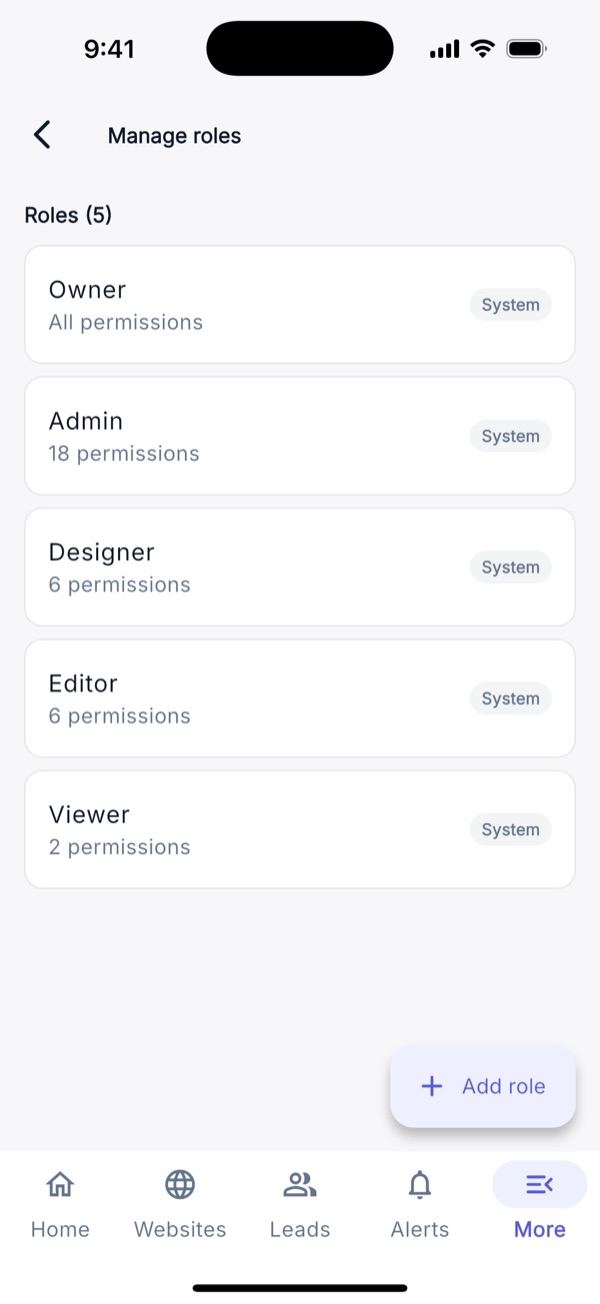
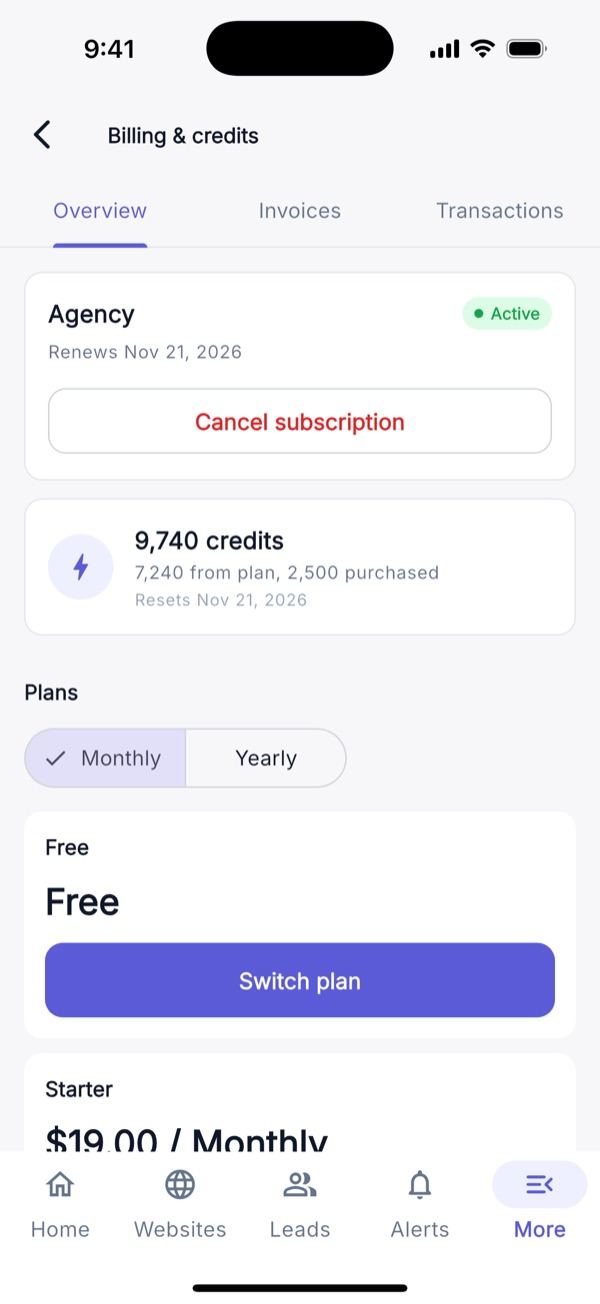
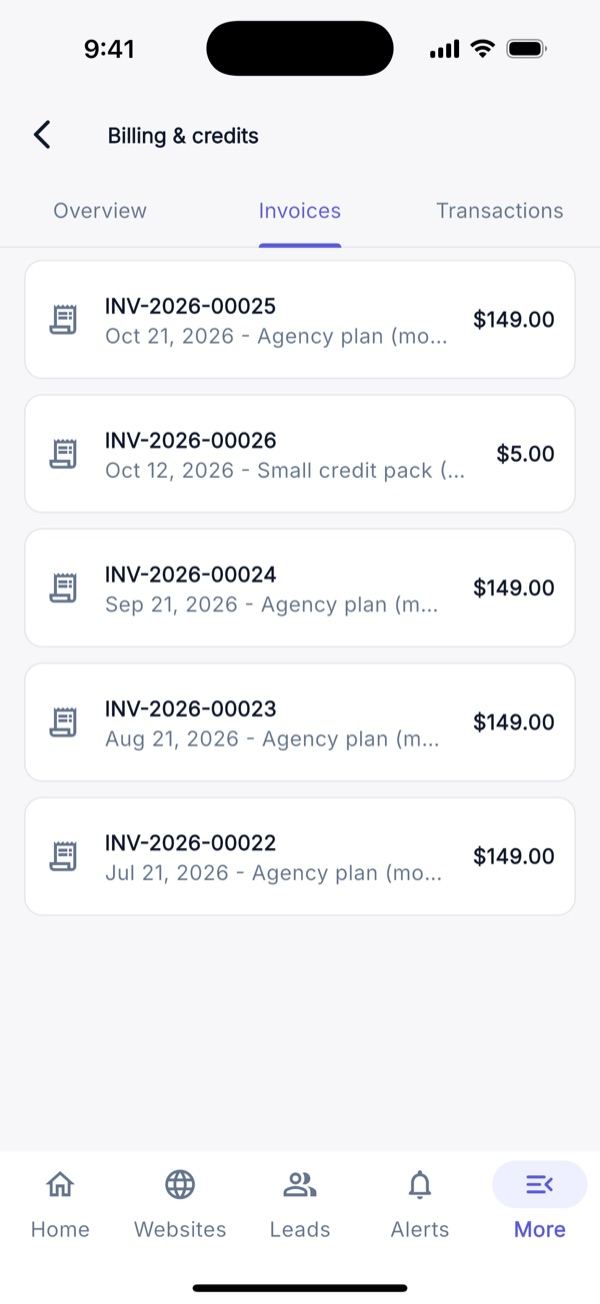
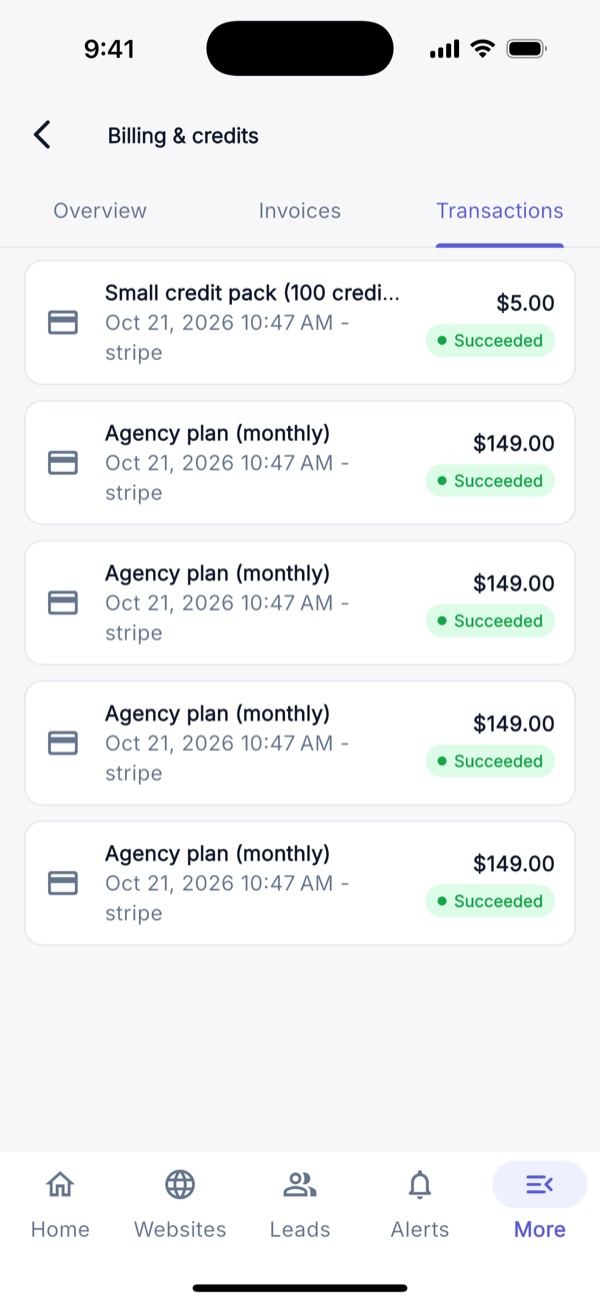
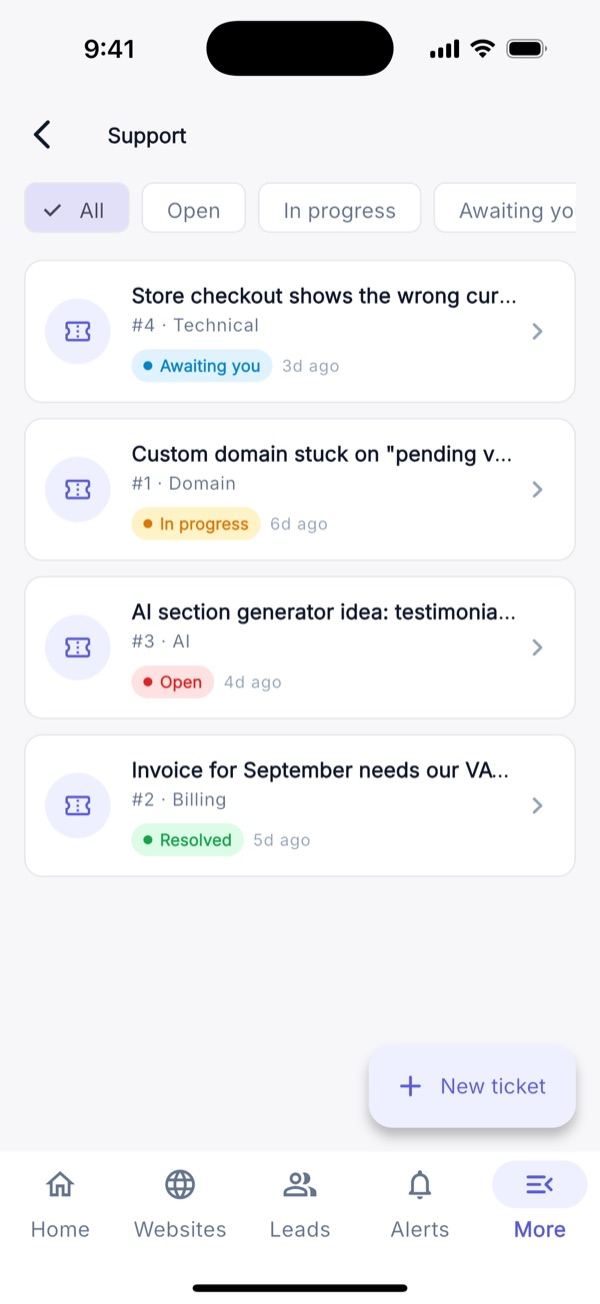
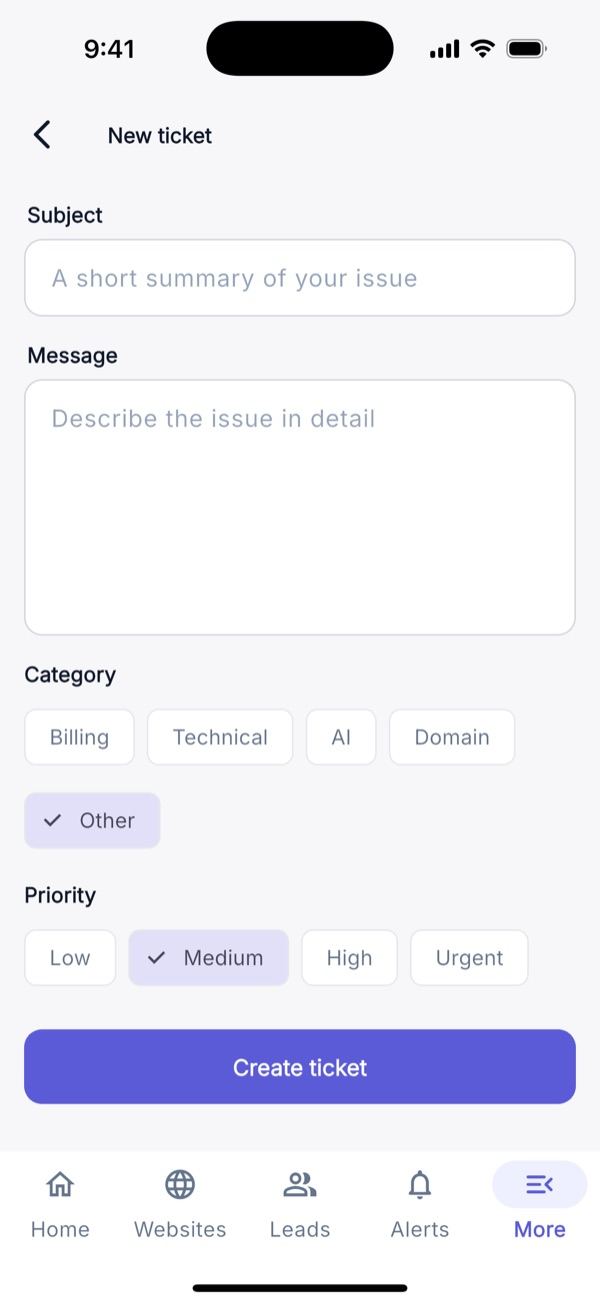
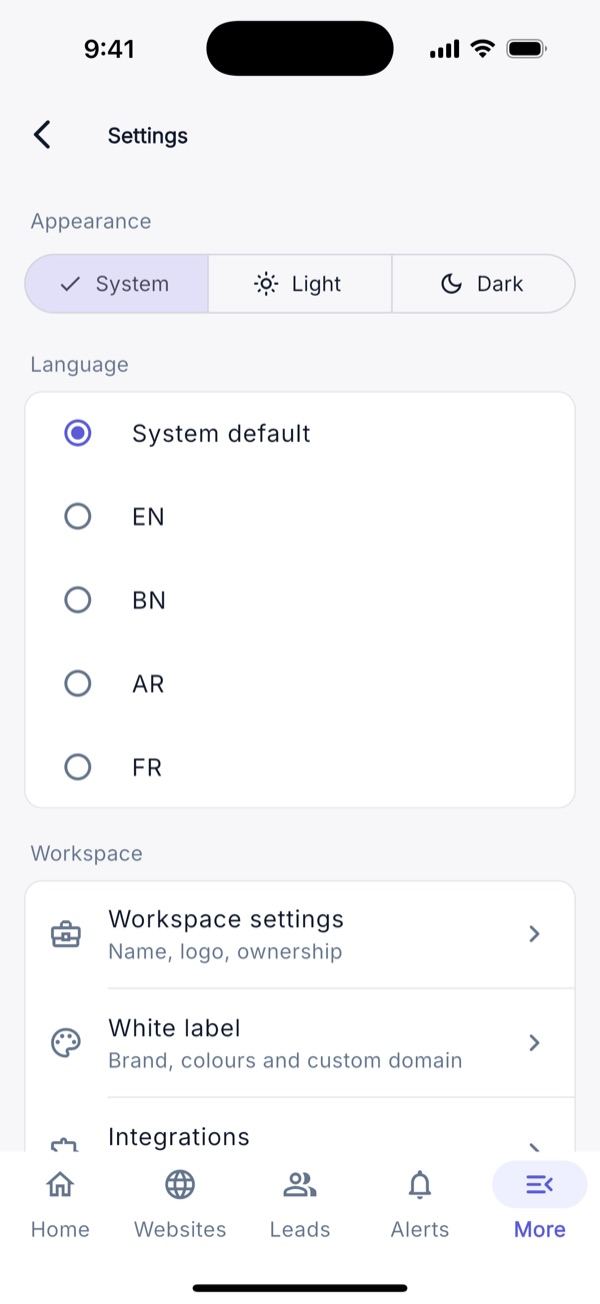
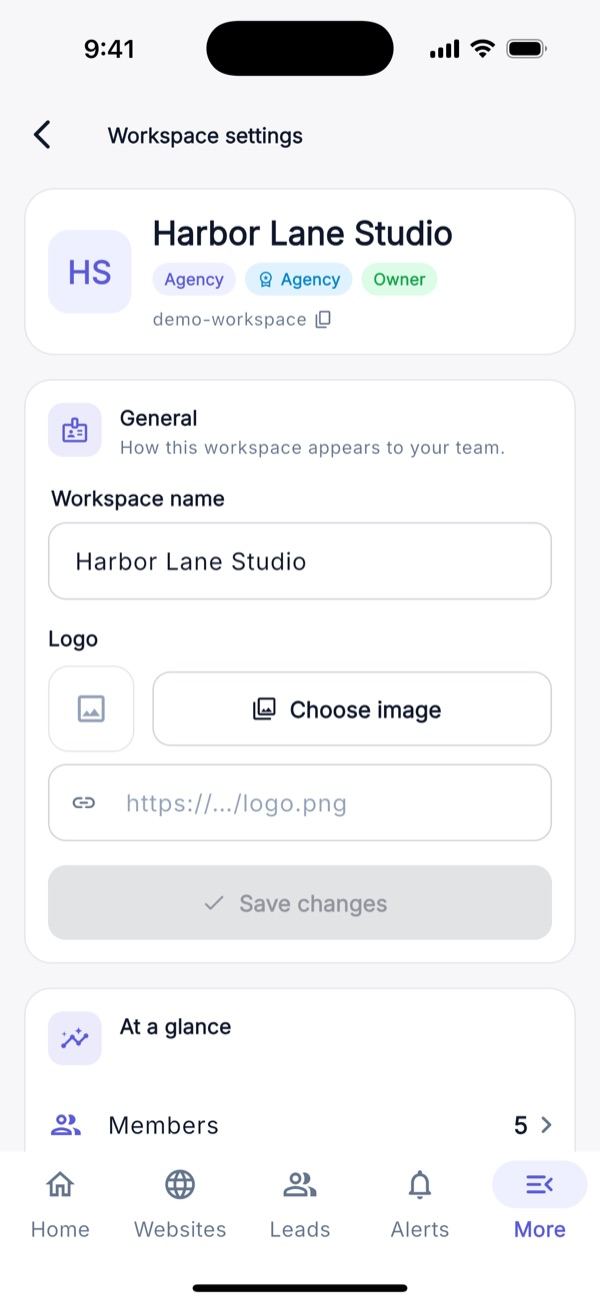
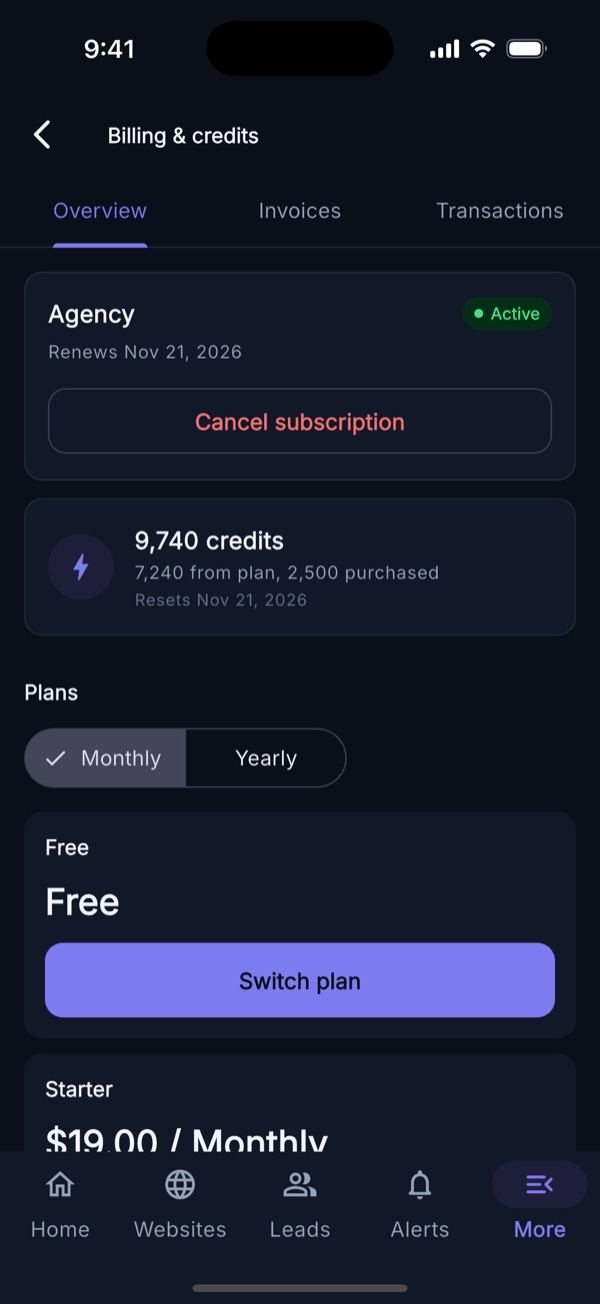
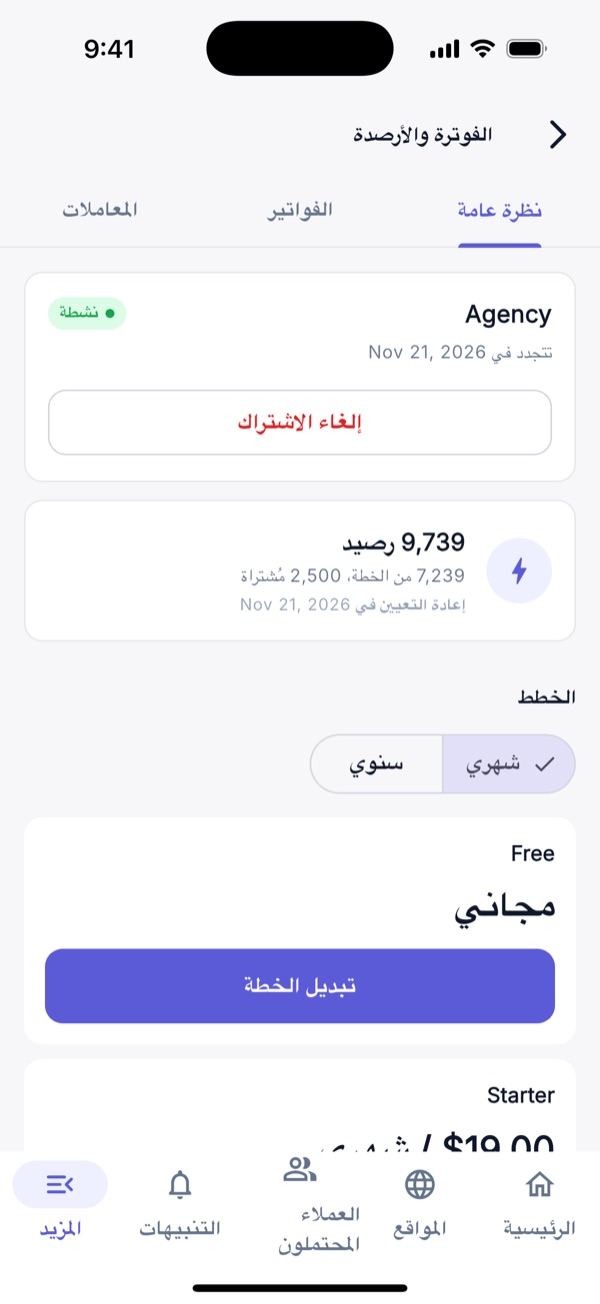
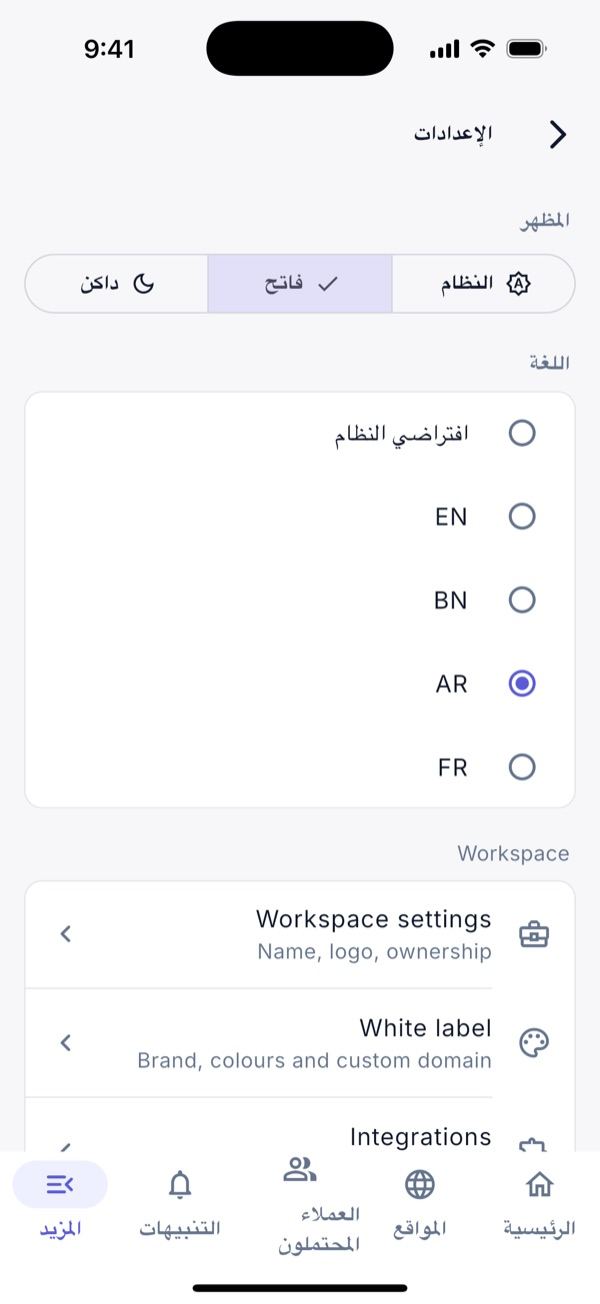
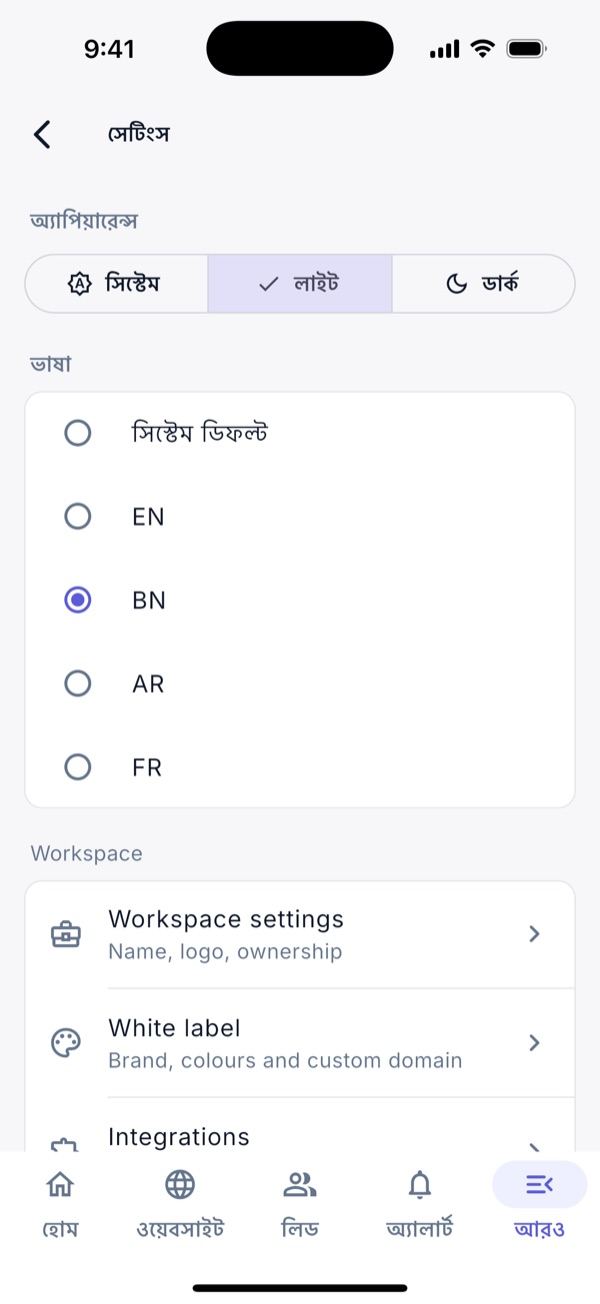
Team: members, invitations, custom roles with a permission checklist, activity log. Billing: subscription, credits, invoices and transactions. On Android, plans and credit packs can be bought, and plan and credit checkout always opens in the external browser, never inside the app (manual/bank gateways show instructions with a payment-proof upload); DISABLE_EXTERNAL_PURCHASES=true removes it entirely. The iOS app sells nothing: billing is read-only and no plans, prices, checkout or upgrade links are shown (App Store guideline 3.1.1). Support tickets with the platform team. Settings: theme, language, devices & sessions, API tokens, about. Workspace settings, White label, Integrations (the workspace’s store payment methods) and Webhooks.
Public Pages
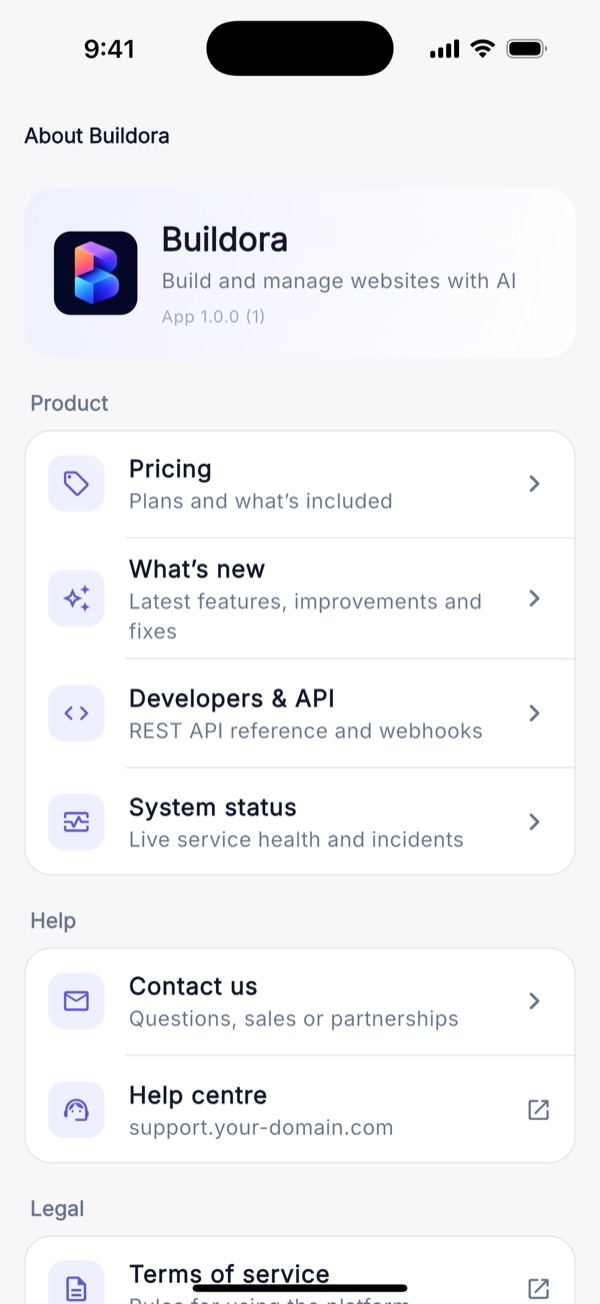
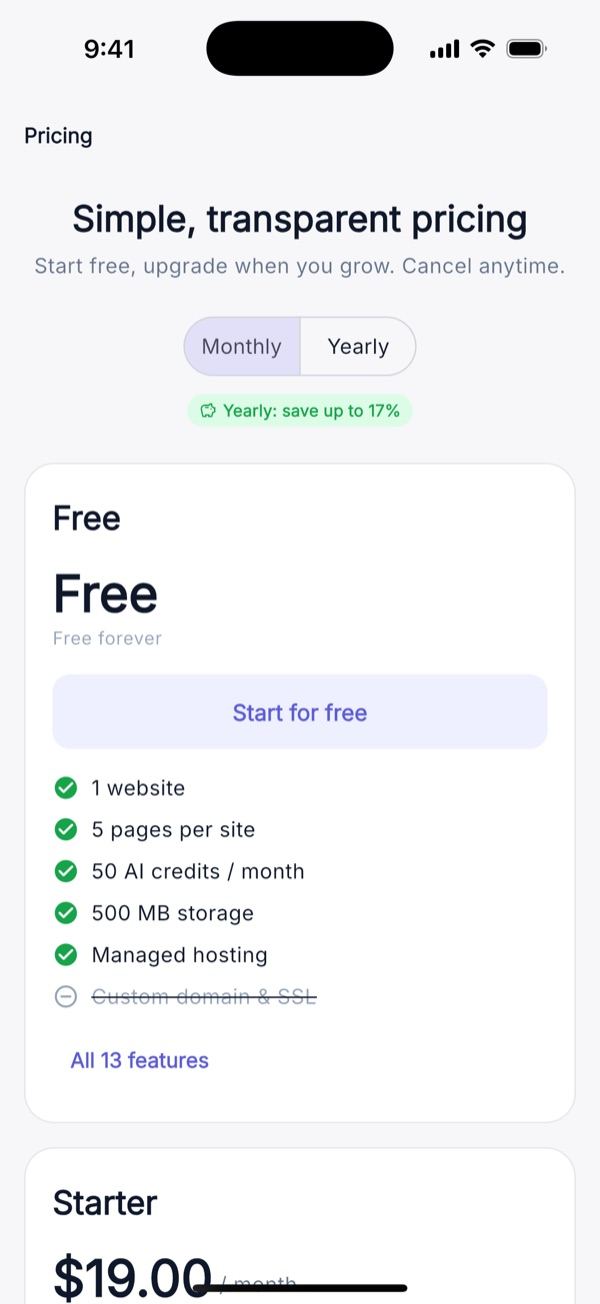
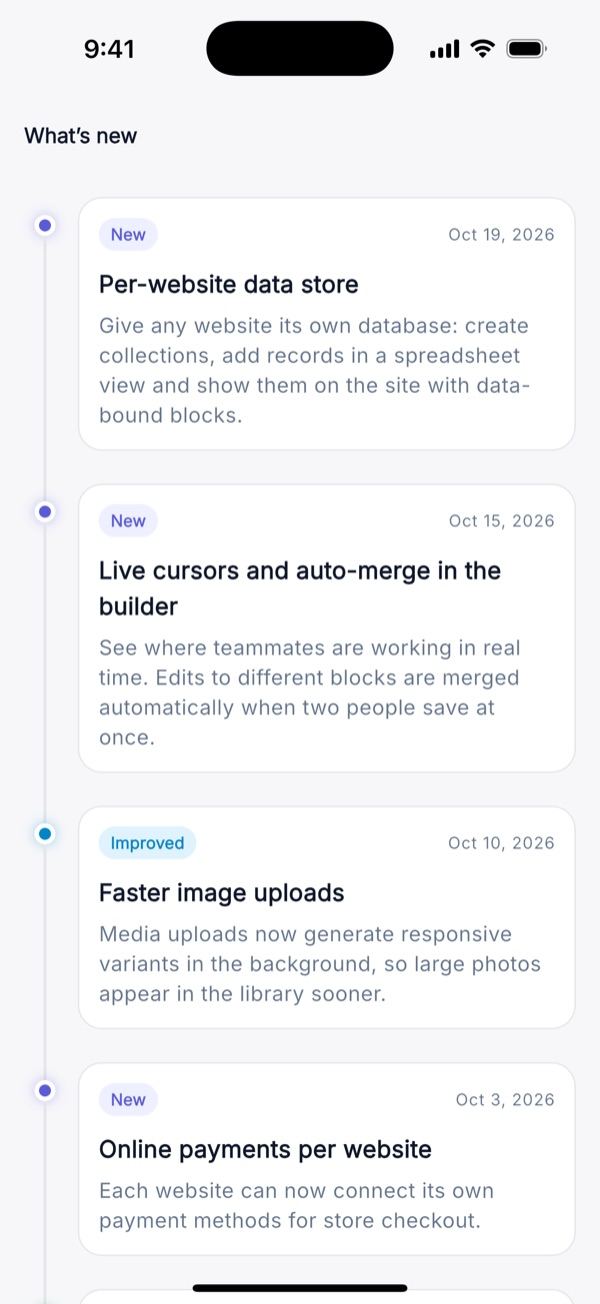
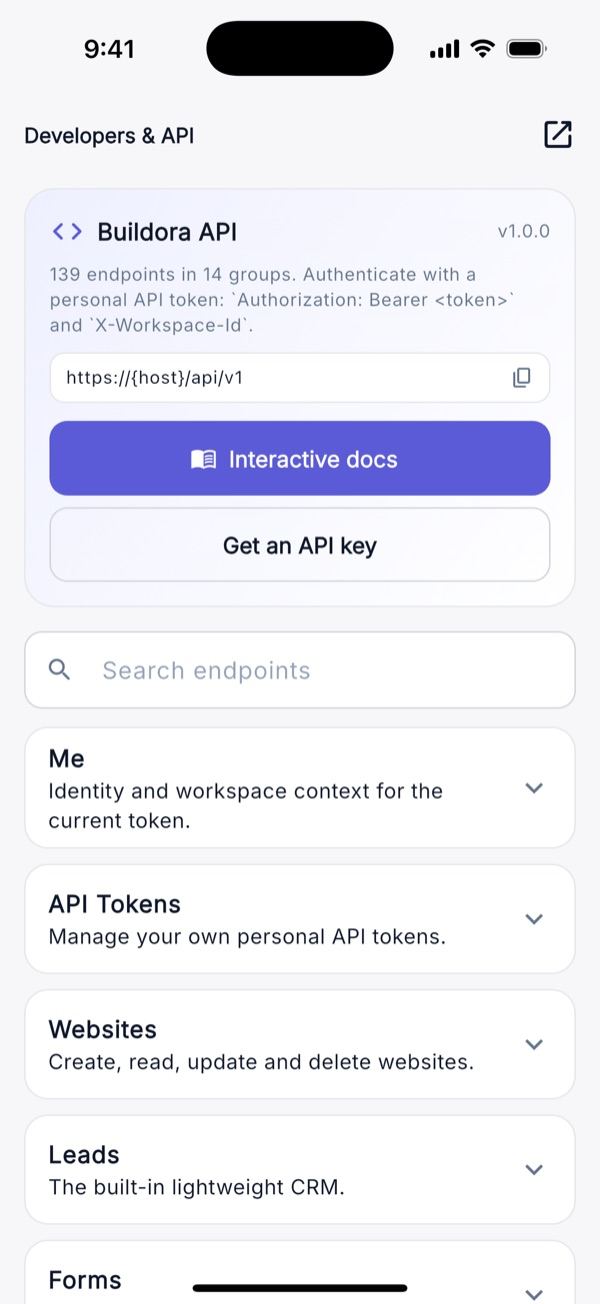
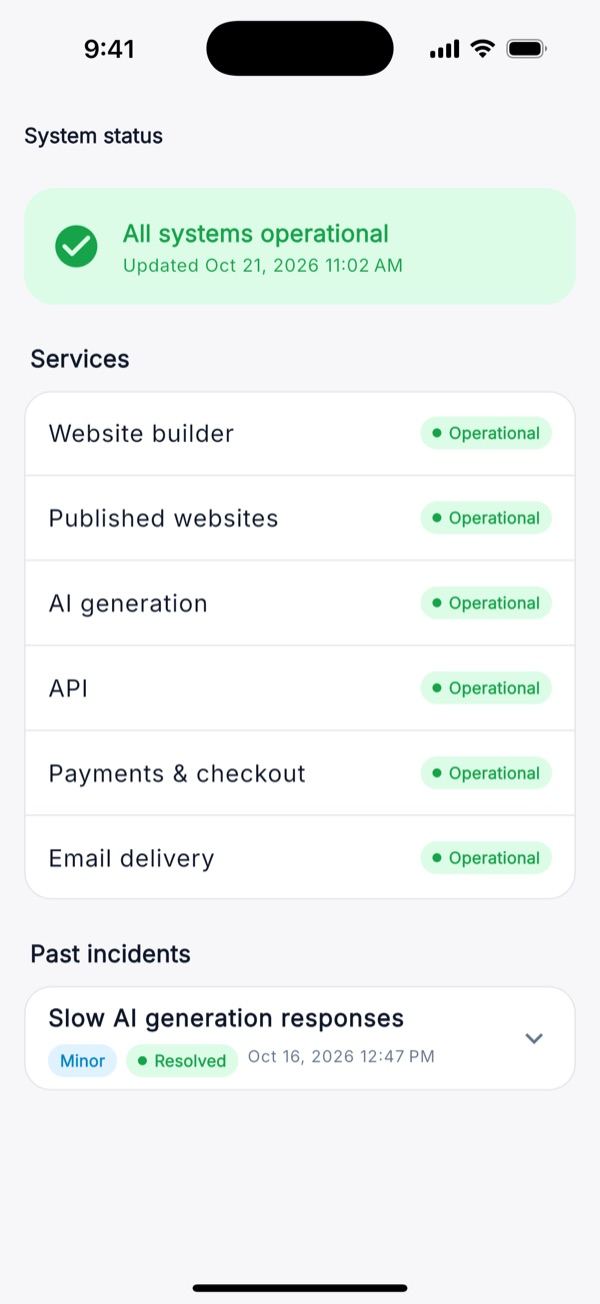
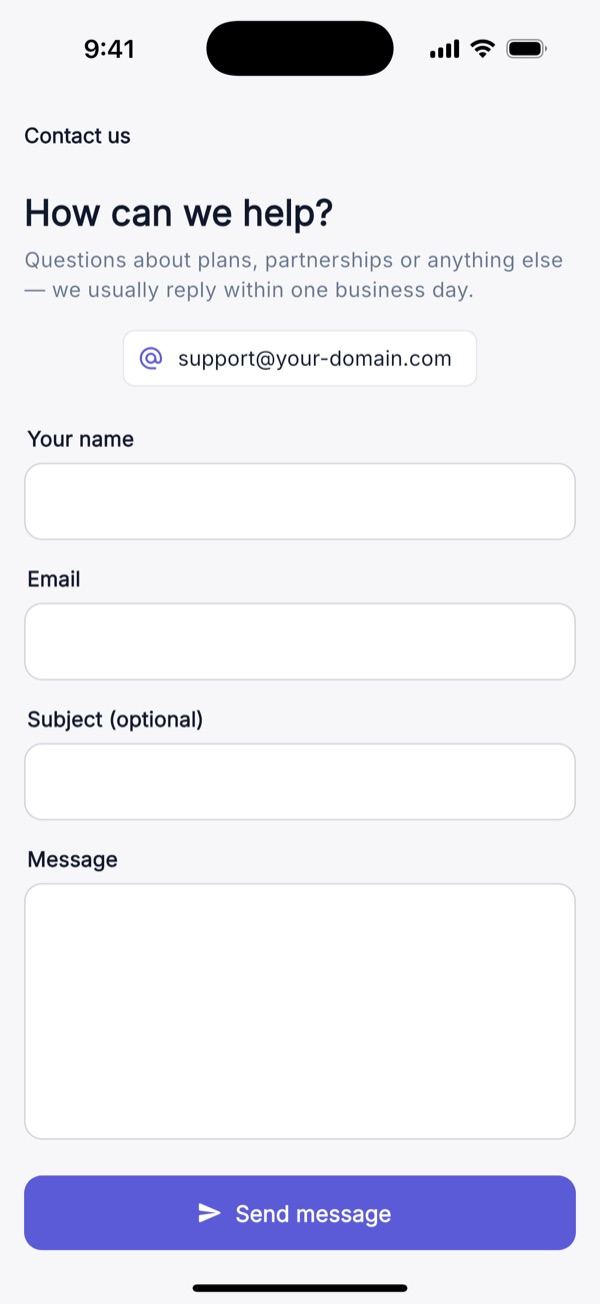
Available signed in or out: About, Pricing (plans from your server), Changelog, Developers (the OpenAPI reference), Status and a Contact form.
Dark Theme & Languages
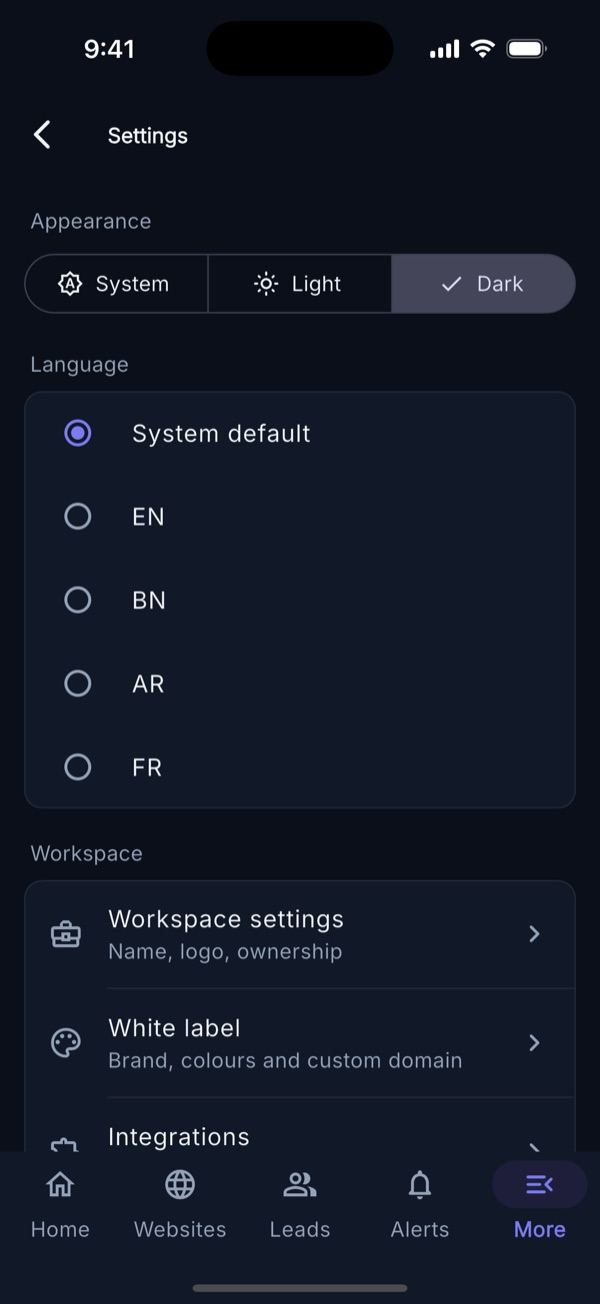
Every screen follows the light, dark or system theme chosen in Settings, and the language picker switches between English, Bangla, Arabic (right-to-left layout) and French. Some module labels are still English in code (see Languages & RTL), which is visible in the Arabic and Bangla captures.
Dark theme
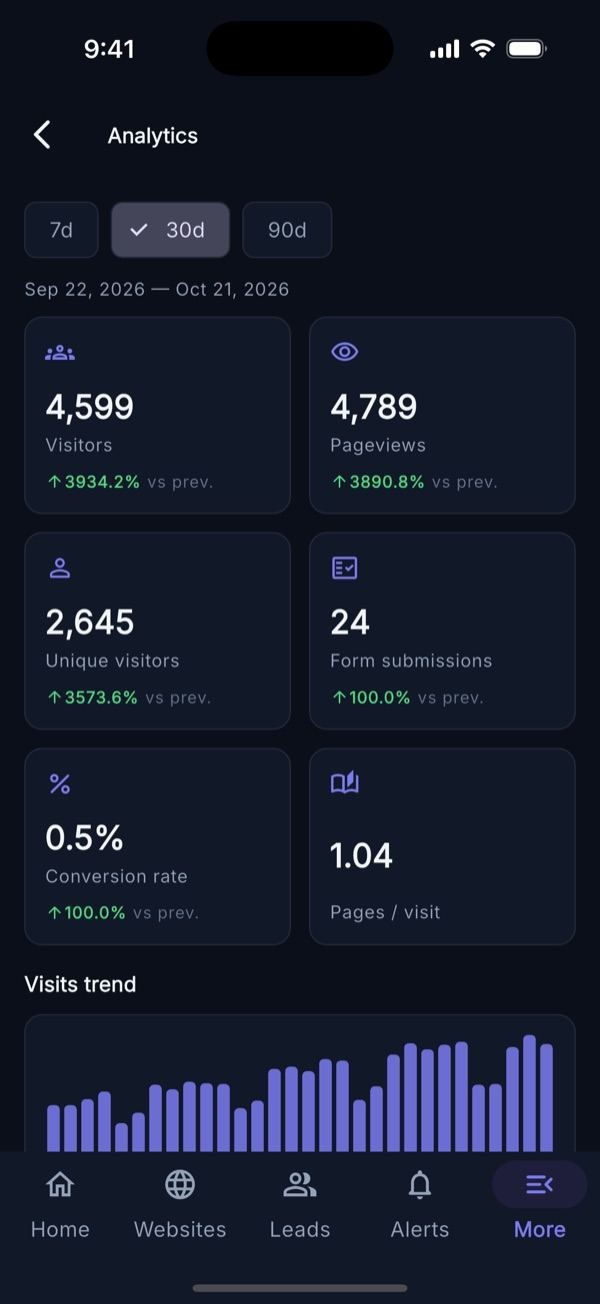
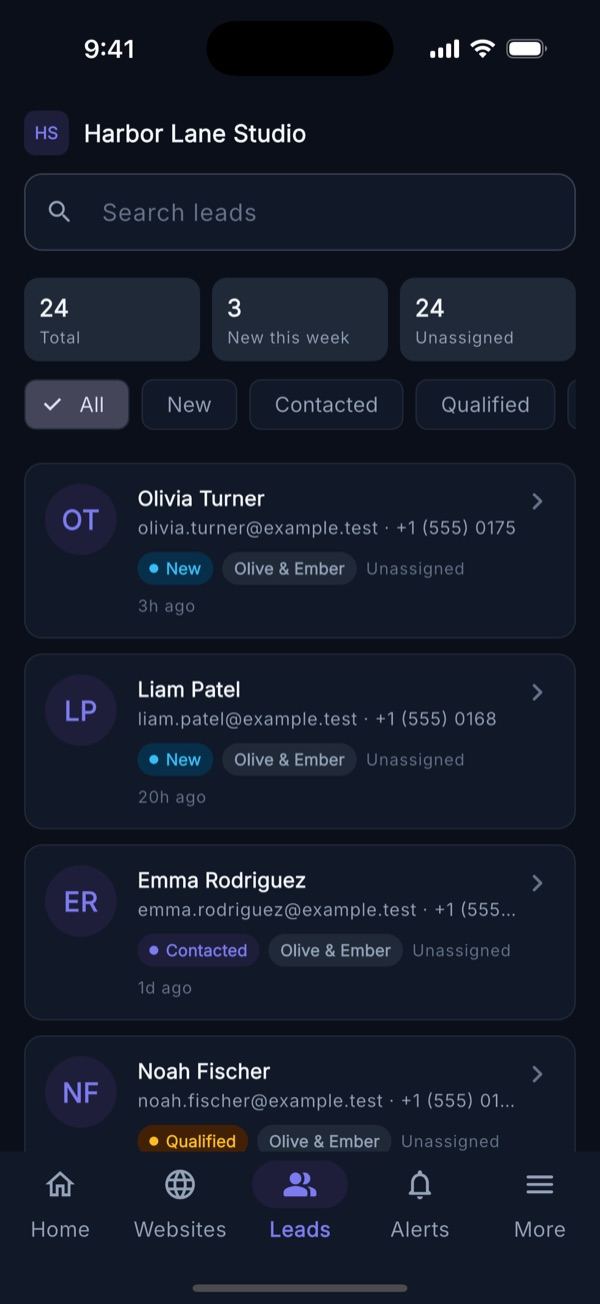
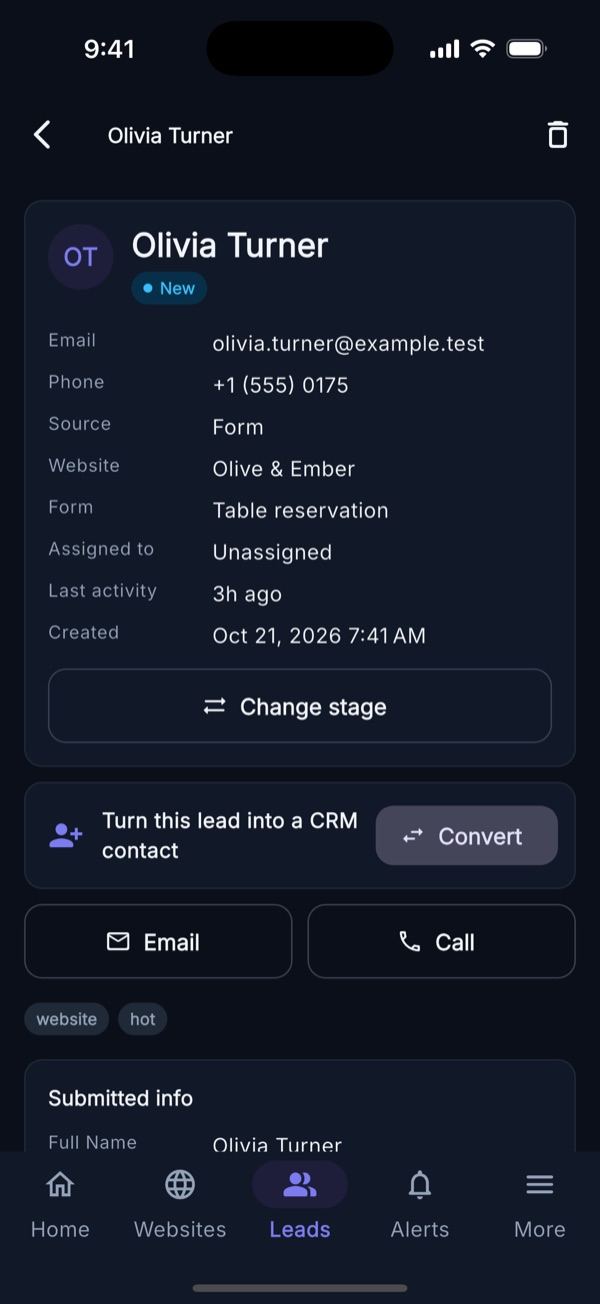
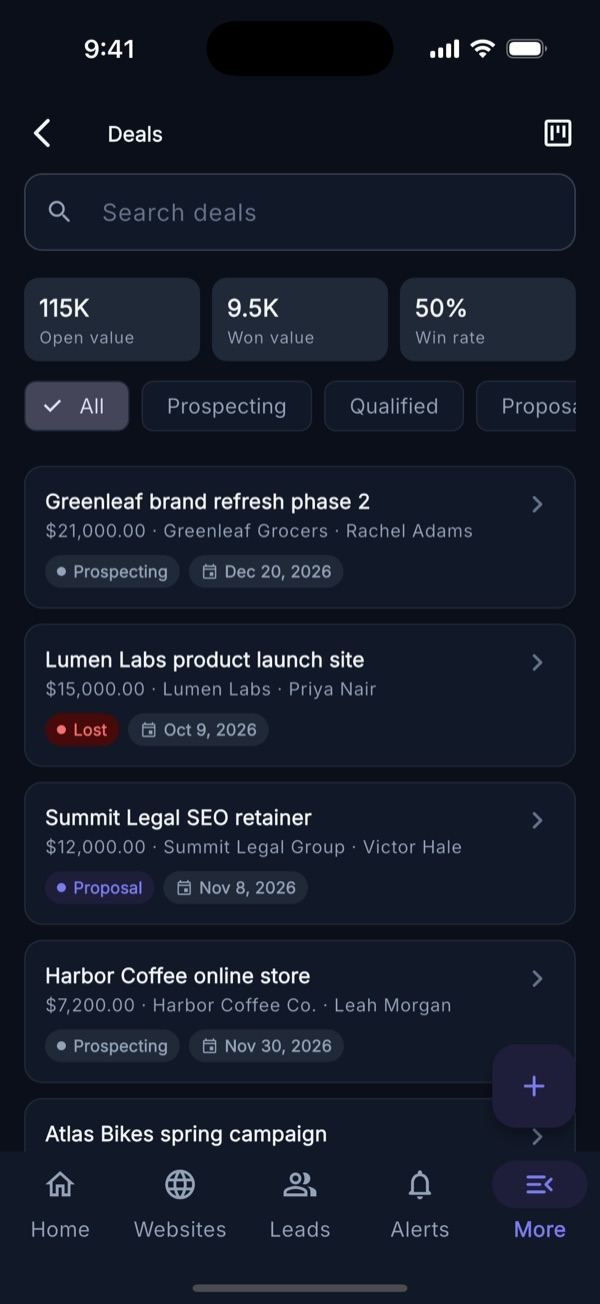
Arabic (RTL)
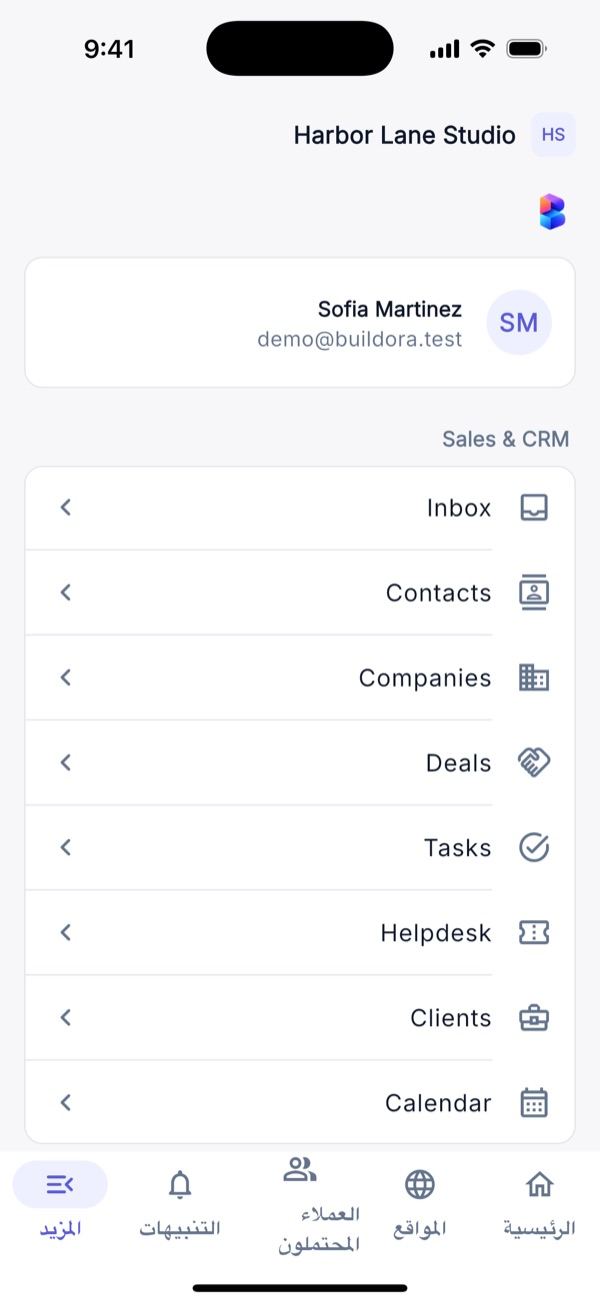
Bangla
Requirements
| Item | Notes |
|---|---|
| Flutter SDK | Stable channel with Dart 3.12 or newer (pubspec.yaml: sdk: ^3.12.0). Tested with the current Flutter stable channel at release. |
| Android build tools | Android Gradle Plugin 9.0.1, Kotlin 2.3.20, Gradle 9.1.0 (wrapper included), JDK 17; the Google Services plugin 4.4.4 is applied only when android/app/google-services.json exists (android/settings.gradle.kts). |
| Android | Android Studio, an Android SDK and JDK 17. minSdk 24 (Android 7.0), compileSdk 36 and targetSdk 36 (set explicitly in android/app/build.gradle.kts). |
| iOS | A Mac with Xcode; deployment target iOS 15.0. Dependencies use Swift Package Manager (there is no Podfile). Your own Apple Developer team for signing. |
| Backend | A running Buildora web install; HTTPS for release builds. |
| Push (optional) | Your own Firebase project and an APNs key for iOS. |
| Google Sign-In (optional) | OAuth clients in your Google Cloud project. |
| Stores | Google Play Console and/or Apple Developer Program accounts. |
Run flutter doctor and fix what it reports before you start.
Open & Run
Open Main_Files/AppSourceCode in Android Studio or VS Code (with the Flutter plugin), then:
cd AppSourceCode
flutter pub get
flutter gen-l10n
flutter run --dart-define-from-file=env/local.example.json   # http://localhost:8000 + :3000
- Android emulator:
localhostand127.0.0.1are rewritten to10.0.2.2automatically, so a backend on your computer just works. - Real device: use your computer’s LAN IP, e.g.
http://192.168.1.20:8000. Plain HTTP is allowed only in debug builds (Android debug manifest) and for local networking on iOS; release builds need HTTPS. - Against a local demo database (
php artisan db:seed --class=DemoSeederon the web side) sign in with[email protected]/12345678.
flutter analyze
flutter test
API URL & dart-defines
Copy env/example.json to env/prod.json (env/*.json other than the example is git-ignored) and build with --dart-define-from-file=env/prod.json:
{
  "API_BASE_URL": "https://api.your-domain.com",
  "WEB_APP_URL": "https://app.your-domain.com",
  "GOOGLE_SERVER_CLIENT_ID": "",
  "GOOGLE_IOS_CLIENT_ID": ""
}| Key | Required | Purpose |
|---|---|---|
API_BASE_URL | yes | Your backend root (the web APP_URL), no /api/v1 and no trailing slash; the app appends /api/v1 itself. HTTPS in release. |
WEB_APP_URL | yes | Your Next.js dashboard (the web FRONTEND_URL); used for “Open full editor”, “Open web dashboard” and other web hand-offs. |
GOOGLE_SERVER_CLIENT_ID | for Google | The Web OAuth client id the backend verifies ID tokens against. Empty = Google button hidden. |
GOOGLE_IOS_CLIENT_ID | for Google on iOS | The iOS OAuth client id. |
These four are the only dart-defines. Instead of defines you can change the defaults _defaultApiUrl and _defaultWebAppUrl in lib/core/config/app_config.dart (they ship as the neutral placeholders https://api.your-domain.com and https://app.your-domain.com; env/local.example.json holds the localhost values for development).
Settings Read From the Server
On every start the app loads GET /api/v1/config, so these change without a new build:
| Web admin setting | Effect in the app |
|---|---|
| Settings → General: app name, app icon, logo | Name on splash, login, About, Settings; logo on splash, auth screens, About and the More header |
| Settings → Auth: public registration | Shows or hides the “Sign up” link |
| Settings → Auth: e-mail verification | Verification banner and screen |
| Settings → Auth: Google login | Google button (also needs the client id in the build) |
| Settings → Maintenance | Banner on the login screen; non-admin mobile logins are refused |
| Settings → Mobile app: FCM service account | Push delivery |
The App versions & stores fields (minimum/latest version, store URLs) are exposed by the API but the 1.0.0 app does not read them: there is no update-required gate. A workspace’s white-label colour does not re-theme the app; the app colours are compiled in (see Theme).
Customise / Rebrand the App
Do these steps once, before the first store upload, in this order. Each row links to the detailed section. All of it is developer work in the Flutter project (Main_Files/AppSourceCode); the server-side name and logo change without a rebuild.
| # | What | Where to change it | Then |
|---|---|---|---|
| 1 | Application / bundle id (e.g. com.acme.sites; cannot change after the first upload) | android/app/build.gradle.kts (namespace, applicationId) + move MainActivity.kt; Xcode → Runner → Bundle Identifier (Package / Bundle ID) | Register the new ids in Firebase and Google Cloud |
| 2 | App name under the icon | android:label in AndroidManifest.xml; CFBundleDisplayName / CFBundleName in ios/Runner/Info.plist (App Name & Config) | — |
| 3 | In-app name, tagline, support and legal links | appName, tagline, supportUrl, supportEmail, privacyUrl, termsUrl in lib/core/config/app_config.dart (“REBRAND HERE”). The name and logo from Admin → Settings → General win once loaded | — |
| 4 | Colours | brandPrimary (light, default #5B5BD6), brandPrimaryDark (dark, #7C7CF0), brandAccent (#F59E0B) and fontFamily in app_config.dart (Theme & Font) | Hot restart |
| 5 | Logo shown in the app | Upload it in Admin → Settings → General (no rebuild). Offline fallback: replace assets/brand/logo-light.png and logo-dark.png | — |
| 6 | Launcher icon | Replace assets/brand/icon-512.png (1024 × 1024 PNG recommended, no transparency for iOS) | dart run flutter_launcher_icons |
| 7 | Splash screen | Replace assets/brand/logo-mark.png; colours under flutter_native_splash: in pubspec.yaml (#FFFFFF light, #0B0F1A dark) | dart run flutter_native_splash:create |
| 8 | Server URLs | env/prod.json: API_BASE_URL, WEB_APP_URL (API URL & dart-defines) | Build with --dart-define-from-file=env/prod.json |
| 9 | Deep-link scheme (optional) | buildora in the Android intent filter and CFBundleURLSchemes (Deep Links) | — |
| 10 | Permission texts | NSCameraUsageDescription, NSPhotoLibraryUsageDescription, NSPhotoLibraryAddUsageDescription in Info.plist | — |
| 11 | Version | version: 1.0.0+1 in pubspec.yaml; raise the build number for every upload | — |
| 12 | Signing | Android upload keystore + android/key.properties; iOS: your Apple team in Xcode (Android Release, iOS Release) | Release builds |
Keep a short list of the files you changed. When a new Buildora version arrives you re-apply the same edits to the new AppSourceCode.
App Name & Config
| What | Where |
|---|---|
| Launcher name | Android: android:label="Buildora" in android/app/src/main/AndroidManifest.xml. iOS: CFBundleDisplayName and CFBundleName in ios/Runner/Info.plist. |
| In-app name and tagline (offline fallback) | appName, tagline in lib/core/config/app_config.dart (“REBRAND HERE”). The server’s app name wins once loaded. |
| Support and legal links | supportUrl, supportEmail, privacyUrl, termsUrl in the same file (they ship as your-domain.com placeholders) |
| Page size, timeouts | pageSize (20), connect 15 s, receive 30 s |
| Version | version: 1.0.0+1 in pubspec.yaml (version name + build number); raise it for every store upload |
| Camera / photo permission texts | NSCameraUsageDescription, NSPhotoLibraryUsageDescription, NSPhotoLibraryAddUsageDescription in Info.plist; adjust the wording to your brand |
| Custom URL scheme | buildora in the Android intent filter and in CFBundleURLSchemes (see Deep Links) |
Package / Bundle ID
The default id on both platforms is com.buildora.app. Pick your own reverse-domain id (for example com.acme.sites) before your first store upload; it cannot be changed afterwards.
Android
In
android/app/build.gradle.ktschangenamespaceandapplicationId. Moveandroid/app/src/main/kotlin/com/buildora/app/MainActivity.ktto the matching folder (e.g.kotlin/com/acme/sites/) and change its first line topackage com.acme.sites. The community toolchange_app_package_namecan automate this.iOS
Open
ios/Runner.xcworkspacein Xcode → Runner target → Signing & Capabilities → set the Bundle Identifier and your Team (or replacecom.buildora.appinios/Runner.xcodeproj/project.pbxproj, includingRunnerTests).Firebase and Google
Register the new ids in Firebase and in your Google OAuth clients, then download fresh
google-services.json/GoogleService-Info.plist.
Icons, Splash & Logo
The generators are already configured in pubspec.yaml. Replace the images in assets/brand/ and run them:
File in assets/brand/ | Used for |
|---|---|
icon-512.png | Launcher icon source (flutter_launcher_icons, Android + iOS, alpha removed on iOS) |
logo-mark.png | Native splash image (light and dark, including the Android 12 splash) and the logo fallback |
logo-light.png, logo-dark.png | In-app logo when the server has no logo, for light and dark theme |
apple-touch-icon.png; assets/branding/buildora-app-icon.png | Bundled brand images |
dart run flutter_launcher_icons
dart run flutter_native_splash:create
Splash colours are #FFFFFF (light) and #0B0F1A (dark) under flutter_native_splash in pubspec.yaml. In the running app the logo comes first from the server (icon, then logo uploaded in Settings → General), then from these bundled files.
Theme & Font
Material 3 with light, dark and system modes (users choose in Settings). Colours mirror the web app’s tokens and are set in app_config.dart:
| Field | Default |
|---|---|
brandPrimary (light) | #5B5BD6 |
brandPrimaryDark (dark) | #7C7CF0 |
brandAccent | #F59E0B |
fontFamily | Inter (any Google Fonts family name) |
The font is downloaded from Google Fonts at runtime. To bundle it instead (offline first start, no external request), add the .ttf files to assets/google_fonts/ and list the folder under assets: in pubspec.yaml (see the comment in lib/core/theme/app_theme.dart).
Languages & RTL
Four locales ship: English (en), Bangla (bn), Arabic (ar, right-to-left) and French (fr), 1,137 keys each in lib/l10n/app_*.arb. Users choose System/EN/BN/AR/FR in Settings, and the app sends Accept-Language to the server.
Edit strings
Change the ARB files, then run
flutter gen-l10n(output inlib/l10n/generated/).Add a language
Copy
app_en.arbtoapp_<code>.arb, translate it, addLocale('<code>')toAppConfig.supportedLocalesand runflutter gen-l10n.
In 1.0.0 the ARB files are complete, but many module screens (CRM, tasks, inbox, helpdesk, finance, loyalty, clients, calendar, marketing, AI, account, knowledge base, templates and most website sub-screens) still use English text in code. Translate those strings in the screen files if you need a fully localized app.
Firebase Push
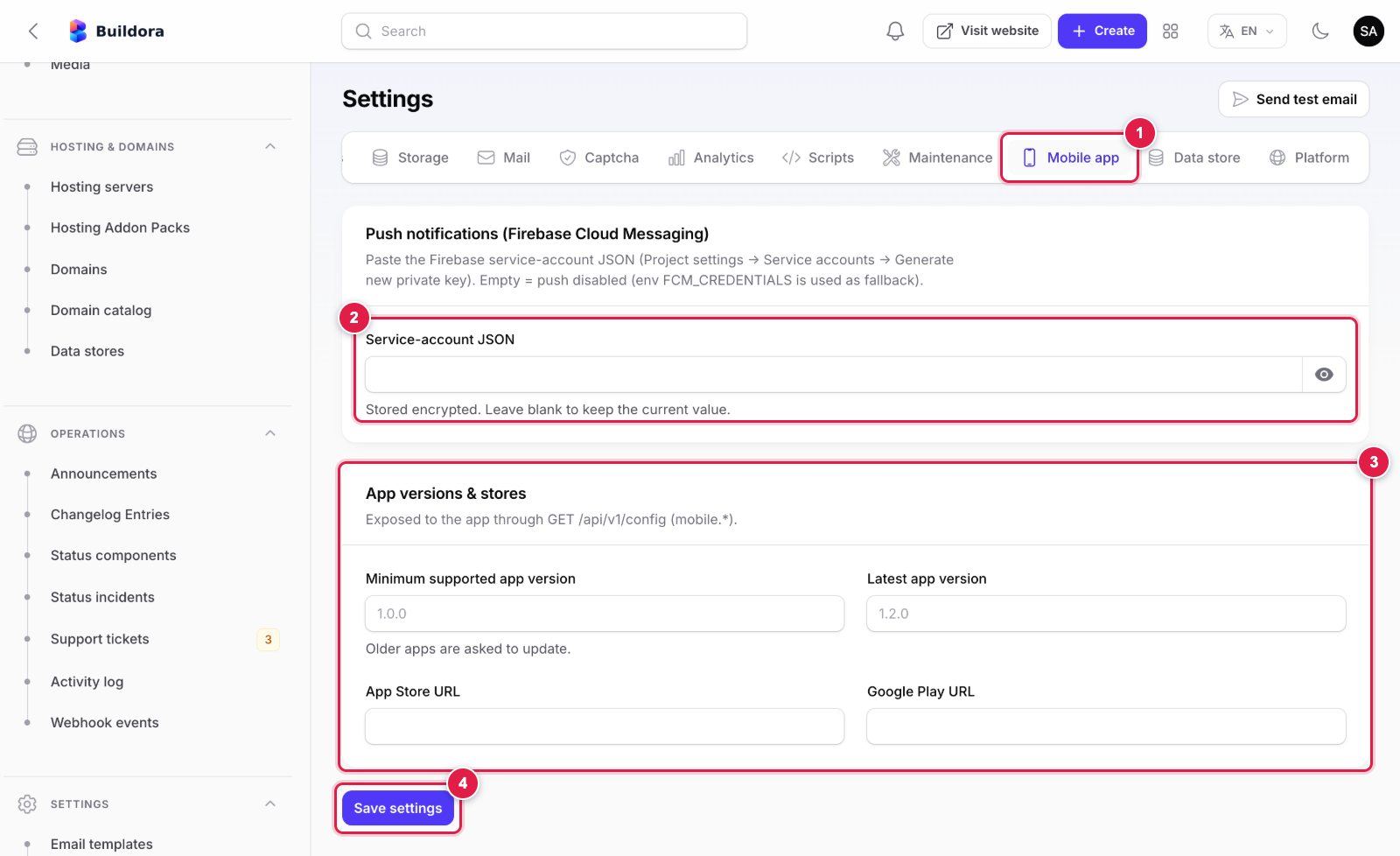
Server side: paste the service-account JSON in Settings → Mobile app (numbered fields explained in Common Setup → Push Notifications).
Push is optional. It relies on Firebase Cloud Messaging, a Google service: you create your own Firebase project and accept Google’s terms. No Firebase files ship with the item; without them Firebase fails to start quietly, push is disabled and everything else works.
Create a Firebase project
Add an Android app (your package id) and an iOS app (your bundle id).
Android
Download
google-services.jsonintoandroid/app/. Gradle applies the Google Services plugin automatically when the file exists.iOS
Drag
GoogleService-Info.plistintoios/Runnerin Xcode (“Copy items if needed”, target Runner). In Signing & Capabilities add Push Notifications (there is no entitlements file in the project yet; Xcode creates it) and check Background Modes → Remote notifications. Upload your APNs key (.p8) in Firebase → Project settings → Cloud Messaging.Server side
Paste the Firebase service-account JSON in the web admin: Settings → Mobile app → Push notifications (Firebase Cloud Messaging); it is stored encrypted in the database (the old
FCM_CREDENTIALSkey inbackend/.envis only read as a fallback). A queue worker must run (pushes are queued).
Using flutterfire configure instead? It generates lib/firebase_options.dart; then pass options: DefaultFirebaseOptions.currentPlatform to Firebase.initializeApp() in lib/core/push/push_service.dart (two places).
How it behaves: after login the app asks for permission and registers the token (POST /api/v1/mobile/devices); logout removes it. Android uses the channel buildora_default and shows foreground notifications as local notifications. A tap switches to the notification’s workspace and opens the target: lead, shop order, website (comments, generation, domain, publish), billing, support ticket, invitation, or the notifications list. Users turn push on or off per event in Notifications → Preferences.
Push needs a real iOS device (APNs does not deliver to the simulator). Firebase is a Google service with its own terms; the config files are git-ignored on purpose, never commit them to a public repository.
Google Sign-In
The “Continue with Google” button appears only when Google login is enabled in the web admin and the build has GOOGLE_SERVER_CLIENT_ID. You need three OAuth clients in one Google Cloud project: Web (used by the server and the web login), Android and iOS.
Create or pick a Google Cloud project
console.cloud.google.com → project selector → New project. If you use Firebase for push, you can use the Firebase project here too.
Configure the OAuth consent screen
APIs & Services → OAuth consent screen (Google Auth Platform → Branding): app name, support e-mail, your logo, your home page, privacy policy and terms URLs and authorised domains (
example.com). Scopes: onlyemail,profileandopenid. While the app is in “Testing”, only listed test users can sign in; publish the consent screen before going live.Web client (server client id)
Credentials → Create credentials → OAuth client ID → Web application. Authorised JavaScript origin:
https://example.com(your frontend). Authorised redirect URI:https://api.example.com/auth/google/callback(the backendGOOGLE_REDIRECT_URI). Copy the client ID and client secret.Android client
Create credentials → OAuth client ID → Android: your
applicationIdand the SHA-1 of every key that signs the app: the debug key (cd android && ./gradlew signingReport), your upload key (keytool -list -v -keystore ~/upload-keystore.jks -alias upload) and, after the first Play upload, the App signing key SHA-1 from Play Console → Setup → App integrity. One Android client per SHA-1.iOS client
Create credentials → OAuth client ID → iOS: your bundle id. Copy the iOS client ID and its iOS URL scheme (
com.googleusercontent.apps.…).Server (web admin)
Admin → Settings → Auth → Google login: enable “Continue with Google”, paste the Web Client ID and Client secret, the iOS client ID and the Android client ID, save. These values are stored in the database (the old
GOOGLE_CLIENT_ID,GOOGLE_CLIENT_SECRET,GOOGLE_IOS_CLIENT_ID,GOOGLE_ANDROID_CLIENT_IDkeys inbackend/.envare only read as a fallback). The backend accepts ID tokens issued for any of these clients.App build
In
env/prod.jsonsetGOOGLE_SERVER_CLIENT_IDto the Web client ID (not the Android one) andGOOGLE_IOS_CLIENT_IDto the iOS client ID.iOS Info.plist
In
ios/Runner/Info.plistuncomment the commented Google Sign-In block, put your iOS client ID inGIDClientID, and move its URL scheme (com.googleusercontent.apps.…) into the existingCFBundleURLTypesarray next tobuildora(a plist may contain only oneCFBundleURLTypeskey).Test
Build with
--dart-define-from-file=env/prod.jsonand sign in on a real Android device and an iPhone. On Android a DEVELOPER_ERROR / code 10 almost always means a missing SHA-1 or wrong package name.
Deep Links
The custom scheme buildora://app/… works out of the box on Android (intent filter) and iOS (CFBundleURLSchemes). If you change the scheme, change it in both files.
| Link | Opens |
|---|---|
buildora://app/reset-password?token=…&email=…, /password/reset/{token} | Native reset-password screen |
buildora://app/invitations/{token} | Accept or decline a workspace invitation |
buildora://app/verify-email, /email/verify/{id}/{hash} | E-mail verification |
/pricing, /changelog, /developers, /status, /contact, /about, /, /dashboard | Public pages, or Home |
Signed-out users go to login first and return to the link afterwards.
HTTPS app links are not active in 1.0.0. AndroidManifest.xml contains a commented-out autoVerify intent filter for app.your-domain.com; iOS Universal Links need an Associated Domains entitlement (applinks:your-host) that you add in Xcode. You must host /.well-known/assetlinks.json and /.well-known/apple-app-site-association on that domain yourself; the backend does not serve them. Until then only buildora:// links open the app.
Android Release
Create an upload keystore once
keytool -genkey -v -keystore ~/upload-keystore.jks -keyalg RSA -keysize 2048 -validity 10000 -alias uploadCreate android/key.properties
With
storePassword,keyPassword,keyAlias=uploadandstoreFile(absolute path). The file and*.keystoreare git-ignored: never commit them and back both up.Build
The App Bundle for Google Play, or an APK for sideloading.
storePassword=******
keyPassword=******
keyAlias=upload
storeFile=/ABSOLUTE/PATH/TO/upload-keystore.jks
flutter build appbundle --release --dart-define-from-file=env/prod.json
# → build/app/outputs/bundle/release/app-release.aab

flutter build apk --release --dart-define-from-file=env/prod.json
# → build/app/outputs/flutter-apk/app-release.apk
No debug-key fallback. A release build (flutter build apk, flutter build appbundle, flutter run --release) stops with “RELEASE SIGNING NOT CONFIGURED” when android/key.properties is missing or incomplete. Debug builds need nothing.
Code shrinking and obfuscation
Release builds already run R8 (isMinifyEnabled = true, isShrinkResources = true, rules in android/app/proguard-rules.pro). To also obfuscate the Dart code, add --obfuscate --split-debug-info and keep the symbol folder for each release (you need it to read crash stack traces):
flutter build appbundle --release --dart-define-from-file=env/prod.json \
    --obfuscate --split-debug-info=build/symbols/1.0.0+1
flutter build ipa --release --dart-define-from-file=env/prod.json \
    --obfuscate --split-debug-info=build/symbols/1.0.0+1
If you add a plugin that uses reflection and the release build crashes while debug works, add a -keep rule for it to proguard-rules.pro.
iOS Release & Signing
Select your own Apple team. The project ships without a development team. Choose your team under Runner → Signing & Capabilities (and for RunnerTests) before the first build, or Xcode cannot sign it.
Open the workspace
ios/Runner.xcworkspacein Xcode. Packages resolve through Swift Package Manager.Signing
Your Team, your Bundle Identifier, automatic signing (or your own profiles). Add Push Notifications if you use Firebase, and Associated Domains if you set up Universal Links.
Version
Make sure version and build match
pubspec.yaml.Build and upload
Build the IPA, then upload
build/ios/ipa/*.ipawith Transporter, or use Xcode → Product → Archive → Distribute.
flutter build ipa --release --dart-define-from-file=env/prod.json
Store Submission
- Own package/bundle id, app name, icons, splash, release keystore and your own Apple team.
API_BASE_URLandWEB_APP_URLpoint at your production HTTPS hosts;supportUrl,privacyUrlandtermsUrlpoint at real pages.- Store listings, screenshots and the data-safety / privacy-label answers: the app collects name and e-mail for login, a push token when push is on, and uses the camera and photo library for uploads.
- A reviewer test account on your server with sample websites and leads (two-factor off for that account).
- Version and build number raised for every upload.
Account deletion (Apple 5.1.1(v), Google Play): the app has an in-app Settings → Account → Delete account screen. The user confirms with their password (Google sign-ups can request a password e-mail from the same screen); the API (POST /api/v1/account/delete-request) schedules the deletion with a 14-day grace period that can be cancelled in the app (POST /api/v1/account/delete-cancel), then the app signs out and removes the push token. The Laravel scheduler must run for the purge to happen.
Purchases (App Store 3.1.1): the iOS build sells nothing. On iOS the app hides plans, prices, checkout, coupons, credit packs and every upgrade or “buy” link, and refuses to open billing, pricing or checkout pages; users still see their plan, credits and invoices and can cancel. On Android, plan and credit checkout always opens in the external browser, never inside the app: every in-app web view (the mobile editor, previews) hands your platform’s billing, pricing and checkout pages and any payment-gateway page to the browser instead of loading them, and other web links also open in the external browser (a customer website’s own pricing page still previews normally). --dart-define=DISABLE_EXTERNAL_PURCHASES=true removes purchasing from the Android app entirely (recommended if your Google Play listing must not link to external payments). The switch lives in lib/core/config/store_policy.dart.
Project Layout
lib/
  main.dart, app.dart     entry point and root widget
  core/
    config/               app_config.dart (REBRAND HERE)
    network/              Dio API client, interceptor, pagination, workspace scope
    router/               go_router routes and shell
    push/                 Firebase messaging and local notifications
    storage/              secure token storage, preferences
    theme/                Material 3 light/dark theme
    widgets/              shared widgets (AppLogo, error/retry views, ...)
  features/               one folder per area: auth, home, websites, ai, templates,
                          forms, media, blog, leads, crm, inbox, helpdesk, shop,
                          business, marketing, team, billing, notifications, ...
                          each with data / domain / application / presentation
  l10n/                   app_en.arb, app_bn.arb, app_ar.arb, app_fr.arb
assets/brand/             icon, logos and splash image
env/example.json          build-time configuration template
test/                     unit and widget tests
Module files (websites_module.dart, ai_module.dart, marketing_module.dart, business_module.dart, account_module.dart) register their routes and More-tab entries. The app is online-only: there is no local database or offline queue; network errors show a Retry view and lists support pull-to-refresh.
Troubleshooting
| Symptom | Fix |
|---|---|
| “Cannot reach the server” / Retry on the splash | Check API_BASE_URL (no /api/v1, HTTPS in release). On a real device use the LAN IP, not localhost. |
| Works in debug, fails in release | Release builds block cleartext HTTP: use an HTTPS backend. |
| 401 or “session expired” right after login | The backend’s /api/v1/mobile/auth/* routes are not reachable or a proxy strips the Authorization header; test /api/v1/me with the token. |
| Login refused with a maintenance message | Maintenance mode is on in Settings → Maintenance. |
| No “Sign up” link | Public registration is off in Settings → Auth. |
| Google button missing | Enable Google login in the admin and set GOOGLE_SERVER_CLIENT_ID. |
| Google sign-in fails on Android | The SHA-1 of the key that signed the build (debug, upload or Play App Signing) is not registered in the Android OAuth client. |
| No permission prompt for notifications | Expected without Firebase files: push stays off silently and the rest of the app works. |
| No push notifications | Missing Firebase files, server and app in different Firebase projects, no APNs key or Push capability on iOS, simulator instead of a device, or no queue worker on the server. |
| “Open full editor” opens the wrong site | WEB_APP_URL is not your dashboard URL. |
| iOS signing error | Select your own Team and a unique bundle id on the Runner target. |
| Release build stops with “RELEASE SIGNING NOT CONFIGURED” | android/key.properties is missing or lacks storeFile, storePassword, keyAlias or keyPassword (see Android Release). |
| Release build crashes, debug works | An R8 rule is missing for a plugin: add a -keep rule to android/app/proguard-rules.pro. |
| Every request returns 404 | API_BASE_URL contains /api/v1 or a trailing slash, or points at the frontend instead of the backend. |
| Google: DEVELOPER_ERROR / code 10 on Android | SHA-1 of the signing key or the package name is not registered in an Android OAuth client. |
flutter analyze reports missing localizations | Run flutter gen-l10n. |
Credits & Licences
All 158 resolved Dart/Flutter packages are permissive: BSD-3-Clause (121), MIT (26), Apache-2.0 (9), BSD-2-Clause (1) and MPL-2.0 (1: dbus, used only by Linux desktop plugins and not compiled into the Android or iOS app). Main packages: Flutter SDK, flutter_riverpod, go_router, dio, firebase_core and firebase_messaging, google_sign_in, flutter_local_notifications, flutter_secure_storage, google_fonts, image_picker, file_picker, fl_chart, url_launcher, webview_flutter (read-only template preview only) and shared_preferences.
- The Inter font (SIL Open Font License 1.1) is downloaded from Google Fonts at runtime; bundle it as an asset if you prefer no external request (see Theme & Font) and mention it in your privacy policy.
- Firebase and Google Sign-In libraries are open source, but the services are Google’s: you use them under your own Google account and terms.
- The brand images in
assets/brand/are the item’s own artwork; replace them with yours when you rebrand.
